

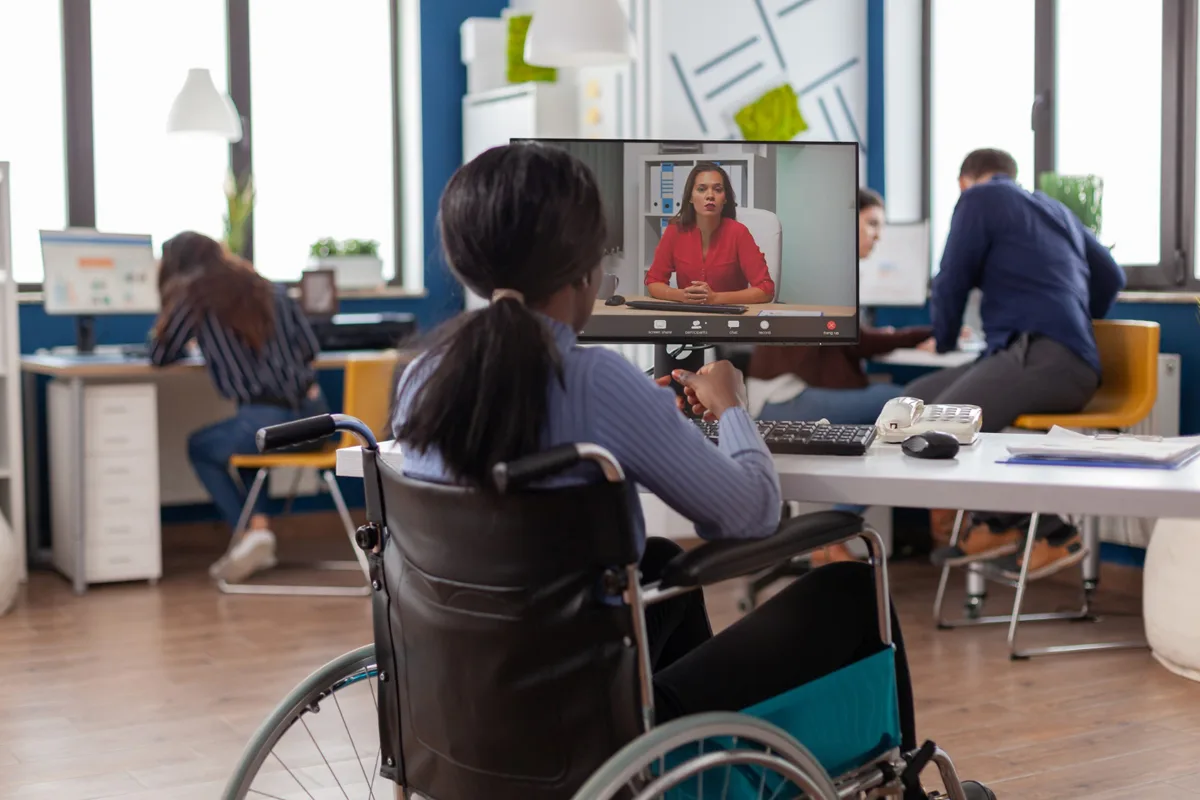
Good audio and video accessibility makes sure every viewer and listener can engage with your media from the very first draft. Plan captions, transcripts, and descriptions early; choose an inclusive player, and test with assistive technologies to ensure clarity and reach.
Why audio and video accessibility matters
Audio and video accessibility is not just compliance - it is good design. When people with diverse sensory, cognitive, or motor needs can use your materials, you expand reach, improve engagement, and reduce legal risk. Accessibility also boosts search visibility because text alternatives make content discoverable by search engines and usable in noisy or silent environments.

Core elements of audio and video accessibility
- Captions and subtitles
- Provide accurate captions that reflect spoken words, speaker identification, and important non-speech sounds such as [music], [applause], or [laughter].
- Use closed captions so viewers can toggle text on and off; reserve open captions only when burning text into the video is necessary.
- Keep caption language concise and readable, match reading speed to on-screen timing.
- Provide accurate captions that reflect spoken words, speaker identification, and important non-speech sounds such as [music], [applause], or [laughter].
- Transcripts
- Offer a verbatim transcript for every audio file and a descriptive transcript for videos that includes visual scene descriptions and timestamps.
- Publish transcripts in HTML to improve SEO and provide downloadable formats (TXT or PDF) for offline access.
- Offer a verbatim transcript for every audio file and a descriptive transcript for videos that includes visual scene descriptions and timestamps.
- Audio descriptions
- Add short, narrated descriptions that explain essential visual elements. Information during natural pauses in dialogue.
- For complex visuals, provide an extended description as a separate audio track or downloadable file.
- Add short, narrated descriptions that explain essential visual elements. Information during natural pauses in dialogue.
- Accessible player features
- Choose a player that supports keyboard navigation, screen reader labels, caption toggles, adjustable playback speed, and volume controls.
- Ensure controls are visible, logically ordered, and operable without a mouse.
- Choose a player that supports keyboard navigation, screen reader labels, caption toggles, adjustable playback speed, and volume controls.

How to make audio accessible (step-by-step)
- Plan transcripts during scripting. Mark speaker changes and non-speech cues in the script so that transcripts are accurate and useful.
- Record with clarity. Use directional microphones, quiet rooms, and consistent levels to improve intelligibility and transcription accuracy.
- Create a verbatim transcript. Include speaker names, timestamps, and non-speech cues; publish it alongside the audio.
- Offer multiple formats. Provide HTML for web indexing and downloadable text or PDF for users who prefer offline reading.
- Test with assistive tech. Confirm that screen readers can access transcript links and that the transcript is easy to navigate.
How to make videos accessible (step-by-step)
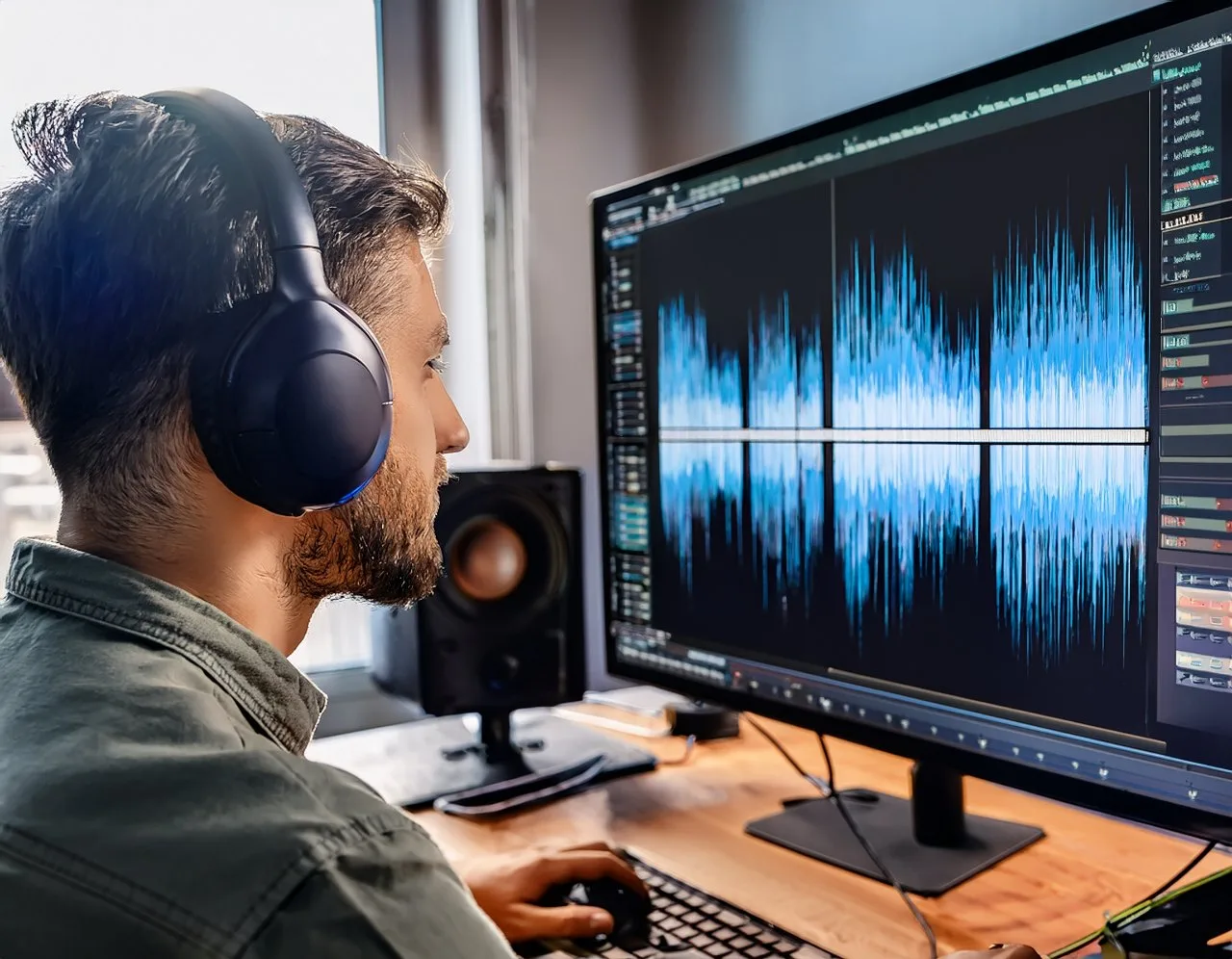
- Integrate captions into production. Add caption cues to the storyboard so timing and speaker IDs are built into the workflow.
- Use human-reviewed captions. Automated captions are a useful first pass, but always proofread and correct errors, especially for names, jargon, and overlapping speech.
- Add audio descriptions. Insert brief descriptions during pauses or provide an alternate version with extended narration.
- Design on-screen text for readability. Use high-contrast colors, large fonts, and leave text on screen long enough to read comfortably.
- Avoid auto-play and flashing content. Let users control playback and follow safety thresholds for flashing to prevent seizures.
- Provide chapter markers and timestamps. These help users navigate long videos and locate specific sections quickly.
Production Best Practices
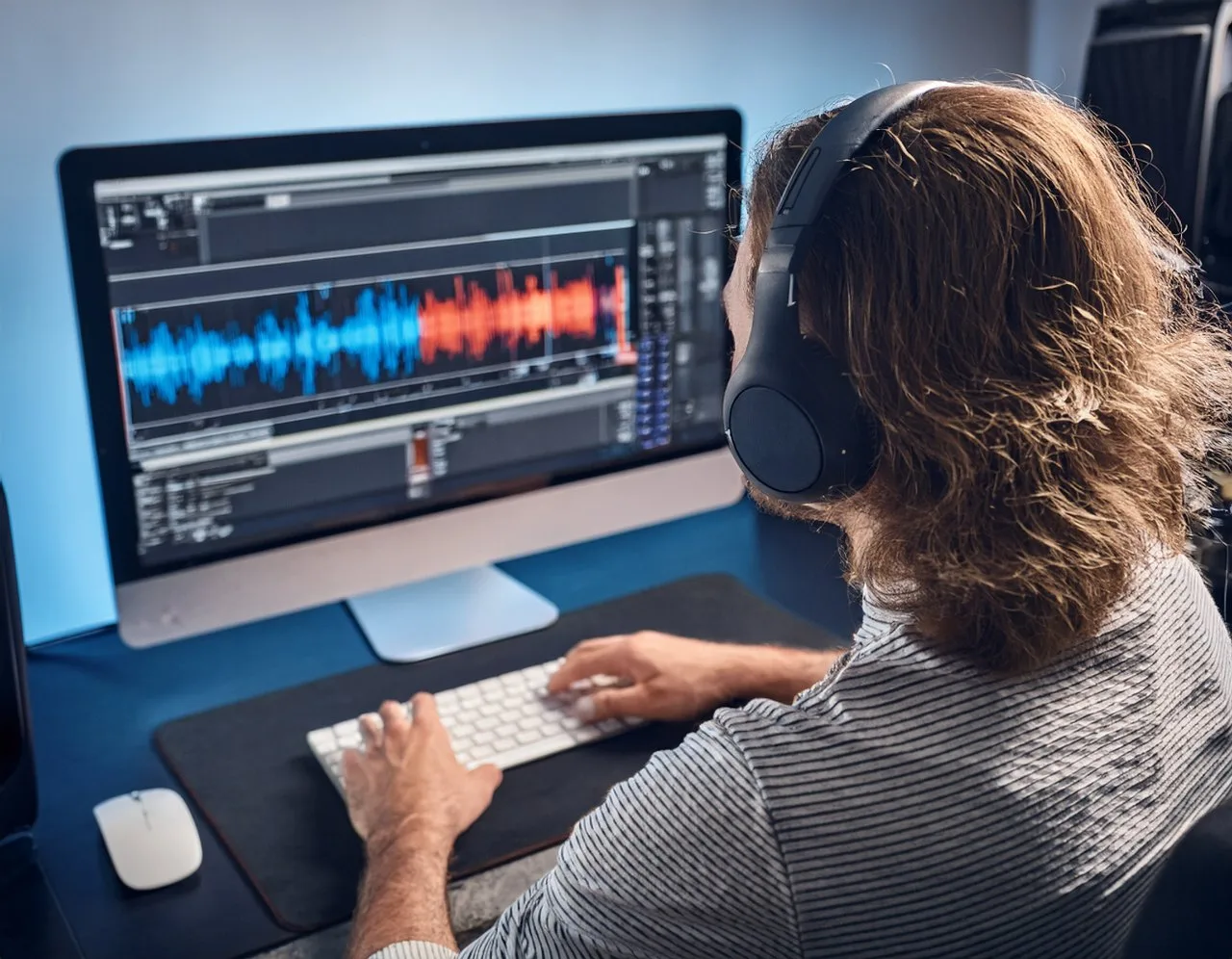
- Start early. Audio and video accessibility is cheaper and more effective when planned during scripting and storyboarding.
- Keep audio clean. Minimize background noise and normalize levels to help both listeners and transcribers.
- Use standard formats. Publish captions in SRT or VTT and transcripts in HTML or plain text with timestamps.
- Label media clearly. Add descriptive titles and metadata so assistive tools and search engines can surface your content.
Testing and Quality Assurance
- Keyboard testing: Ensure every control is reachable and operable using only the keyboard, with clear focus indicators and a logical tab order.
- Screen reader testing: Verify controls have descriptive accessible names, correct ARIA roles, and that focus order matches the visual layout.
- Caption accuracy: Confirm captions are synchronized with audio, include speaker labels and non-speech cues, and are free of transcription errors.
- Audio description checks: Validate timing, clarity, and completeness of narrated descriptions and ensure they do not overlap with dialogue.
- Transcript verification: Ensure transcripts include timestamps, speaker IDs, and are easy to navigate.
- User testing: Recruit people with diverse disabilities to perform real tasks, gather qualitative feedback, and prioritize fixes.
- Documentation and iteration: Record test results, track remediation progress, and repeat testing until issues are resolved.
Compliance, tools, and formats
- Aim for Recognized Standards. WCAG 2.1 AA sets the audio and video accessibility requirements most laws cite: captions (1.2.2), audio description (1.2.5) and transcripts (1.2.1, 1.2.3).
- Common File Formats: Use SRT/VTT for captions, HTML for transcripts, and separate audio tracks or files for descriptions.
- Captioning Tools: Use automated services for drafts, but always perform human review; for live events, prefer professional captioners when accuracy is critical.
Implementation roadmap
- Audit existing media against audio and video accessibility requirements to identify gaps.
- Prioritize high-traffic and legally sensitive items.
- Remediate with human-reviewed captions, transcripts, and descriptions.
- Publish with accessible players and structured metadata.
- Monitor analytics and user feedback to refine processes.
Common pitfalls and how to avoid them
- Relying only on automation. Machine captions often misinterpret accents, technical terms, and overlapping speech - always review.
- Poor visual contrast. Small, low-contrast text is unreadable on many devices; design for legibility.
- Hidden controls. Don’t bury essential features like captions behind hard-to-reach menus.
- Skipping user testing. Automated checks miss usability problems that real users will encounter.
Measuring success
- Track accessibility scorecards against internal audio and video accessibility standards and recognised checkpoints, measuring compliance, remediation progress, and improvements over time.
- Collect user feedback focused on caption quality, playback problems, missing descriptions, and navigation barriers; categorize reports and prioritize fixes.
- Monitor engagement metrics such as watch time, completion rate, search traffic, and page dwell time for content with transcripts and captions to assess reach and discoverability.
- Use analytics and qualitative feedback together to set targets, report outcomes, and iterate on production workflows to continuously improve accessibility.
- Report accessibility KPIs to stakeholders regularly, including remediation timelines, resource needs, and measurable goals for ongoing accountability monthly.
Audio and video accessibility: frequently asked questions
What does WCAG require for audio and video accessibility?
At Level AA: captions for all pre-recorded video with sound (1.2.2) and for live video (1.2.4), a transcript or audio description for pre-recorded video (1.2.3) and audio description of video (1.2.5), and a transcript for audio-only content (1.2.1). Level AAA adds sign language and extended audio description.
Are automatic captions good enough?
As a first draft only. Automatic captions typically reach 80 to 95 per cent accuracy, which sounds high until you realise one word in ten is wrong, and names, accents and technical terms fail most. Human review is the difference between a caption track and audio and video accessibility.
Do I need audio description for every video?
Only where visuals carry information that the soundtrack does not - charts, on-screen text, demonstrations, silent action. A talking-head interview usually needs none. WCAG lets you provide a descriptive transcript instead at Level A, which keeps audio and video accessibility manageable for small teams.
Which video players support audio and video accessibility?
YouTube and Vimeo players support captions and keyboard control; Able Player and Plyr add audio description tracks, transcripts and full screen reader labelling. Whatever the player, test it with a keyboard and a screen reader before you embed it. Our web accessibility case study shows how embedded media is checked during an audit.
Does audio and video accessibility help SEO?
Yes. Transcripts and captions give search engines the full text of your media, which is otherwise invisible to them. Pages with transcripts consistently gain search traffic and longer dwell time, so audio and video accessibility pays for itself twice.
✅ Conclusion
Audio and video accessibility transforms media into a resource everyone can use. Adding captions, transcripts, audio descriptions, and accessible controls to your process makes your media better for users, helps you reach more people, and ensures you meet all requirements. Start small, prioritize high-affected content, and iterate based on testing and feedback to make inclusive media a sustainable habit across teams and platforms for lasting, measurable organizational impact.
Learn more at ananyoo.com.
