
Ariade is an accessible Shopify theme built to WCAG 2.2 AA. This Shopify theme documentation explains how to set up every part of the theme in the Shopify theme editor. It is written for store owners; no coding is needed.
Before you start: duplicate your theme. In Shopify admin go to Online Store > Themes, open the menu (…) next to Ariade and choose Duplicate. Make changes on the copy, preview them, then publish. If something goes wrong you can switch back in one click.
01 Install and first steps
Your downloads
Set up Ariade in 3 steps
Buy Ariade for Shopify once and your theme files wait in My account > Downloads. Start with the theme; the other two are optional.
- Start here
Ariade for Shopify
The accessible theme, built to WCAG 2.2 AA. The zip comes with your order, in My account > Downloads.
Get Ariade for Shopify - Optional
Demo store settings
The same theme with the demo store’s look. Included with your purchase, next to the theme zip.
Open my downloads - Optional
Setup Check
We check 6 key pages by hand once your content is in, send a written report and check again after your fixes.
Add the Setup Check
Install the theme
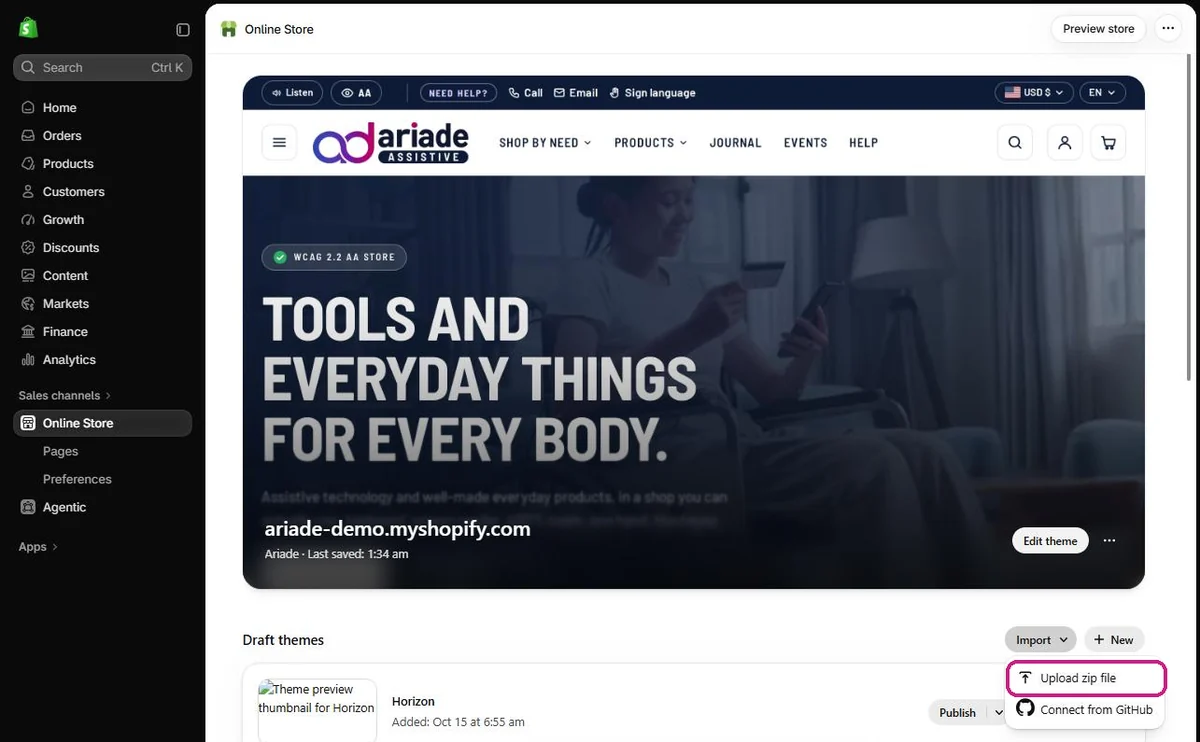
- In your Shopify admin, go to Online Store (the Themes page). Under Draft themes, click Import and choose Upload zip file.
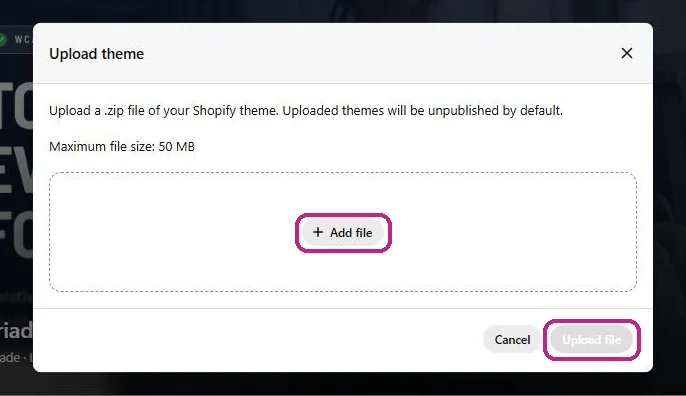
- Click Add file and choose the Ariade zip you downloaded: the theme zip for a clean start, or the demo store settings zip for the demo’s look. Then click Upload file.
- Wait while Shopify uploads and processes the theme. Ariade appears under Draft themes, unpublished, so your live store does not change.
- Click Edit theme to set it up. When you are ready, click Publish to make Ariade your live theme.
First steps in the theme editor
- Before big changes, duplicate the theme (see above) and click Edit theme on the copy.
- Upload your logo in Theme settings > Logo and favicon. Also upload a white or light logo for the dark footer in the Footer section.
- Create the menus the theme uses (Content > Menus): main-menu (header), footer (footer columns), and optionally shop-by-need, used to order the "Helps with" tags.
- Create these pages (Online Store > Pages) and pick the matching template in the page's Theme template box: Contact (
contact), Accessibility statement (accessibility), Store locator (stores), About (about) and My account (account).
What to fill in after installing
Check these after installing. Everything below is in the theme editor (Edit theme).
| What | Where in the theme editor |
|---|---|
| Phone, email and opening hours | Theme settings > Store contact. The theme starts with sample details, so replace them with yours. They appear in the top bar, the footer and the cart, so customers can always reach a person. |
| Contact page and sign language page | Theme settings > Store contact. Both start as /pages/contact, the contact page address most Shopify stores use. |
| Accessibility statement | Theme settings > Accessibility. It starts as /pages/accessibility: create that page with the accessibility template. |
| Home page sections | Sections that show products or collections use placeholders until you choose your own in each section’s settings. |
| Demo store settings zip only | It brings the demo store’s settings and page layouts, not its products, collections, pages, menus or images. Sections that point to those show placeholders until you choose your own, and links to the demo’s pages need matching pages or new links. |
02 Theme settings
Open Customize > Theme settings (the gear icon).
Logo and favicon
Logo, logo width and the small browser-tab icon.
Demo home page (header and browser tab).
Colors
Six colors in pairs: page background, text and links; card background; button background and button text. The defaults pass WCAG 2.2 AA.
While you edit, a warning appears in the preview if any pair falls below AA (4.5 to 1 for text, 3 to 1 for button and field outlines). Only you see this warning, never your customers. Fix every warning before you publish.
Demo home page. Try High contrast in the AA panel to see the colours change.
Typography
Heading and body fonts from Shopify's font library. Choose fonts with clear letter shapes; avoid thin or decorative fonts for body text.
Demo home page (Barlow headings and body text).
Contact
Phone, email and opening hours, plus links to your contact and sign language call pages.
Demo the Call, Email and Sign language links in the top bar of any page, and the Contact page.
Accessibility
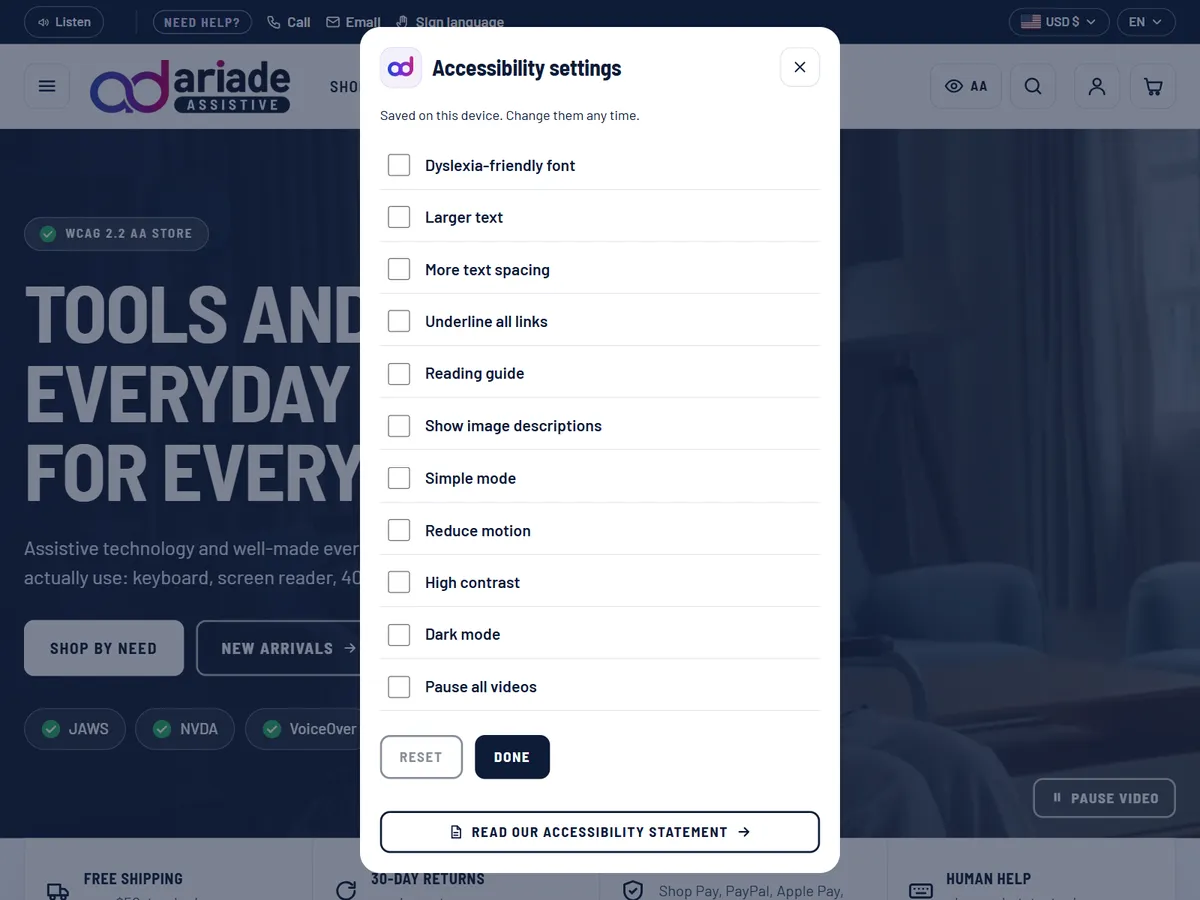
Where the accessibility buttons go: Top bar (recommended) or Header. In the top bar, Listen and the Accessibility settings button (AA) come first on every page, right after “Skip to content”; if the top bar is hidden or removed, they show in the header by themselves. Two switches turn Listen and the AA button on or off. Customers can turn on a dyslexia-friendly font, larger text, more text spacing (the WCAG 1.4.12 values), underlined links, a reading guide, image descriptions written on pictures, a simple one-column mode, reduced motion, high contrast, dark mode and paused videos. If their device already asks for more contrast or less motion, the panel turns those on by itself; a choice made in the panel always wins. Choices are saved on their device, and Reset turns everything off (it is unavailable until a setting has been changed, and the change is announced). Also links your accessibility statement. The Accessibility guard (see Built-in features) has its own switch here too.
Demo press the AA button in the top bar of any page and try each option.
Product cards
Show star ratings, "Helps with" tags and the quick Add to cart button on product cards.
Demo See better collection (stars, "Helps with" tags, Add to cart).
Cart
Cart drawer or cart page, the free shipping goal shown as a progress bar, and order notes.
Demo cart page (add a product first; the free shipping bar is at the top).
Journal
Blog tags to treat as categories (Shopify blogs have no categories). They are shown first and highlighted on cards and articles.
Demo Journal (category tags first and highlighted).
Social media
Links for Facebook, Instagram, YouTube, TikTok, X, Pinterest, Threads, LinkedIn and WhatsApp. Leave a field empty to hide that icon.
Demo the icons in the footer of any page.
03 Sections
Add sections with Add section in the editor. Every section is keyboard accessible and announces changes to screen readers; you only need to fill in the content.
| Section | What it does for accessibility | How to set it up | See it in the demo |
|---|---|---|---|
| Top bar | Listen and the accessibility settings button (AA) are the first buttons on every page, right after “Skip to content”. Listen reads the page aloud, with Pause and Stop. The sale countdown is fixed text that screen readers read as words; it never ticks. | Short message, optional sale end date (a fixed "ends in" time, never a ticking countdown), and Call, Email and Sign language links from Theme settings. Listen and AA can move to the header in Theme settings > Accessibility. | Home |
| Header | Menus say if they are open or closed, and Escape closes them. Listen and the accessibility settings button show here when the top bar is hidden or Header is chosen. | Choose the main menu. Items with sub-items open accessible drop-down menus. Search, account and cart are built in. | Home |
| Hero with video | The video has a Pause button and never plays for people who turn off motion. | Heading, text, two buttons and an image or a short muted video. The video has a visible Pause button and never plays when customers ask for reduced motion. | Home |
| Benefits strip | Screen readers hear it as a named list; the icons are skipped. | Up to four short promises with icons, for example free shipping or 30-day returns. | Home |
| Collection tiles | One clear link per tile, never two links to the same place. | Choose collections, for example by need (See better, Hear better). Each tile shows an image and a short description. | Home |
| Featured products | Each button says which product it is for. | Choose a collection and how many products to show. | Home |
| Slideshow | Never moves on its own unless you turn that on; then it stops when the mouse or keyboard is on it, and for people who turn off motion. | Slides with image, heading, text and button. No automatic rotation by default; if you turn it on, a Pause button comes first and rotation stops on hover, on keyboard focus and for reduced motion. Slide changes are announced only when the customer makes them. | Home ("What is new this season") |
| Featured product | Screen readers say the new price and stock when an option changes, without moving the shopper. | Choose one product. Blocks: kicker, title, price, description, variant picker, buy buttons, link to the product page, and app blocks. | Home ("Product of the month") |
| Collection guide | Questions open and close with the keyboard, using the browser’s standard controls. | Helps customers choose inside a collection, with tiles that link to searches or collections. | See better collection |
| Image with text | Has a proper heading. You write the image description. | Image, heading, text and button. Always write a description for the image. | Home |
| Image with steps | Steps are a numbered list; the big decorative numbers are skipped by screen readers. | An image with numbered steps, for example how you test products. | Home |
| Testimonials | Each quote names its customer. Screen readers say “Rated 5 out of 5”, not star symbols. | Customer quotes with name and detail. | Home |
| Rich text | Has a proper heading, so screen reader users can jump to it. | Heading, text and button, left or center aligned. | Home ("Our promise") |
| Call to action panel | The email box has a visible label. Errors and the thank-you message are read aloud. | A highlighted panel with heading, text and up to two buttons. | About |
| Help rows | A simple list with one clear link per row. | Rows of help topics with icons and links, for the contact and help pages. | Home |
| Newsletter | The email box has a label. Errors point to the box, and success is read aloud. | Email sign-up with a clear label and a success message. | The footer of any page |
| Events teaser, Upcoming events | Each Register link says which event it is for and that it opens a new window. | Show upcoming workshops and webinars from your Events blog. | Home, an event |
| Related articles | A simple list with one link per card: the article title. | Latest or related posts from a blog. | An article |
| About header, About story, Promises, Steps, About in numbers | Steps are read as “Step 1, Step 2”. Decorative icons and numbers are skipped. | Sections for an About page: story, values, process and key figures. | About |
| Store locator | Shoppers filter stores by access (step-free, hearing loop, quiet room); screen readers say how many stores match. | Stores as blocks with address, time zone and opening hours. | Stores |
| Product reviews, Questions and answers | Screen readers say “Rated 4 out of 5”; each review has its own heading and is read in its own language. Questions open and close with the keyboard. | On product pages. Reviews come from the Customer review entries (see Built-in features); questions are blocks you write. | Clarity Hearing Amplifier |
| Product recommendations, Recently viewed | Only shown when there are products to show, each list with its own heading. | Related and complementary products from Shopify, and the customer's recently viewed products. | Product page, cart |
| Theme showcase | Each panel opens with a button that says if it is open or closed. English text is read with an English voice on other languages. | Optional demo section that presents theme features. Remove it from your home page if you do not need it. | Home ("Take a look inside") |
| Custom Liquid | Reminds you to give embedded videos and maps a title and keep headings in order. | Paste app snippets or other Liquid code. Give any embedded iframe a title and keep headings in order. | Holds your own code, so there is nothing to show on its own. |
| Apps | A plain container; your app blocks keep their own accessibility. | A place for app blocks on any page. | Holds your app blocks, so there is nothing to show on its own. |
| Footer | Each menu is named by its heading and marks the page you are on. Social and payment icons have names screen readers read. | Help panel with photo and buttons, newsletter, menu columns, payment icons, white footer logo, social icons, and the Follow on Shop button (shown when Shop Pay is on). | Any page |
04 Page templates
Product
Accessibility
- Options are big buttons with names, not tiny dropdowns
- “Sold out” is written in words; screen readers say price and stock changes without moving the shopper
- Captioned video, a written transcript and an Accessibility details checklist
Blocks you can reorder: breadcrumbs, "Helps with" tags, title, vendor and SKU, rating, price with savings, tax note with Shop Pay Installments, variant picker (color swatches and option pills), stock and pickup, buy buttons, trust list, description and accordions, and app blocks. Below it: reviews, questions and answers, recommendations and recently viewed products.
Demo Clarity Hearing Amplifier (video, swatches, Accessibility details, reviews), and the bulk order page.
Collection
Accessibility
- Shoppers filter by their need: low vision, hearing, mobility and more
- Results update without reloading, the shopper stays in place, and screen readers say the new count
- Filters work even without JavaScript; on phones they open in their own panel
- Listen in the top bar reads the page aloud, with Pause and Stop
Filters and sorting come from Shopify's free Search & Discovery app (by Shopify). On phones filters open in an accessible dialog.
Demo Hear better (filters, including Colour swatches; on a phone they open in a dialog).
Search
Accessibility
- Use the arrow keys to move through suggestions; the chosen one is clearly outlined and the count is read aloud
- Screen readers say how many results there are; the tab you are on is marked
- Listen in the top bar reads the results aloud, with Pause and Stop
Tabs for All, Products, Guides and Pages, with the same filters on the Products tab, and suggestions when nothing is found. The tabs switch the results without reloading the page: focus stays on the chosen tab and the new number of results is announced.
Demo search for "magnifier", and a search with no results.
Cart
Accessibility
- Each quantity box says which product it is for
- After a change the shopper stays on the same button, and screen readers say what changed
- Undo remove, with no time limit
Quantity steppers, order note, "Make it easier to use" delivery options, free shipping progress and unit prices.
Demo cart page (add a product first).
Blog, article and events
Accessibility
- Listen, first in the top bar, reads just the article text, with Pause and Stop; long articles start with an “On this page” list
- Event filters work with the arrow keys, Home and End
- Each event shows its access: captions, ASL, hearing loop, step-free
Reading time, table of contents, Listen, Print and Share, categories and tags, and accessible comment forms. Use a blog named Events with the events template for workshops and webinars.
Demo Journal, an article, Events and an event.
Contact, About, Accessibility statement, Store locator, My account, 404, Password, Gift card
Accessibility
- Forms: every box has a label, errors are listed and linked to their box, and the cursor jumps to the first error
- Accessibility statement with a known-limits table and a “report a barrier” form
- Account pages move the shopper to the heading of what they opened; Back returns them to where they were
Each has its own template and editable sections. The Accessibility statement template includes a known-limits table and a "Tell us about a barrier" form.
Demo Contact, About, Accessibility statement, Stores, My account (sign in first), 404, Password. The gift card page opens from the email sent after buying a gift card.
05 Built-in features (no apps needed)
Accessibility guard (in the theme editor)
Accessibility
- Shows you your own accessibility mistakes while you edit, so you never break accessibility by accident
- Each problem in plain words, with how to fix it and a Show button that points to it
- Only you see it, in the theme editor; shoppers never do
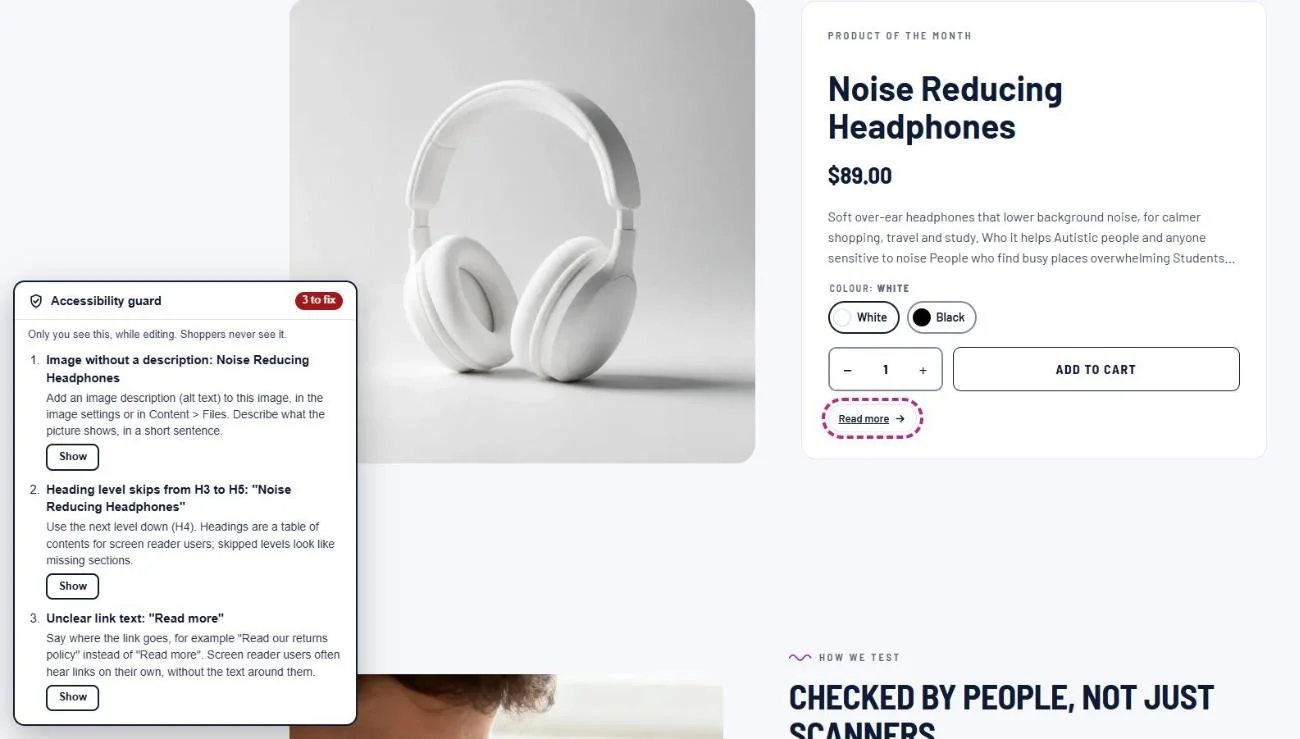
While you customize the theme, a small Accessibility guard panel in the corner of the preview lists what needs fixing on the page you are editing, and updates as you change sections:
- Images without a description (alt text): product photos, slideshow, image with text, article images and more.
- Headings that skip a level (for example H2 to H4), a page without a main heading, or more than one.
- Unclear link text such as "click here" or "read more", and links or buttons with no text at all.
- Links that open a new tab without saying so.
- Theme colors with too little contrast.
Turn it off in Theme settings > Accessibility > Show the accessibility guard in the theme editor.
Demo it only appears inside the theme editor, so it cannot be shown in the public demo. After installing Ariade, open Online Store > Themes > Customize and look for the Accessibility guard button at the bottom of the preview.
Reading guide
Accessibility
- A clear band follows the mouse, a finger or the keyboard; everything above and below is dimmed
- Helps people with dyslexia, ADHD or low vision keep their place on the line
A switch in the Accessibility settings panel (AA button). Nothing to set up.
Demo open the magnifier guide, press AA and turn on Reading guide, then move the mouse or press Tab.
Show image descriptions
Accessibility
- Writes each picture’s description on the picture itself, for people who find images hard to see or understand
- Screen readers are not affected; they already read the descriptions
A switch in the Accessibility settings panel. It shows the image descriptions you write in Shopify, so it also shows you where they are missing.
Demo open the Hear better collection, press AA and turn on Show image descriptions.
Dark mode
Accessibility
- A full dark colour set for people with light sensitivity, migraines or tired eyes
- Every page checked for colour contrast in dark mode; high contrast still wins when both are on
A switch in the Accessibility settings panel. It uses your Theme settings colors, so nothing extra to set up.
Demo press AA on any page and turn on Dark mode.
Simple mode
Accessibility
- One column, no carousels or decorative pictures, bigger buttons and text
- Less to process for people with cognitive disabilities, and bigger targets for people with tremor
A switch in the Accessibility settings panel. Slideshows show every slide as a list and never move.
Demo press AA on the home page and turn on Simple mode.
In short (easy-read summary)
Accessibility
- A 2-3 line plain-language summary at the top of each product, so the main point comes first
- Helps people with cognitive or learning disabilities, low literacy, fatigue or a second language
Add the In short block to the product template, then fill the product field In short (custom.in_short) with two or three short sentences. Products without it show nothing.
Demo Clarity Hearing Amplifier (the blue box under the title).
Sign language video
Accessibility
- The product explained in a sign language (ASL, BSL, LSF and others) for Deaf customers
- Opens only when the shopper asks, never plays by itself, and has its own player controls
Add the Sign language video block to the product template. Upload the video in the product field Sign language video (custom.sign_language_video) and, if you like, name the language in Sign language (custom.sign_language). Products without a video show nothing.
Demo shown on products that have a sign language video.
"Helps with" filter
Accessibility
- Shoppers filter by their need, not by product jargon
- After each filter the shopper stays in place and screen readers say the new count
Create a product metafield custom.helps_with (list of single line text) and add values such as Low vision or Arthritis. Then add it as a filter in Search & Discovery.
Demo See better collection, "Helps with" filter.
Product reviews
Accessibility
- Screen readers say “Rated 4 out of 5”; the breakdown is written as text, not only bars
- Filter reviews by who they helped; English reviews are read with an English voice on other languages
Reviews are entries of the Customer review type in Content > Metaobjects (name, rating, title, review, date, verified buyer, helped with). Link them to a product in its Reviews field. Set the product's standard Rating and Rating count fields so stars appear on product cards. Review apps can still add their own blocks to the Reviews section.
Demo Clarity Hearing Amplifier reviews (rating breakdown and "Filter by who it helped").
Email me when it is back
Accessibility
- The button says which product it is for; errors point to the email box
- The thank-you message is read aloud straight away
Sold-out products show a form that sends the request to your contact form inbox with the product name and link. Add a product metafield custom.restock_date (date) to show "Back in stock around [date]".
Demo Talking Wristwatch (sold out, back around 20 October).
My account page
Accessibility
- Opening an order takes the shopper to its heading; Back returns them to the button they used
- Order progress shown as steps, each read as done or still to come
With Shopify's customer accounts, create a page using the account template and add it as the first item of the menu customer-account-main-menu. Signed-in customers see their orders, order details, addresses and access settings in your theme's design. Sign-in and editing of the profile and addresses stay on Shopify's secure pages, which use your colors and fonts from Settings > Checkout > Customize.
Add a Sign out item as the last item of the same menu, linking to https://your-store.myshopify.com/customer_identity/logout (use your own store address, in full). Shopify's account pop-up in the header has no sign-out of its own, so without this item customers can only sign out from the account page.
Demo sign in from the person icon in the header, then open My account.
Product videos with captions and a transcript
Accessibility
- Captions are on by default, plus the full transcript as text
- Never plays on its own
Add a video to a product in its Media area. Then fill two product fields: Video captions (upload a WebVTT .vtt file; it appears as a CC track in the player) and Video transcript (the words spoken and what is shown). The transcript appears under the gallery as "Read the video transcript". Videos never play on their own. Both fields belong to the first video of the product.
Demo Clarity Hearing Amplifier (the video is the second picture in the gallery).
Colour swatch filters
Accessibility
- Never colour alone: the colour name and count are always shown
- Works the same with a keyboard and a screen reader
Collection filters can show a small colour dot next to each colour. The colour name and product count always stay, so the filter never relies on colour alone, and it works the same with a keyboard and a screen reader.
- Link your products' Color option to colour entries that have a colour (in the product, choose the option and Connect to metafield, or use your product category's Color field).
- In Apps > Search & Discovery > Filters, add a filter with that colour field as the source. Values with a colour show as swatches.
Demo Hear better collection, Colour filter (Black, Sand, Silver, Slate, White).
Bulk orders with a quick order list
Accessibility
- A table with headers, so each quantity box says which option it is for
- Screen readers say the total; errors are read aloud
For products bought in quantity, the Quick order list block shows every option in a table, each with its own quantity box, and adds them all to the cart with one button. The total is announced to screen readers once the shopper stops typing.
- Business (B2B) customers only (default): everyday shoppers see the normal option buttons; signed-in company buyers also get the table.
- A bulk order page for everyone: in the theme editor, create a new product template, remove the Variant picker and Buy buttons blocks, set the Quick order list to Everyone and turn on Show the table open. Then pick that template for the product in Shopify admin.
Demo Tactile Bump Dots Pack (four options: Clear or Orange, 120 or 480 dots).
Accessibility details
Accessibility
- Shoppers see who a product suits, for example one-hand use or large print
- A heading and a simple list; hidden when empty
A checklist block on product pages. Fill the product field Accessibility details (custom.accessibility_features, a list of short lines such as One-hand use or Large print guide included). Products without it show nothing.
Demo Clarity Hearing Amplifier (the box with ticks under the buttons).
Sticky add to cart bar
Accessibility
- Never covers the button or link the keyboard is on
- Stays open while the keyboard is inside it
After the shopper scrolls past the main Add to cart button, a bar with the product, the chosen option and an Add to cart button stays at the bottom of the screen. The page keeps room for it, so it never covers the item that has keyboard focus. Turn it off, or show it on small screens only, in the Product section.
Demo Clarity Hearing Amplifier (scroll down past Add to cart).
Undo after removing from the cart
Accessibility
- The Undo row takes the product’s place and is read aloud; the keyboard moves to its button
- No time limit; the Undo button names the product
When a product is removed from the cart page or drawer, a yellow "Removed" row takes its place with an Undo remove button. Keyboard focus moves to the button and screen readers hear what was removed. There is no time limit; Undo puts back the same option and quantity.
Demo add any product, open the cart page and press Remove.
Store locator
Accessibility
- Access features per store: step-free, hearing loop, quiet room, ASL staff
- Shoppers filter by them; screen readers say how many stores match
Add stores as blocks with address, time zone and opening hours. "Open now" and "Opens tomorrow" are worked out in each store's own time zone.
Demo Stores page (New York, Chicago and Austin).
06 Keeping your store accessible
Ariade handles structure, keyboard use and contrast. Your content matters too:
Image descriptions
Write alt text for every product and section image (Products > image > Add alt text). Describe what matters for a shopper. Leave it empty only for purely decorative images.
Headings
Use headings in order in product descriptions and pages (Heading 2, then Heading 3). Do not use bold text instead of headings.
Link text
Write links that make sense on their own, such as "Read the size guide", not "click here".
Videos
Add captions, and an audio description or transcript for videos that show important information.
Colors
Fix every warning the theme editor shows before you publish.
Accessibility statement
Keep your statement page up to date, including known limits and other ways to order.
07 Frequently asked questions
Is Ariade really WCAG 2.2 AA compliant?
The theme code is built and tested to WCAG 2.2 AA with automated tools (axe, WAVE, Lighthouse), keyboard-only use, screen readers and 400% zoom. Your store as a whole also depends on your content (images, videos, apps) and on pages hosted by Shopify such as checkout. See Keeping your store accessible.
Do I need apps for reviews or filters?
No. Reviews and back-in-stock requests are built in. Filters use Search & Discovery, a free app made by Shopify.
Why can't the theme change the look of the sign-in and checkout pages?
Shopify hosts these pages for security. The theme brands them with your colors, fonts and logo through Shopify's checkout settings, but their layout is set by Shopify.
Can I change the colors?
Yes, in Theme settings > Colors. The editor warns you if a color pair falls below the contrast customers need.
Does it work in other languages?
Yes. All theme text is translatable, and English and French are included. Add languages in Settings > Languages and translate with Shopify's Translate & Adapt app.
How do I update the theme?
When a new version is released, Shopify shows an update notice in Online Store > Themes. Updating adds a new copy with your settings; check it, then publish.
Can I edit the code?
You can, but changes to code are not covered by support and may affect accessibility. Always work on a duplicate. For custom changes we suggest hiring a Shopify Partner.
08 Support policy
How to reach us
Use the Ariade support form. Include your store URL and a description of the problem. You can attach a screenshot to the form.
Response time
We reply within 2 working days. Support hours are Monday to Saturday, 9 am to 9 pm India Standard Time (IST, UTC+5:30).
What is covered
Help with theme settings and sections, bugs in the theme's own code, and accessibility questions about the theme.
Not covered
Custom code changes, problems caused by edited theme code, third-party apps, and pages hosted by Shopify (checkout, sign-in, accounts).
Accessibility issues
A WCAG failure in the theme's own code is treated as a bug and fixed in a free update.
Updates
Bug fixes and Shopify platform updates are free for the life of the theme.
October 2026 update, after the external WCAG 2.2 AA audit (every finding fixed, re-test passed):
- Product cards show the rating number next to the stars.
- Quantity: the new quantity is announced, and minus is unavailable at the lowest quantity.
- The cart icon, Clear all and the remove-filter chips work as buttons (Enter and Space); filters and Clear all announce the new number of products.
- Search result tabs switch in place and keep focus on the chosen tab.
- Accessibility settings: the panel fits small screens and 400% zoom; Reset is announced and is unavailable until a setting is changed.
- Dark mode: the top bar and footer keep their contrast, placeholders are readable, and collection pictures show normally.
- The Share menu closes with Escape and returns focus to Share.
- Focus rings are always fully visible: quantity boxes, country and language lists, On this page lists and FAQ questions.
- On this page lists show each number once, the FAQ plus and minus signs are no longer read out, and the 404 heading includes "Error 404".