
Accessible Forms · WordPress plugin
Accessible Forms – built to get the errors right, too.
Most form plugins are accessible right up until something goes wrong – then they fail silently: a red border a screen reader never announces, an error message no one can find, focus left stranded at the bottom. Accessible Forms is built the opposite way: real labels, an error summary that takes focus and is announced, inline messages tied to each field, and entries stored safely in your own database. The result is accessible forms that keep working when it matters most. And they scale up gracefully: longer forms become short, guided steps, and file uploads stay switched off until you allow them – without ever losing accessibility.
Why it’s different
What Accessible Forms gets right
- Real labels and grouped fields – never a placeholder standing in for one.
- Errors are announced to screen readers, not just shown in red.
- Full keyboard support with a clear, visible focus ring.
- Entries stay in your own database – no third-party service.
- No forced tracking, and no squint-at-the-letters CAPTCHA – Turnstile and Akismet stay optional.
2 ways
Block + shortcode
WCAG AA
Built to
Your DB
Entries stored locally
Optional
Trackers · external calls
Why this exists
Forms are where accessibility quietly breaks.
A form can look perfect and still lock people out the moment it matters. Placeholder text used instead of a real label, so the field is unnamed for a screen reader. Required fields flagged only by a red outline – invisible to anyone who can’t see colour. An error message that appears visually but is never announced, with focus left at the submit button instead of moving to the problem. These are among the most common accessibility failures on the entire web, and they all happen at the worst possible moment: when someone is trying to reach you. Accessible forms have to handle that moment, not just the easy path.
Accessible Forms is built so the error path is as accessible as the happy path.
The part most plugins get wrong
Errors that everyone can find and fix.
When a submission fails, the plugin follows the pattern accessibility specialists recommend – an error summary at the top, plus a clear message beside every field that needs attention.
- A summary box takes focus and is announced, so the problem is heard, not just shown.
- Each summary item is a link that jumps focus straight to the field it’s about.
- Every field message is tied to its input with
aria-describedbyand markedaria-invalid. - Errors are never colour-only – there’s an icon and wording too.
- Fix a field and its message clears, and it drops out of the summary, as you go.
Two ways to add a form.
Build accessible forms visually in the editor, or drop one anywhere with a shortcode – the accessible markup is identical either way.
The Accessible Forms block
Add the block, then add fields – text, email, number, message, dropdown, checkboxes, radio groups, a file upload, even a step break for multi-step forms – each with a real label. Group choices get a proper fieldset and legend automatically.
+ → “Accessible Form” → add fields → publish
A simple shortcode
Already built a form? Reuse it anywhere – a widget area, a template, or another page – by id. Same accessible output, no duplication.
[ananyoo_form id=“42”]
Now does even more
Accessible forms that grow with you – without dropping accessibility.
A contact box is only the start. When your forms get longer, need a file, or you just want a second pair of eyes while you build, these accessible forms keep every step usable for everyone – no accessibility lost as your forms grow.
Multi-step forms
Add a “step break” and a long form becomes short, numbered steps – with a progress marker, Previous and Next buttons, a spoken “Step X of N”, and focus moved to each step as it opens. Turn JavaScript off and the whole form still works as one page, so nobody is left out.
Focus managed · announcedFile uploads, off by default
Let people attach a document – safely. A file field can be added any time, but nothing can be uploaded until you switch uploads on. Each field has its own size limit and its own list of allowed file types, and every file is checked on the server before it is saved.
Safe by defaultLive accessibility check
A panel beside the builder reviews your form as you work – flagging a missing label, an empty step, a dropdown with no options and more. Each result shows a symbol and a word, never colour alone, so you fix issues before they ever reach a visitor.
Build it rightAccessible email notifications
Both your notification and the visitor’s confirmation go out as accessible HTML email – a real data table with row headings, an alt-text logo and a plain-text version for every inbox. Pick one of six ready-made palettes, every band checked to WCAG AAA, or set your own header, body and footer colours with a live contrast check. Prefer no HTML at all? Send plain text only.
Six AAA palettes · per formAccessible forms that keep working when email doesn’t
Mail goes astray – a busy server, a spam folder, an SMTP plugin set up after the fact. Every submission is saved in your own database first, so nothing is ever lost, and one click on Resend notification sends it to you again, rebuilt exactly as it should have arrived. The person who wrote to you is never emailed twice.
One click · nothing lostKnow where a submission came from
An optional security section ends each notification with the time it arrived, the sender’s IP address linked to a location look-up you can click, their browser, operating system, device and language, and the pages involved – and the entry screen shows the very same details, so your dashboard and your inbox always agree.
Optional · nothing leaves your siteIn the editor
Build the form right in WordPress.
Add fields – now including a file upload or a step break for multi-step forms – set which are required, and write your help text, all from the block, with no separate settings screen and no code.

See what accessible forms send, not only what they show.
Most plugins ask you to trust that the notification email from your accessible forms is fine. Here it is, exactly as it lands. Accessible forms should stay accessible after the visitor presses Send, so every colour band is measured against WCAG contrast rules while you choose it – no guesswork, and no unreadable message waiting in your inbox at seven in the morning.
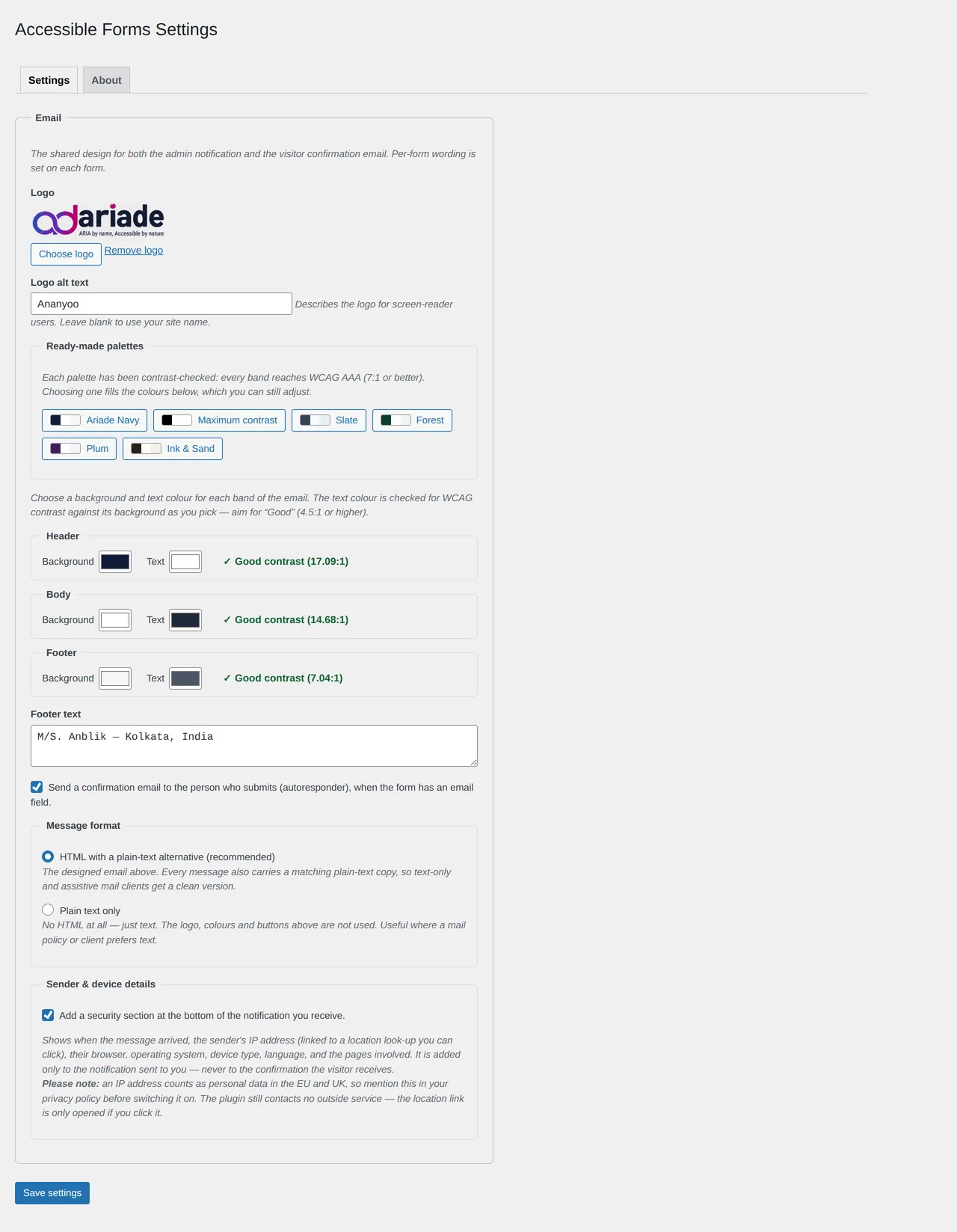
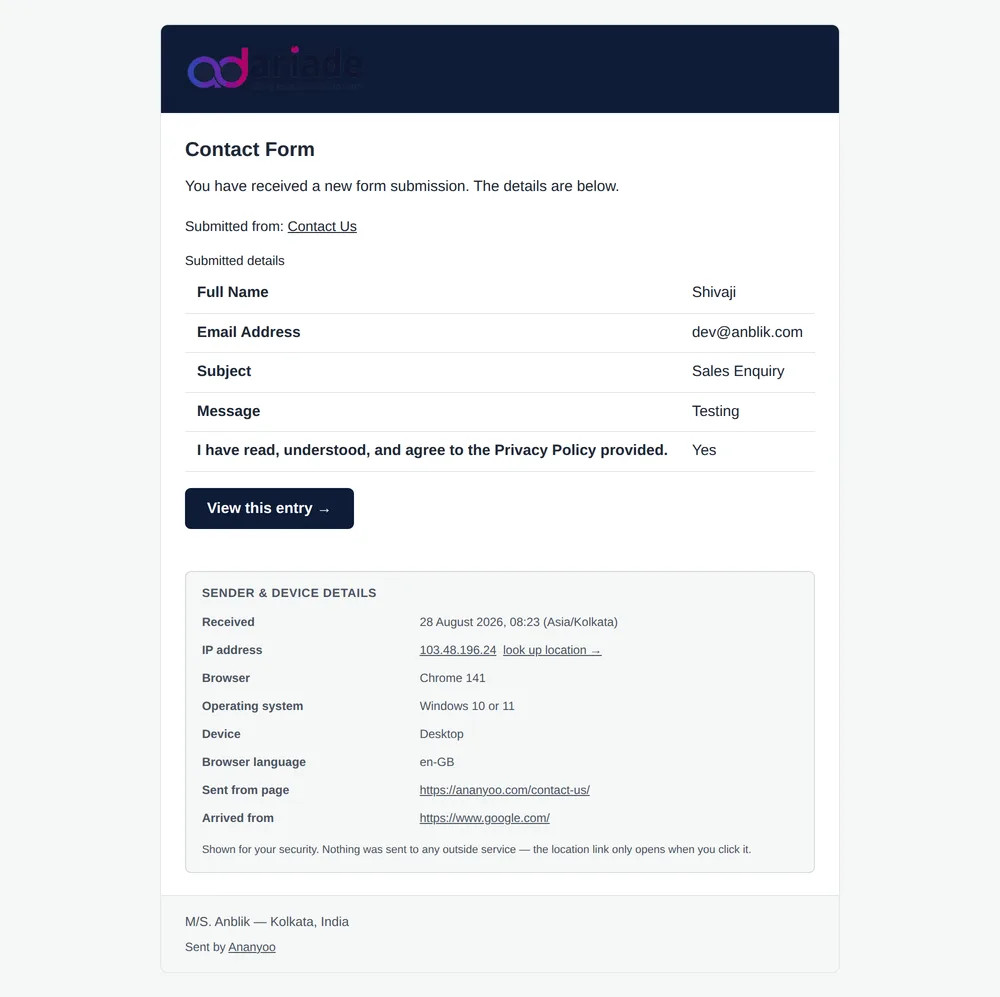
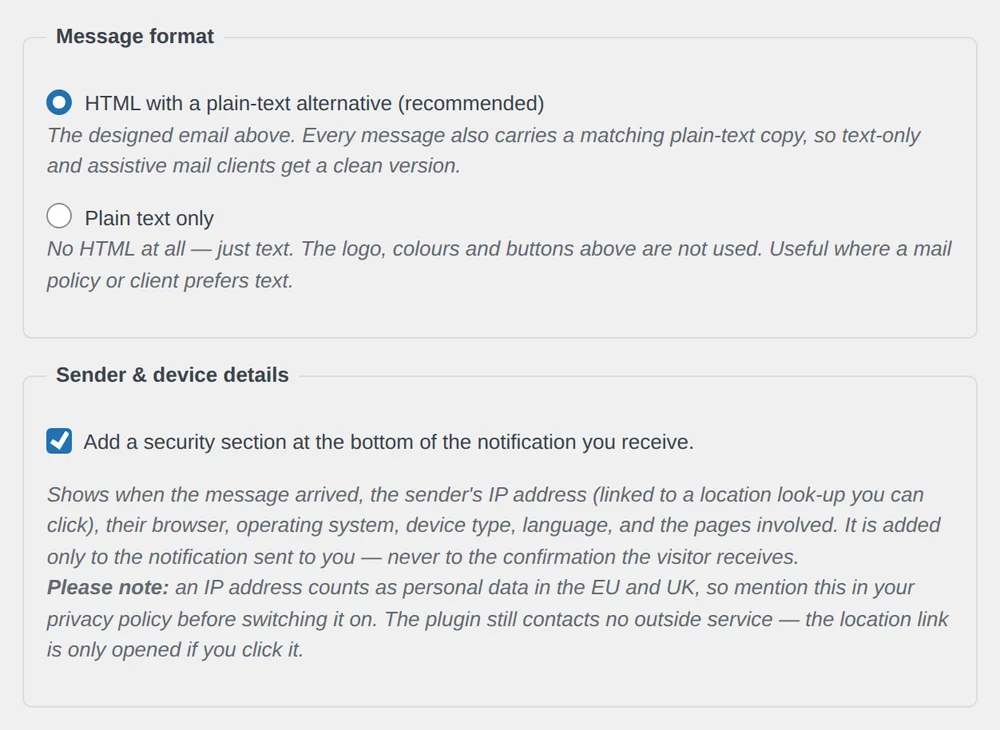
Every screenshot here is the released plugin, not a mockup – the same accessible forms and the same screens you get after installing.
Built on the parts most forms skip.
Every feature of Accessible Forms maps to a real WCAG success criterion – because it was designed by an accessibility consultant, not retrofitted.
Real labels, properly grouped
Every field has a visible <label> tied to its input – never a placeholder standing in for one. Radio and checkbox choices are wrapped in a fieldset with a legend, so the group’s question is announced with each option.
Errors that are announced, not just shown
On a failed submit, a focus-managed summary is announced and links to each problem; every field message is wired to its input and carries an icon and wording, so no error depends on seeing a colour. Focus moves to the summary (or straight to the field, if there’s only one).
WCAG 3.3.1 · 3.3.3 · 1.4.1 · 4.1.3Full keyboard, visible focus
Every field, the submit button and every summary link is reachable and operable by keyboard, in a logical order, with a clear focus ring. Controls and tap targets are sized for people who find small targets hard to hit.
WCAG 2.1.1 · 2.4.7 · 2.5.8Your data stays yours
Submissions are saved as entries in your own WordPress database and emailed to you – readable in the admin with a keyboard-friendly quick view and an entry screen that shows exactly what the email showed. No third-party form service, no tracking by default, and no external request unless you switch on the optional Cloudflare Turnstile or Akismet.
Private by defaultSpam stopped without a barrier
A hidden honeypot field and a timing check catch most bots invisibly – no squint-at-the-letters CAPTCHA that locks people out. If you need more, two accessible options can be switched on: Cloudflare Turnstile for a real-time challenge, or Akismet to check submissions and quietly quarantine suspected spam under Entries.
No inaccessible CAPTCHARobust – even with JavaScript off
The script is a progressive enhancement. With JavaScript disabled, the server still validates the submission, re-shows the form with the values kept, and renders the same error summary and inline messages – so the form always works.
Robust by designStandards-based
Built on the W3C’s accessible-forms guidance.
Rather than inventing custom behaviour, Accessible Forms follows the W3C’s published “Forms” tutorial and the WAI-ARIA practices for labelling, grouping and error handling – the same references accessibility specialists test against. The success criteria it’s built around:
Compared
How Accessible Forms compares with a typical contact form plugin
These are the twelve checks an accessibility audit runs on a form, with the verdict first. The middle column is what audits find most often. The right column is what Accessible Forms does out of the box, with the WCAG 2.2 success criterion each row is built around.
| What an audit checks | Typical form plugin | Accessible Forms Recommended |
|---|---|---|
| Field labelsWCAG 1.3.1, 3.3.2 | Fails Placeholder text used instead of a real label, so the field has no name for a screen reader. | Passes Every field has a visible label tied to its input. Radio and checkbox choices sit in a fieldset with a legend, so the question is announced with each option. |
| Error announcementsWCAG 3.3.1, 4.1.3 | Fails An error appears visually but is never announced, and focus stays on the submit button. | Passes A focus-managed error summary is announced. Each item links to its field, and every field message is tied to its input with aria-describedby and aria-invalid. |
| Errors without colourWCAG 1.4.1 | Fails A red outline or red text is the only signal. | Passes Every error carries an icon and wording. Fix a field and its message clears and drops out of the summary as you go. |
| Error suggestionsWCAG 3.3.3 | Fails “Invalid input”, with no hint of what to change. | Passes Each message says what is wrong and how to fix it, beside the field and in the summary. |
| Keyboard, focus, targetsWCAG 2.1.1, 2.4.7, 2.5.8 | Fails Custom dropdowns and pickers the keyboard cannot operate; focus outlines removed. | Passes Every field, the submit button and every summary link is reachable in a logical order with a clear focus ring, and targets are sized for people who find small targets hard to hit. |
| Multi-step formsWCAG 2.4.3, 4.1.3 | Fails Steps change with no announcement, focus is lost, and nothing works without JavaScript. | Passes Numbered steps with a progress marker, Previous and Next buttons, a spoken “Step X of N” and focus moved to each step. With JavaScript off the form still works as one page. |
| Spam protectionWCAG 1.1.1, 2.1.1 | Fails A squint-at-the-letters CAPTCHA that locks people out. | Passes A hidden honeypot and a timing check catch most bots invisibly. Cloudflare Turnstile or Akismet can be switched on when you need more. |
| Accessibility check while building | None Problems appear only after a visitor hits them. | Live A panel beside the builder flags a missing label, an empty step or a dropdown with no options, each with a symbol and a word. |
| Notification emailsWCAG 1.3.1, 1.4.3 | Not considered Unlabelled tables or a wall of text, with no plain-text version. | Passes Accessible HTML email with a real data table, row headings, an alt-text logo and a plain-text version, in one of six AAA-checked palettes or your own colours. |
| File uploads | Loose Often on by default with few checks. | Safe by default Uploads are off until you switch them on. Each field has its own size limit and allowed file types, and every file is checked on the server. |
| Where your entries go | Third-party Entries sent to an outside service; scripts and tracking loaded on every page. | Yours Entries saved in your own WordPress database and emailed to you. No third-party service, no tracking, no external request unless you switch on Turnstile or Akismet. |
| Cost | Paid tier A free version with the useful parts behind a paid tier. | Free, GPL Every feature on this page is in the plugin on WordPress.org, with no paid tier. |
| Audit checks passed | Varies by plugin | 12 of 12 |
Tested with JAWS, NVDA, VoiceOver and TalkBack before each release.
Frequently asked questions
How are validation errors shown?
Two ways, together. On a failed submit, an error summary appears at the top of the form, takes focus and is announced to screen readers, with a link to each field that needs fixing. Beside every affected field there’s also an inline message, tied to the input with aria-describedby and marked aria-invalid, with an icon and wording so nothing relies on colour. Fix a field and its message clears and leaves the summary automatically.
Block or shortcode – which should I use?
Either. Build the form with the Accessible Forms block in the editor, then place it on the page directly, or reuse it anywhere with the shortcode – in a widget, a template, or another page. The accessible markup is identical both ways.
Can I split a long form into steps?
Yes. Add a “step break” where you want one step to end and the next to begin, and the form is shown one step at a time – with a numbered progress marker, Previous and Next buttons, a spoken “Step X of N”, and focus moved to each step as it opens. Each step is checked as you go, and if JavaScript is off the whole form simply appears as one page, so nobody is left out.
Can visitors attach a file – and is it safe?
Yes, and safely. You can add a file field at any time, but uploads stay switched off for the whole site until you turn them on – so a form never accepts a file before you are ready. Each file field has its own maximum size and its own list of allowed file types, and every upload is checked on the server for size and type before it is saved.
Does it check my form’s accessibility while I build?
As you build, a panel beside the form reviews how it is set up and points out things to fix – a field with no label, an empty step, a dropdown with no options, and more. Each result is shown with a symbol and a word, never colour alone, so you can catch problems early. It complements testing with a real screen reader and keyboard; it does not replace it.
Where do submissions go?
Into your own WordPress database, saved as entries you can read in the admin, and emailed to the address you choose. Accessible Forms keeps your submissions on your own site – there’s no third-party form service in the middle, so your visitors’ data stays with you.
How is spam handled without an inaccessible CAPTCHA?
By default, a hidden honeypot field and a submission-timing check stop most bots without asking a real person to do anything – so there’s no distorted-text puzzle to fail. If you want a stronger layer, two accessible options can be switched on: Cloudflare Turnstile for a real-time challenge, or Akismet for content-based filtering that quietly keeps suspected spam under Entries so real users are never bounced.
Does it work without JavaScript?
Yes. The client-side checks are an enhancement; the server always validates. With JavaScript off, a failed submission reloads the form with your values intact and the same accessible error summary and inline messages – nothing is lost.
Will it track visitors or slow my site?
No. There’s no tracking and no phone-home by default, scripts are vanilla JavaScript with no build step, and assets load only on pages with a form. The only external requests possible are Cloudflare Turnstile and Akismet, and only if you turn them on.
What if a notification email never reaches me?
Nothing is lost. Every submission is saved to your own database first, whether or not the email got through. Open the entry and press Resend notification in the Publish box, or use the same link on any row of the Entries list, and it is rebuilt from the stored entry and sent to you again straight away – exactly as it should have arrived the first time. The person who submitted is not emailed a second time.
Can I see who sent a submission, and from where?
If you switch on the optional sender and device section, each notification ends with the time it arrived, the sender’s IP address linked to a location look-up, their browser, operating system, device type and language, and the pages involved. The same details appear on the entry screen in your dashboard. It stays off until you turn it on, because an IP address counts as personal data in the EU and UK – please mention it in your privacy policy first. Even switched on, the plugin contacts no outside service: the location link only opens if you click it.
Can I change how the notification emails look?
Yes. Choose one of six ready-made palettes – every band contrast-checked to WCAG AAA – or set your own header, body and footer colours, with the ratio checked live as you pick. Add your logo with alt text and write the wording for each form. If you would rather have no HTML at all, switch to plain text only and everything, including the sender details, still comes through.
How can I check the notification email before real visitors use my accessible forms?
Submit a test entry yourself, open it under Entries and press Resend notification. The message is rebuilt from the stored entry through exactly the same code path as a live send, so what reaches your inbox is exactly what a real submission to your accessible forms would produce. Change a palette or switch to plain text, press it again, and compare the two side by side. Accessible forms are far easier to trust once you have seen the email with your own eyes, and nothing you do here emails the visitor a second time.
Add accessible forms in minutes.
It’s free on WordPress.org. Install from Plugins → Add New, search for Accessible Forms, add the block (or use the shortcode), and you have a form that works for everyone – errors and all. Accessible Forms is part of our collection of WordPress accessibility plugins, and pairs perfectly with the WordPress ADA-compliance theme.
GPLv2 or later · Free · No registration · No tracking