


Most accessibility problems I find during a WordPress accessibility audit do not come from WordPress itself. They come from plugins: the slider on the home page, the login screen of a membership site, the contact form, the project grid, the events list. The plugin listing says nothing about any of this, and by the time the site owner finds out, the plugin is on every page.
This article compares accessible WordPress plugins with the typical plugin doing the same job, one component at a time. It is written from what we test by hand with JAWS, NVDA, VoiceOver and TalkBack, not from feature lists. At the end there is a short check you can run on any plugin before you install it, and an honest note on what a plugin cannot fix.
Table of Contents
Accessible WordPress plugins: why the listing tells you very little
Every plugin page on WordPress.org has a description, screenshots and reviews. None of them tell you whether a keyboard user can reach the "next" button, whether a screen reader hears an error message, or whether the slider can be paused. Those things are only visible when you try the plugin the way a disabled visitor would, and very few people do that before installing.
The word "accessible" in a plugin name or description is not a test result either. It is a claim. In our audits we have seen plugins that say "WCAG compliant" and fail the first keyboard check. The only reliable way to know is the check at the end of this article, or an audit by someone who does this for a living.
The five components below are the ones that break most often on WordPress sites. For each one, a typical plugin and an accessible plugin are compared on the points that decide whether a visitor can use it. The WordPress accessibility plugins page has the five Ananyoo plugins side by side, and each plugin page has a fuller comparison table.
Sliders and carousels
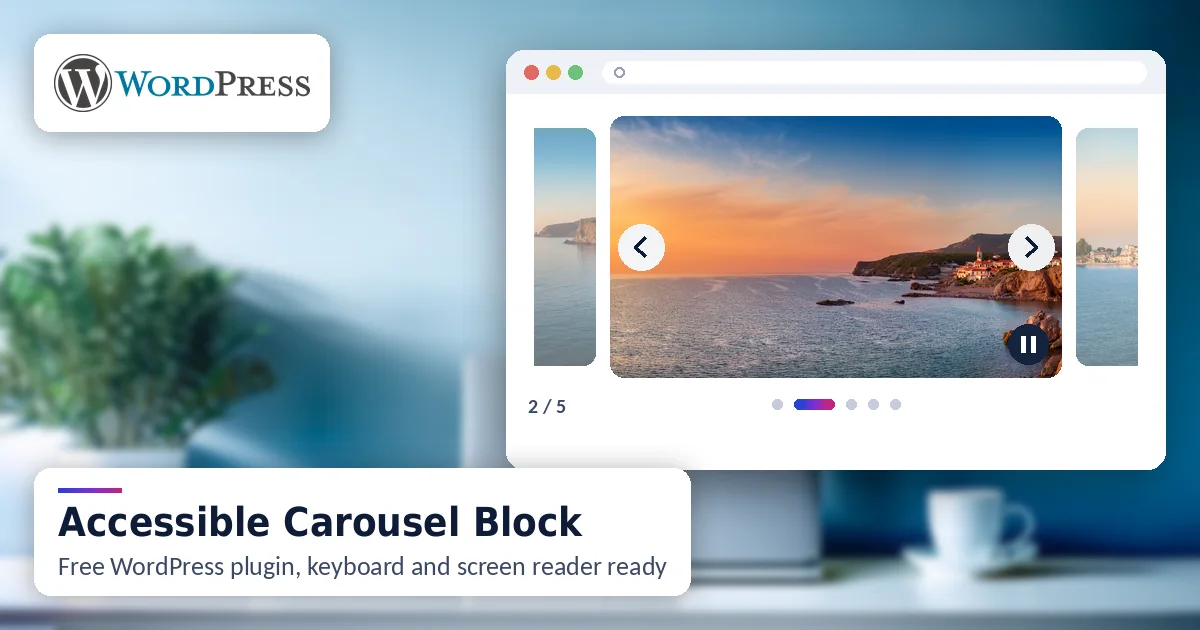
A typical slider plugin auto-advances, offers no pause control, and hides the previous and next buttons from the keyboard. The slide text is often baked into the image, so a screen reader hears nothing at all. These are failures of WCAG 2.2.2 Pause, Stop, Hide and 2.1.1 Keyboard, and they sit on the most visited page of the site.
An accessible carousel gives the visitor a pause control, lets the keyboard reach every control in a sensible order, announces the slide change in a way that does not interrupt, and respects the reduced motion setting of the operating system. Our Accessible Carousel Block was built around those points for the block editor, and the comparison with a typical slider is on its page.
Login and registration forms
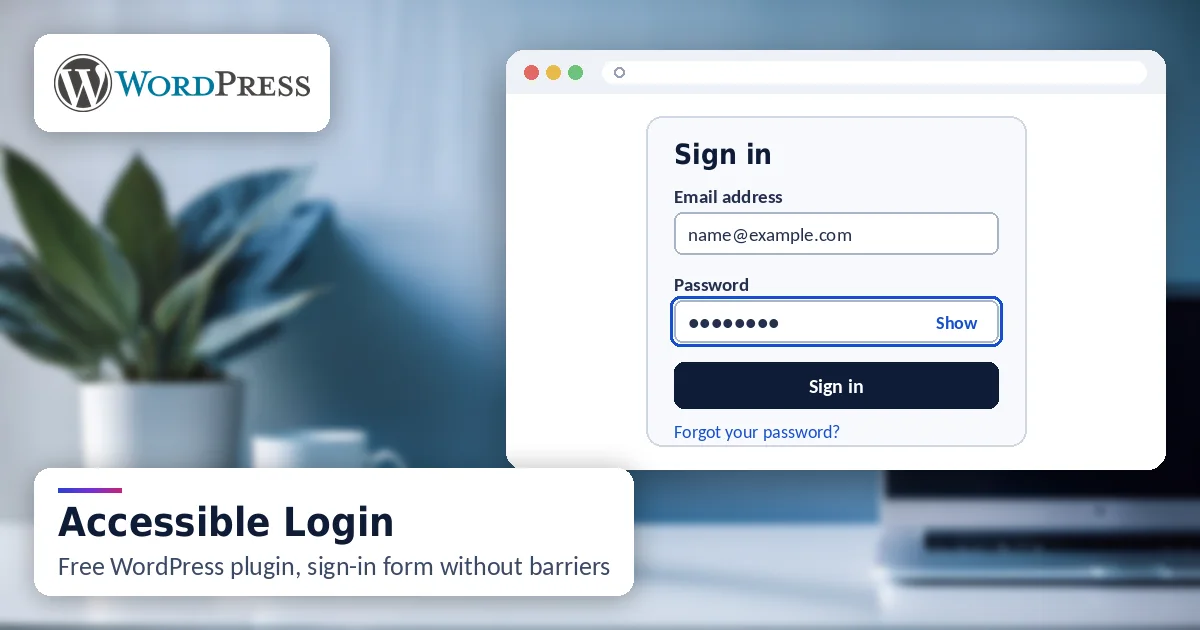
The default WordPress login screen is reasonable, but the login and registration widgets that page builders and membership plugins add on top of it are not. Labels become placeholders, the password field has no way to show what was typed, error messages appear in red text that nobody announces, and the focus ring is removed for looks.
An accessible login form keeps a visible label on every field, gives a clear text error that a screen reader announces, offers a show password control, and keeps the focus ring visible. Our Accessible Login plugin does this for the WordPress login, registration and lost password screens; the default WordPress versus Accessible Login table shows the exact differences.
Contact and enquiry forms
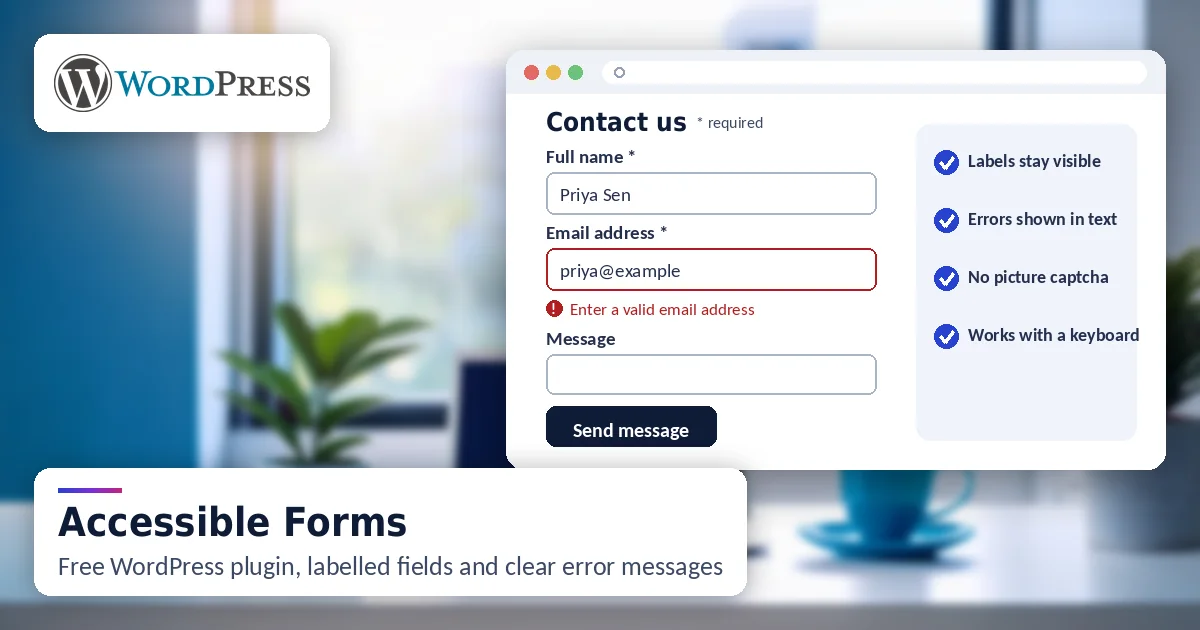
Contact forms are where most sites lose enquiries from disabled visitors, and most of the time the site owner never knows. Typical form plugins ship with placeholder text instead of labels, required fields marked only by colour, error messages that appear somewhere on the page without being announced, and a success message the screen reader never reads. WCAG names these directly: 1.3.1, 3.3.1, 3.3.2 and 4.1.3.
An accessible form has a real label on every field, marks required fields in text as well as colour, moves focus to the first error and announces it, and confirms success in a way a screen reader hears. Our Accessible Forms plugin stores every entry in your own database and needs no third party; the comparison with a typical contact form plugin lists the points one by one.
Portfolio and project grids
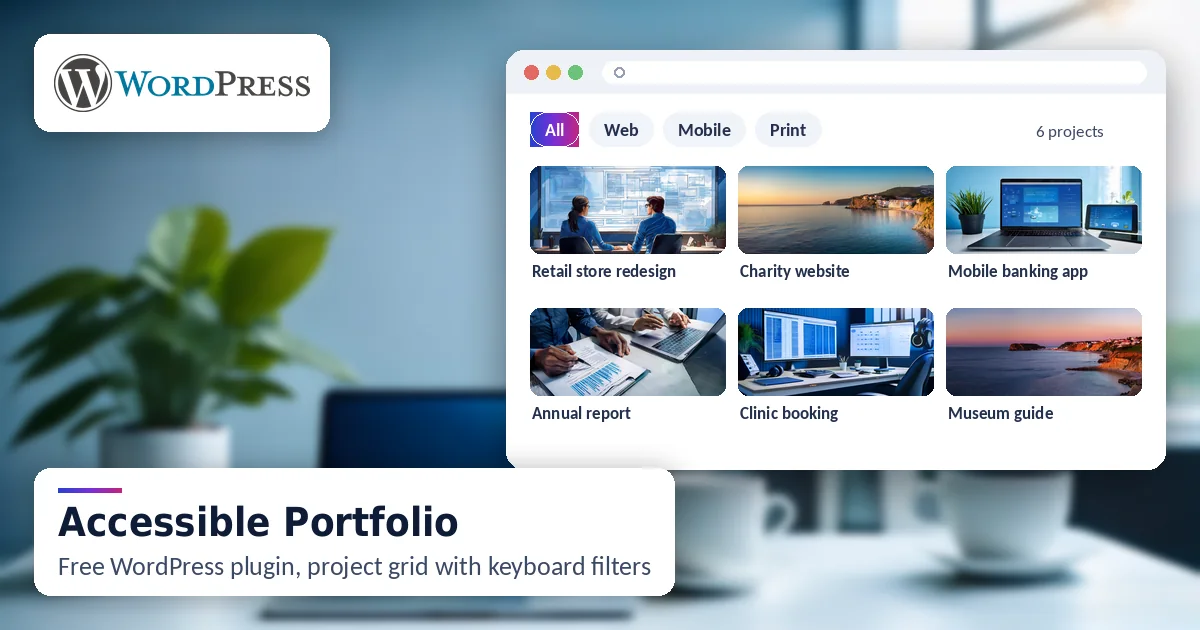
Portfolio widgets bundled with page builders look good and read badly. The filter buttons are often plain text with a click handler, so the keyboard cannot reach them. Each card links to the project three times with three different link texts, or with no text at all, and the images carry the file name as alternative text.
An accessible portfolio gives every filter a real button, announces how many projects are shown after filtering, uses one clear link per card, and asks you for alternative text instead of inventing it. Our Accessible Portfolio plugin also has a confidential mode for client work that cannot be named; the comparison with a typical portfolio plugin is on its page.
Event lists and calendars
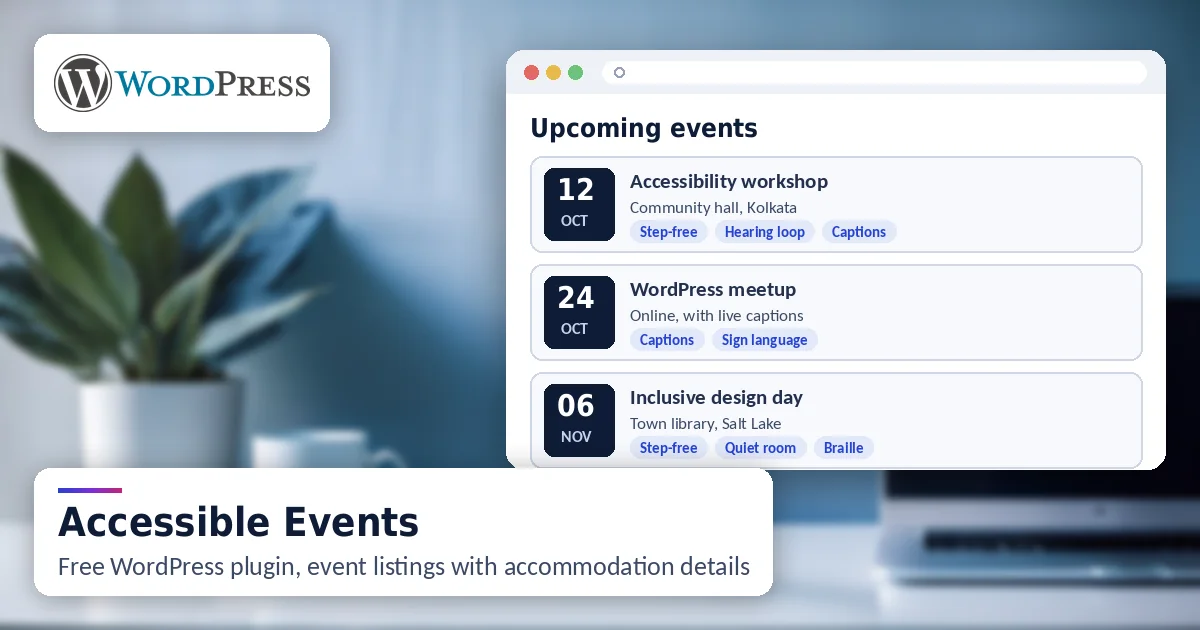
The big event calendar plugins are heavy, and their month grid view is close to unusable with a screen reader: a table of numbers with events hidden behind hover states. Dates are shown as icons, venues as unlabelled text, and the "register" link says "register" thirty times on one page.
An accessible events plugin uses a list view first, gives each event a proper heading, states the date and venue in text, and makes every link say which event it belongs to. Our Accessible Events plugin is built for small sites that need workshops, webinars and community events listed without ticketing; the comparison with a typical events plugin shows what changes.
A ten-minute check before you install any plugin
You do not need special tools for a first check. Install the plugin on a staging site, add the component to a test page, and try the following. If any of them fails, the plugin will fail your visitors too.
- Keyboard only. Unplug the mouse. Press Tab through the component. Can you reach every control, and can you see where you are at every step?
- Labels. Click on the label text of a form field. Does the cursor land in the field? If it does not, the field has no real label.
- Errors and success. Submit the form empty. Is the error written in text next to the field, and does a screen reader read it out without you hunting for it?
- Motion. Does anything move on its own? If it does, is there a pause control, and does it stop when the operating system asks for reduced motion?
- Zoom. Set the browser to 400 percent. Does the component still work without sideways scrolling?
- Headings and link text. Open the headings list in a screen reader. Do the headings describe the sections, and does every link make sense on its own?
- What it adds to every page. Look at the page source. A plugin that loads its scripts and styles on pages where it is not used slows the whole site down.
Ten minutes is enough to reject most plugins. The ones that pass are worth a proper test with a screen reader, which is the part of a website accessibility audit that automated tools cannot do.
What a plugin cannot fix
A plugin fixes the component it provides. It does not fix the theme around it, the content you publish, or the other plugins on the site. A site with an accessible contact form and an inaccessible menu is still inaccessible. This is also why accessibility overlays do not work: they sit on top of everything and repair nothing underneath.
The order that works is the theme first, then the components, then the content. An accessible WordPress theme gives you templates, navigation, focus styles and colour contrast that pass from the start. Accessible plugins replace the parts that usually break. An audit then checks the pages you actually publish, and remediation fixes what is left.
How the Ananyoo plugins were built and tested
All five Ananyoo accessible WordPress plugins are free on WordPress.org: Accessible Carousel, Accessible Login, Accessible Forms, Accessible Portfolio and Accessible Events. Each one does one job, works on its own, and loads its scripts only on the pages that use it.
They were built by a DHS Trusted Tester on accessibility working with IAAP certified colleagues, and tested the way we test client sites: by hand, with JAWS, NVDA, VoiceOver and TalkBack, keyboard only, at 200 and 400 percent zoom, and in forced colours mode, against WCAG 2.2 Level AA. Automated tools run at the end, not at the start.
None of them phones home, none of them adds a badge or a widget to your site, and none of them promises compliance for the whole site, because no plugin can. If you are not sure which one you need, the comparison table on the plugins page matches each plugin to the problem it fixes, and the WordPress accessibility FAQ answers the questions we are asked most.
Final thoughts
Plugins are where WordPress accessibility is won or lost, and the listing page will not tell you which side you are on. Accessible WordPress plugins exist for every common component now, so there is no longer a reason to accept a slider or a form that shuts some visitors out. Try the ten-minute check on the plugins you already have, starting with the slider and the contact form. If you would like a written opinion on a plugin, or on the whole site, write to us with the address and we will reply within one working day.
