
No password needed. The demo runs the free Ariade theme with the Ariade Header and Menu plugin.
Ariade is a free, accessible WordPress block theme built to WCAG 2.2 AA. This WordPress theme documentation explains how to install Ariade, set it up in the Site Editor and use every template, pattern and built-in feature. It is written for site owners; no coding is needed.
Before you start: make a backup. Or try Ariade on a staging copy of your site first. Switching themes changes how every page looks, but your posts, pages, products and media stay as they are. If you do not like it, switch back in Appearance > Themes.
01 Install and first steps
Free downloads
Set up Ariade in 3 steps
Everything is free and GPL. Install them in this order; it takes about two minutes.
- Start here
Ariade theme
The accessible block theme, built to WCAG 2.2 AA.
Get Ariade on WordPress.org - Required
Ariade Header and Menu
The accessible header, drop-down menu and sitemap.
Get Header and Menu - Optional
Ariade Demo
One click fills a new site with the full demo.
Download Ariade Demo (zip)
- Install the theme: Appearance > Themes > Add New Theme, search for Ariade, then Install and Activate. Or download it from WordPress.org.
- Install the free Ariade Header and Menu plugin: Plugins > Add New Plugin, search for "Ariade Header and Menu", then Install Now and Activate. The accessible header, drop-down menu and mobile drawer switch on by themselves. Keep this plugin active; your header needs it.
- Optional, for a new site: install Ariade Demo to copy the whole demo in one click. Download Ariade Demo, go to Plugins > Add New Plugin > Upload Plugin, choose the zip and activate it, then run it once from Appearance > Ariade Demo. You can remove the plugin afterwards; the content stays.
- Create your menu: Appearance > Menus, add your pages and tick the Primary location. Drag an item slightly to the right, under another item, to make a drop-down.
- Add your logo and site icon: Appearance > Customize > Site Identity. The site name and tagline come from Settings > General.
- Choose your home page: Settings > Reading, "A static page", then pick your home and blog pages. (Ariade Demo does this for you.)
- Create the pages every accessible site needs: Contact, Accessibility statement and a Sitemap (add the Ariade Sitemap block to a page and it fills itself).
- Add the free Ananyoo plugins you need: carousel, forms, login, events, portfolio and A to Z index. They are made the same way as Ariade. See the plugins page.
02 Theme settings
Most of Ariade is set up in the Site Editor (Appearance > Editor). A few settings live in the places WordPress expects them.
Ariade dashboard
Appearance > Ariade. A quick start list (clean permalinks, recommended plugins, demo content, Site Editor), one-click Starter pages (Home, About, Services, Contact), the demo importer, a Recommended plugins list with Install and Activate buttons, and help links. Opening the dashboard changes nothing; only the buttons do.
Demo the dashboard is in your own wp-admin after you activate Ariade.
Logo and site icon
Appearance > Customize > Site Identity, or the Site Logo block in the Header. Once a logo is set, the site name text is hidden next to it. A logo about 400 by 96 pixels works well. Site name and tagline come from Settings > General.
Demo the header on any page.
Colours
Appearance > Editor > Styles > Colors. Fourteen named colours, such as Ink (headings), Body text, Blue (buttons) and Violet (button hover), plus the Brand gradient. The defaults pass WCAG 2.2 AA. If you change a pair, keep text at 4.5 to 1 and icons and borders at 3 to 1.
Demo Pricing (buttons and the brand gradient).
Typography
Styles > Typography. Headings use Barlow Semi Condensed and body text uses Geist. Both fonts are stored in the theme, so no request goes to Google Fonts. Body text is 1.05rem with a 1.65 line height. For headings, the 600 and 700 weights read best; the heaviest weights look less clear.
Demo Blog (headings and long text).
Layout and spacing
Content is 1180 pixels wide and wide blocks 1200. Five spacing sizes, named 1 to 5, keep gaps even across the site. All pages get the same side padding on small screens, so nothing touches the edge of a phone.
Demo About page on a phone.
Header and menu
Accessibility
- Drop-downs open with Enter, Space or the arrow keys, and Escape closes them
- The mobile menu keeps focus inside until it is closed
- Hover and the current page are underlined as well as coloured
Comes from the free Ariade Header and Menu plugin. Open Appearance > Editor, open the Header template part and select the Ariade Site Header block. Its settings are in the right sidebar:
- Menu: which menu is shown, with links to edit or change it. Menu items are managed in Appearance > Menus, Primary location.
- Brand: logo only, logo with site name and tagline, or name and tagline only. For a dark header, show the logo in white or choose a separate logo.
- Colours: background, menu links, button, hover and focus, current page and drop-down, each checked for contrast as you choose. Leave a colour empty to keep the theme colour.
- Mobile menu colours: background, text and accent.
- Header buttons: show or hide the account icon, the cart icon and the header button, and set its text and link. A blank link goes to your Contact page.
- Text: capital letters in the menu and buttons, on by default.
Demo the header; press Tab to reach the menu, then try the arrow keys.
Top bar
Accessibility
- Comes right after the "Skip to content" link, inside the banner area of the page
- Every link has text for screen readers, also when phones show only the icon
- White text on navy, far above the 4.5:1 contrast needed
A slim navy bar above the header, the same as in the Ariade themes for Shopify and BigCommerce. On the left: "Need help?" with your Call, Email, Sign language and Contact links. On the right: an optional short message. It is on by default.
- Go to Appearance > Customize > Top bar.
- Fill in your Phone number and Email address. Each link shows only when it is filled in.
- Choose your Sign language page if you have one. For Contact page, a published page called Contact is used until you choose one.
- Add a Short message if you like, for example "Free delivery on orders over $50".
- Press Publish.
To hide the bar, untick Show the top bar. On phones the links show as icons and the message is hidden. With Ariade Pro, the Listen and "Aa" buttons come first in the bar.
Demo See the top bar on the Ariade demo.
Footer
The Footer template part shows your site name and tagline, a list of your top-level pages, your latest posts and a copyright line. Edit it in Appearance > Editor > Patterns > Template parts > Footer. Add social links with the Footer: Connect pattern; any Social Icons block in the footer takes the theme style.
If you edit the footer and later want the theme version back, choose Reset from its options menu.
Breadcrumbs
Appearance > Customize > Breadcrumbs. Shows a "Home > Section > Page" trail above the title. Turn it on everywhere, or choose: blog posts, events, portfolio, products, pages, and category, tag, search and other archives. It needs Rank Math SEO with its breadcrumbs turned on (Rank Math > General Settings > Breadcrumbs). Never shown on the home page.
Demo any blog post.
Ariade Companion settings
Come with the Ariade Header and Menu plugin. Open them from Appearance > Ariade Companion, or the Settings link on the plugin's row in Plugins. Every option is on by default; untick only what one site needs off, then press Save once.
Valid HTML: one title tag per page when an SEO plugin prints its own; no invalid "auto" in image sizes; style code moved from the body into the head; nothing allowed between the head and the body.
Performance: removes the emoji script, jQuery Migrate, Dashicons for visitors and unused head tags; serves minified theme CSS and JavaScript; defers theme scripts; preloads the featured image. Left out on purpose: combining other plugins' files and delaying all scripts until the visitor scrolls, because both break pages for keyboard and screen reader users.
Accessibility panel and Listen (Ariade Pro)
Ariade Pro adds two buttons for your visitors, in the same place as in the Ariade themes for Shopify and BigCommerce:
- Listen reads the page aloud with the visitor's own browser voice: the page heading first, then the main content. The same button pauses and resumes, and a Stop button shows while it reads. It never starts on its own.
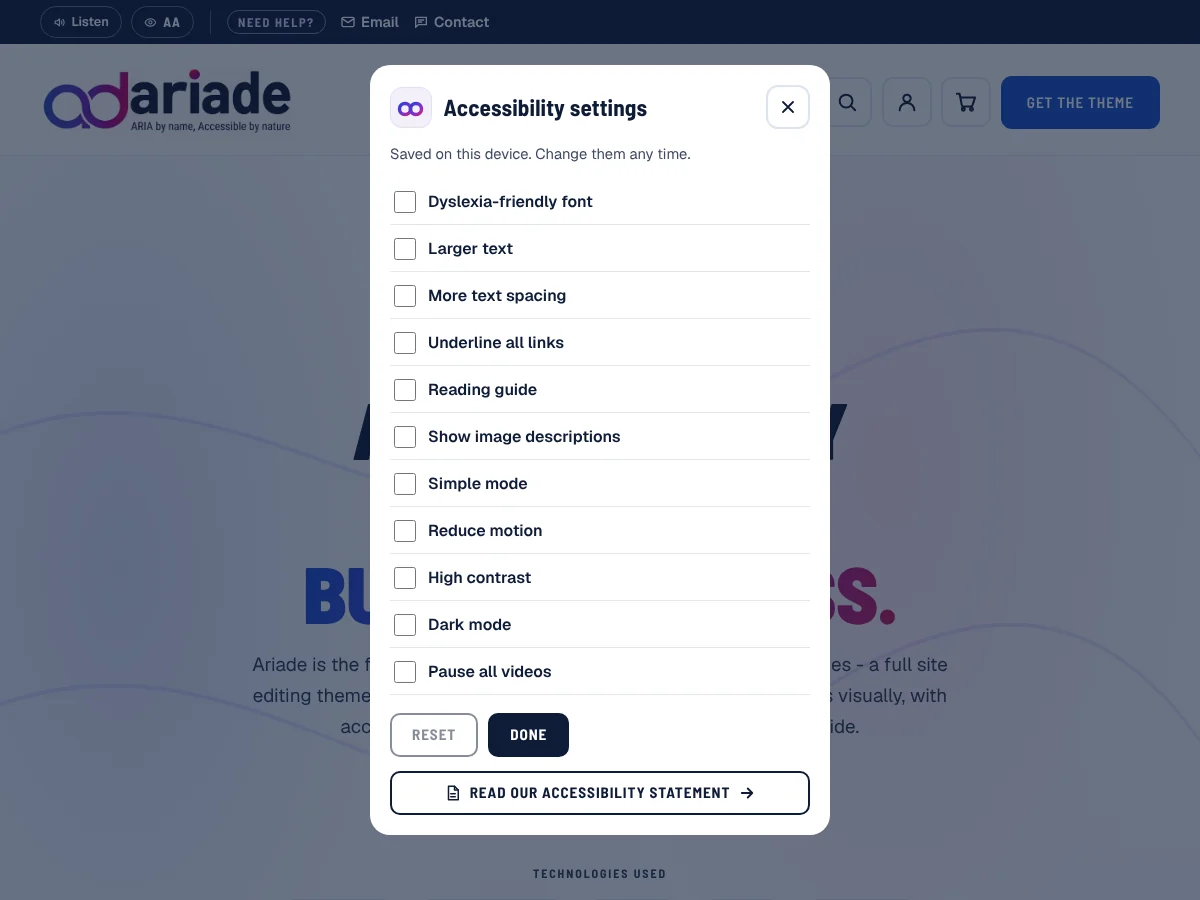
- "Aa" opens a panel where each visitor can switch on what helps them: dyslexia-friendly font, larger text, more text spacing, underline all links, reading guide, show image descriptions, simple mode, reduce motion, high contrast, dark mode and pause all videos.
- Go to Appearance > Ariade and find the Ariade Pro card (or use the Settings link on the Ariade Pro row in Plugins).
- Tick Show the Accessibility settings button and Show the Listen button.
- Under Where the buttons go, choose Top bar (recommended) or Main header.
- Choose your Accessibility statement page. The panel ends with a button that opens it. No statement yet? Start from the Accessibility statement page pattern in Ariade Pro.
- Press Save Changes.
Both buttons are off until you switch them on. If the top bar is switched off, they move to the main header by themselves. In the header, "Aa" shows the eye icon only when room is short, and on phones it sits next to the menu button. Listen stays hidden in browsers that cannot speak.
Panel choices are saved in the visitor's own browser: nothing is tracked and no cookie is set. High contrast and Reduce motion also switch on by themselves when the visitor's device asks for them.
Dark mode keeps photos, videos, colour swatches and dark sections as you made them. To keep any other block exactly as designed, add the class ariade-a11y-keep in the block's Advanced > Additional CSS class(es).
Demo Press Listen or "Aa" in the top bar of the Ariade demo.
Page subtitles and author box
A page's own excerpt (Excerpt panel in the page settings) shows as the subtitle under its title. On posts, a hand-written excerpt shows under the headline. The "About the author" box appears when the author has filled in Users > Profile > Biographical Info.
Demo Services (title and subtitle).
Block styles
Two extra styles in the block settings: Ariade outline for the Button block (clear background, border in the text colour) and Ariade card for the Group block (white card with a light border, rounded corners and a soft shadow).
Demo Pricing.
03 Patterns
Patterns are ready-made page sections. In the editor, press the + (Block Inserter), choose Patterns and pick an Ariade category. A pattern is copied into your page, so change its text, links and images like any other blocks.
| Category | What it does for accessibility | How to use it | See it in the demo |
|---|---|---|---|
| Ariade (home pages) | One H1 per page, buttons with clear names, no text in images. | "Ariade - Home page" is the full demo home page (uses the free Ananyoo plugins). "Ariade - Starter home page" is a simple home page that needs no plugin. | Home |
| About | Team photos have descriptions; big numbers are read as numbers, not as decoration. | Four full About pages: magazine mosaic, navy chapters, editorial split and thread spine. Replace the sample text and photos. | About |
| Blog | One link per card; category and tag pills are real links with clear names. | Ten ways to list your latest posts, from a featured lead with cards to an editorial ledger. They show posts wherever you insert them. | Blog |
| Contact | Built for a labelled form; dark sections keep form text readable. | Gradient envelope, ledger minimal and split card. Replace the marked paragraph with your form block, for example Ananyoo Accessible Forms. | Contact |
| FAQ | Questions are headings inside native Details blocks; they open with Enter or Space, no script needed. | Tinted panels, accent cards, ledger rows and a simple list. Duplicate a question to add one; colours rotate by themselves. | FAQ |
| Pricing | Each plan button has its own name, such as "Choose Starter plan". The comparison table has a caption and proper headers. | Gradient showcase, navy spotlight, comparison table and accent tier cards. | Pricing |
| Testimonials | Screen readers hear "Rated 5 out of 5", not star symbols. | Accent quote cards, gradient quote wall, ledger rows and navy spotlight. | Testimonials |
| Services and Service detail | Child pages are listed as real links; the list updates itself. | "Services listing" patterns list a page's child pages as cards, a chip index or ledger rows. Five "Service detail" patterns lay out one service. | Services, Service detail |
| Portfolio | Filters are named and the chosen one is marked as current. | Carousel spotlight, editorial list and filter wall. Need the free Ananyoo Accessible Portfolio plugin. | Portfolio |
| Shop | Each Add to cart button names its product. | Gradient spine and soft tile layouts show your four newest products. Need WooCommerce. | Shop |
| Utility pages | The 404 heading says "Error 404" to screen readers; the sitemap is a plain list of links. | Coming soon (two designs), 404 (two designs) and Sitemap. | Coming soon, 404, Sitemap |
Tip: for a quick start, go to Appearance > Ariade > Starter pages and press Add Home page, Add About page, Add Services page or Add Contact page. Each button creates that page from a pattern and adds it to your menu. Nothing changes if the page already exists. To make Home your front page, choose it in Settings > Reading.
Want more? Ariade Pro adds 14 patterns: 7 WooCommerce store templates (store home, product sales page, category header, sale banner, trust strip, thank-you page, account welcome) and 7 business sections (team, stats, timeline, client logos, feature grid, case study, accessibility statement). It also adds an Accessibility settings panel and a Listen button for your visitors. See them live.
04 Page templates
Pick a template for a page or post in the editor's right sidebar: Template. Change the look of every page that uses a template in Appearance > Editor > Templates.
Pages
Accessibility
- Exactly one H1 on every page
- The skip link jumps straight to the main content
Pages (default): title band with the page subtitle, then your content. Full width, with title: the same title band, content full width. Full width, no title: no title band, so your content must start with its own H1 (the starter Home page uses it). Full width, no header: as above, without the header.
Blog home and archives
Accessibility
- "Filter by category" is a labelled list
- Grid and List view are buttons that say which one is on
- Page numbers are read as "Page 2", not just "2"
Your Posts page, category, tag and author pages list posts as cards with category and tag pills, the date and reading time. Posts without an image get one of six built-in artworks. The number of posts per page comes from Settings > Reading. The Blog page template gives any page its own list of your 10 latest posts.
Demo Blog.
Single posts
Accessibility
- Previous and Next links say "Previous:" and "Next:" with the post title
- Reply moves focus into the comment box, and Cancel reply brings it back
Four layouts: the default aurora header, Post - classic editorial, Post - split panel and Post - immersive cover. All show tags, the author box, previous and next links and comments. Use a 16:9 featured image, about 1600 by 900 pixels, with text and logos in the middle.
Demo a blog post.
Services and Service detail
Accessibility
- The services list and "Other services" are named navigation
- Cards have one link each
Give your main services page the Services template. Create each service as a child page (Page Attributes > Parent) with the Service detail template. The Services page lists the child pages by itself, in the order you set, with each page's excerpt. Each service page shows "Other services" and a "Discuss your project" button that goes to the page at /contact/.
Portfolio
The Portfolio page template, the project page and the portfolio category and tag pages show your projects with a filter, a grid and list view and pagination. They need the free Ananyoo Accessible Portfolio plugin; without it, the page says which plugin to install.
Search, Sitemap and 404
Search covers posts, pages, products and portfolio projects, and says how many results were found. The Sitemap template lists your pages, categories and recent posts; for a sitemap that updates itself, add the Ariade Sitemap block to any page. The 404 page offers search, a link home and links to your main pages.
Demo search results, Sitemap, 404.
Product
Accessibility
- Gallery thumbnails are buttons named "Show image 1" and so on
- Stock is written in words with an icon, never colour alone
- Description and Additional information open with Enter or Space
Gallery with thumbnails and an optional video, title, star rating, price, stock pill, quantity next to Add to cart, colour and size swatches for variable products, then a Product details accordion and a Reviews section with the average rating.
Demo Focus Notebook and Contrast Coffee Mug (swatches).
Shop and categories
Category pills on the Shop page, a filter sidebar, the result count, Grid and List view and sorting. Featured products come first. Three products per row on a computer, two on a tablet and one on a phone.
Demo Shop.
Cart, checkout and account
The cart page opens with a band that says how many items are in the cart and the subtotal, with a link back to the shop; it updates as the cart changes. My Account greets the customer by name, and the sign-in and password reset forms say what to do.
Demo Cart (add a product first) and My Account.
05 Built-in features (no extra plugins needed)
Skip link and landmarks
Accessibility
- Press Tab once on any page to see "Skip to content"
- One main area per page, also on shop pages
- Header, footer columns, breadcrumbs and post links are named for screen readers
Nothing to set up. Every template has one main area, so the skip link always works, and the header and footer are never announced twice.
Visible focus
Accessibility
- A thick outline shows where you are on every link, button and field
- On dark sections the outline turns light blue, so it is always seen
Pills, buttons and the search box get a two-colour ring that shows on any background. No text is smaller than 12 pixels.
Respects motion and contrast settings
Accessibility
- If a visitor asks their device for less motion, smooth scrolling, sliding panels and hover zooms stop
- In Windows High Contrast mode, icons and arrows stay visible
The testimonial carousel never moves on its own for visitors who ask for less motion, and it always has a Pause button.
Product video with captions
Accessibility
- Nothing loads from YouTube until the visitor presses Play
- Captions are on, and focus moves into the player
- The thumbnail's name says the length exactly as shown, for example "1:35"
Edit a product and fill in the Product video (Ariade) box near the bottom of the right-hand column:
- YouTube link: a watch, share, Shorts or live link.
- Video title: read out by screen readers; empty uses the product name.
- Length: optional, for example 1:30, shown on the thumbnail.
- Poster image: optional; without it, YouTube's own picture is used.
The video becomes the last thumbnail under the product photos. The product needs at least one photo. Upload your own captions to YouTube; automatic captions are often wrong.
Demo Ariade Pro for WordPress on this site.
Product details and reviews
Accessibility
- Panel headers are buttons that say if they are open or closed
- A closed panel is hidden from the keyboard and screen readers
Description opens by itself; Additional information appears only when the product has something to list. Reviews always show below, with the average rating and the number of reviews.
Colour and size swatches
Accessibility
- Each swatch is a button named after its option, for example "Navy"
- The chosen one is announced as pressed
Use global attributes in Products > Attributes named Color (or Colour) and Size. Colour names such as red, navy, teal or gold get a matching dot. Without JavaScript, the normal drop-down still works.
Shop filters
Add WooCommerce filter widgets to Appearance > Widgets > Shop Filters. The sidebar appears on the Shop and category pages only when it has widgets. Colour filters show a colour dot, counts show without brackets, and lists longer than 10 get a "View more" button.
Grid or list view
Blog and shop listings have Grid view and List view buttons. The visitor's choice is remembered on their device, separately for the blog and the shop. On phones both views are one column, so the buttons are hidden.
Comments that keep your place
Reply moves focus into the comment box. Cancel reply brings focus back to the Reply link. After posting, the page lands on the new comment. Reply and Cancel reply work with Enter and Space.
Tables and code that scroll
Wide tables and code scroll sideways inside their own box, which keyboard users can reach with Tab and scroll with the arrow keys. A table without a caption is named after the heading above it.
Text exactly as you typed it
WordPress normally turns " - " into a long dash and straight quotes into curly ones. Ariade switches that off, so your words show as written and screen readers read them as typed.
Free Ananyoo plugins
Made and tested the same way as Ariade, and styled by it:
- Accessible Carousel: slides that never rush, with Pause.
- Accessible Forms: labelled fields and errors that are read out.
- Accessible Login: a sign-in page that works with a keyboard and screen reader.
- Accessible Events: events with access details.
- Accessible Portfolio: projects with a filter wall.
- Accessible A to Z Index: an A to Z index of categories, tags or posts.
Demo Plugins.
06 Keeping your site accessible
Ariade handles structure, keyboard use and contrast. Your content matters too:
Image descriptions
Write alt text for every image that carries meaning: Media > Library, select the image, then fill in Alternative Text, or use the image block settings. Leave it empty only for purely decorative images.
Headings
Use headings in order on every page and post (Heading 2, then Heading 3). The block editor's Document Overview shows the outline. Do not use bold text instead of a heading.
Link text
Write links that make sense on their own, such as "Read the size guide", not "click here". If a link opens a new tab, say so in the link text.
Videos
Add captions, and a transcript or an audio description for videos that show important information. Never set a video to play with sound on its own.
Colours
If you change colours in Appearance > Editor > Styles, keep text at 4.5 to 1 and icons, field borders and focus rings at 3 to 1 against their background. The block editor warns you about low contrast in text colour settings.
Accessibility statement
Publish a statement page and keep it up to date, with known limits and another way to reach you. Link it from the footer.
07 Frequently asked questions
Is Ariade really WCAG 2.2 AA compliant?
The theme code is built and tested to WCAG 2.2 AA with automated tools (axe, WAVE, Lighthouse), keyboard-only use, the JAWS, NVDA, VoiceOver and TalkBack screen readers and 400% zoom, and it passed an external manual audit. It carries the Accessibility Ready tag on WordPress.org. Your site as a whole also depends on your content and on the plugins you add. See Keeping your site accessible.
Is Ariade free?
Yes. Ariade, Ariade Header and Menu and Ariade Demo are free on WordPress.org under the GPL. Use them on any number of sites, including client sites. Ariade Pro is an optional paid add-on.
What does Ariade Pro add?
14 ready-made accessible patterns (7 WooCommerce store templates and 7 business sections), an Accessibility settings panel for your visitors, and priority support, for 1 site with 12 months of updates. There is no licence key. After buying, upload the plugin in Plugins > Add New Plugin > Upload Plugin, then find its patterns in the block inserter under Patterns > Ariade Pro. See every Pro pattern live.
Do I need the Ariade Header and Menu plugin?
Yes, for the Ariade header. WordPress.org rules do not let a theme carry its own blocks, so the accessible header, drop-down menu, mobile drawer, header buttons and the Sitemap block live in this small free plugin. Without it, Ariade falls back to a plain WordPress Navigation header.
I updated Ariade, but my header or footer did not change. Why?
If you edited a template or template part in the Site Editor, WordPress keeps your saved copy and shows it instead of the theme file. Open Appearance > Editor > Patterns > Template parts (or Templates), open the part, and choose Reset (or Clear customizations) from its options menu. The latest theme version then loads. Reset removes your own edits to that part, so note them first.
Should I use a child theme?
Only if you change theme files (PHP, CSS or JavaScript). Changes made in the Site Editor, such as colours, fonts, templates and template parts, are saved in your database and survive theme updates without a child theme.
Does Ariade work with WooCommerce?
Yes. The shop, product, cart, checkout and account pages are designed and tested for keyboard and screen reader use. See Built-in features.
Can I use a page builder such as Elementor?
Ariade is a block theme, built for the WordPress block editor and Site Editor. Page builders add their own code, which we cannot test for accessibility. For pages that stay accessible, build with blocks and Ariade's patterns.
Where do I find my Ariade version?
In Appearance > Themes, open Ariade; the version is shown under the theme name. Please include it when you ask for support.
08 Support policy
How to reach us
Use the Ariade support form. Include your site address and a description of the problem. You can attach a screenshot. You can also ask on the Ariade forum on WordPress.org.
Response time
We reply within 2 working days. Support hours are Monday to Saturday, 9 am to 9 pm India Standard Time (IST, UTC+5:30). Ariade Pro customers get priority replies.
What is covered
Help with installing and setting up Ariade, the Ariade Header and Menu plugin and Ariade Demo, bugs in their own code, and accessibility questions about the theme.
Not covered
Custom code changes, problems caused by edited theme files, page builders and third-party plugins, hosting and server issues.
Accessibility issues
A WCAG failure in Ariade's own code is treated as a bug and fixed in a free update.
Updates
Ariade and Ariade Header and Menu update for free from WordPress.org, like any other theme and plugin: Dashboard > Updates. Ariade Pro includes 12 months of updates.