

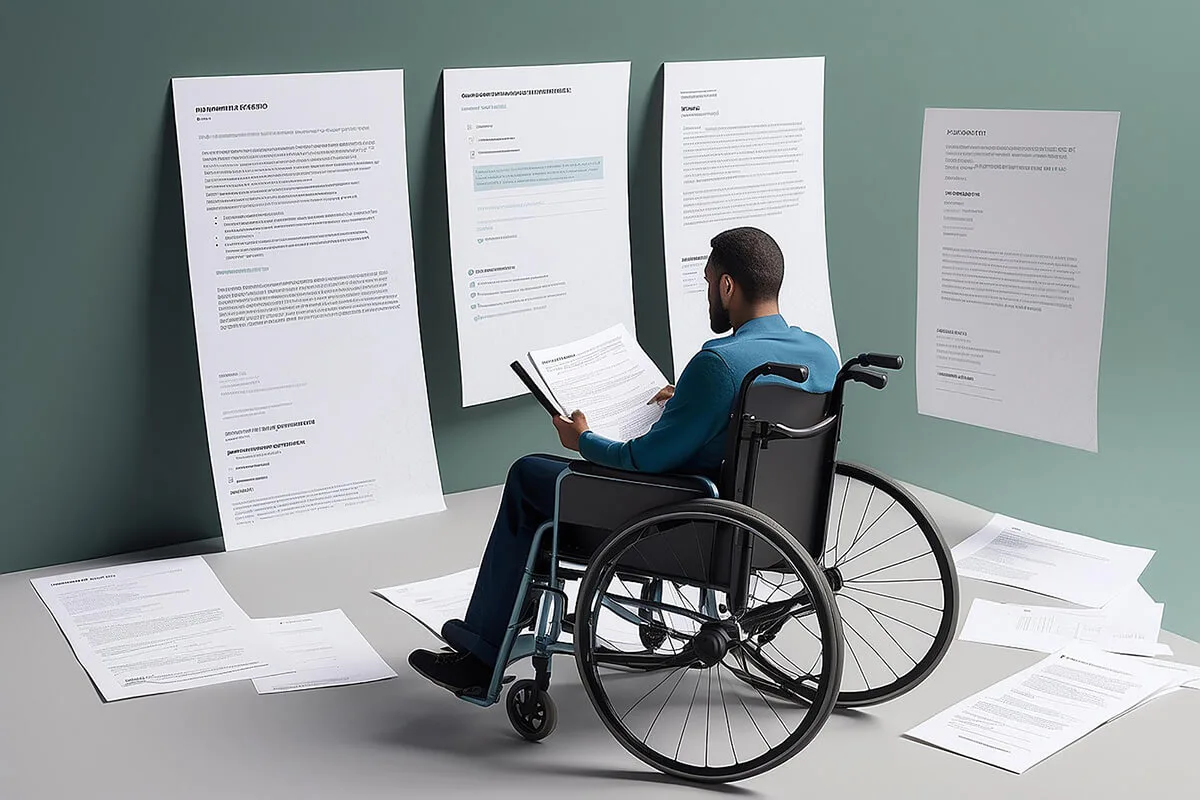
Document Accessibility is a strategic necessity that improves user experience, reduces legal exposure, and streamlines operations. Effective document accessibility remediation combines automated tools, clear governance, and human review to remove barriers quickly while protecting sensitive content. This article presents practical, scalable tactics to accelerate remediation, strengthen security, and embed document accessibility into everyday workflows.

Why document accessibility accelerates outcomes and reduces risk
- Faster information access: Properly structured documents render predictably across assistive technologies, shortening the time it takes users to find and understand content.
- Reduced legal and reputational exposure: Proactive remediation lowers the chance of complaints, regulatory action, and public criticism.
- Operational efficiency and security: Tagged, well-organised files are easier to index, audit, and control, which supports secure lifecycle management and faster retrieval.
Key concepts of document accessibility
Semantic structure and metadata
- Use native heading styles to create a logical reading order that screen readers can follow.
- Include document metadata such as title, language, and author so that assistive tools present context correctly.
Clear non-text alternatives
- Write meaningful alt text for images and charts that explains purpose and data rather than appearance.
- Provide transcripts and captions for audio and video to support users who are deaf or hard of hearing.
Visual clarity and colour use
- Avoid relying on colour alone to convey meaning; pair colour with labels, icons, or patterns.
- Ensure adequate contrast between text and background to meet readability thresholds for low-vision users.
Accessible tables, forms, and charts
- Tag table headers and avoid complex merged cells that confuse navigation.
- Label form fields clearly and ensure keyboard operability for all interactive elements.

Challenges caused by inaccessible documents and how to address them
Poor structure and navigation
Issue: Missing headings and inconsistent formatting make content hard to navigate with assistive tech - the most common document accessibility failure.
Solution: Train authors on semantic styles and provide accessible templates to enforce structure.
Large remediation backlogs
Issue: Reactive remediation creates delays and high vendor costs.
Solution: Triage by impact-prioritise public-facing, high-traffic, and legally sensitive files; automate routine fixes to reduce manual workload.
Distributed ownership and inconsistent practices
Issue: Multiple authors and teams produce inconsistent accessibility outcomes.
Solution: Embed document accessibility into the lifecycle with templates, in-app guidance and clear ownership rules.
Scanned or image-only PDFs
Issue: Non-searchable PDFs block screen readers and prevent indexing.
Solution: Use OCR to convert scans into searchable text, then tag the structure and add descriptive alt text.
Colour-dependent visuals
Issue: Charts and filters that rely solely on colour are unreadable to many users.
Solution: Add direct labels, legends, textures, and colour-blind friendly palettes; test with simulators.
Practical remediation workflow: combine automation and human expertise

- Discovery and inventory
Scan repositories to map file types, usage patterns, and ownership; assign priority tiers. - Automated remediation pass
Run batch tools to correct structural issues (missing tags, basic alt text, heading styles). Automation handles repetitive tasks at scale. - Manual remediation for complex items
Accessibility specialists address nuanced issues such as reading order, complex tables, and contextual alt descriptions. Validate fixes with screen readers. - Quality assurance and user testing
Include people who use assistive technologies to catch real-world problems that tools miss. - Publish, monitor, and iterate
Release accessible versions, monitor analytics and feedback, and maintain dashboards to detect regressions. - Governance and continuous improvement
Maintain policies, SLAs, training, and reporting to keep accessibility sustainable over time.
Document accessibility tools and techniques that speed remediation
- Batch processors and automated fixers. Handle repetitive structural fixes across large document sets.
- Authoring templates and content controls. Prevent common issues at the point of creation by enforcing accessible patterns.
- OCR and image remediation. Convert scanned documents into searchable, taggable formats and add descriptive text for images.
- Contrast and colour-checking utilities. Automatically flag colour and contrast problems to guide designers and authors.
Ensuring document accessibility across file types
Microsoft Office (general)
- Use built-in heading styles and lists to create a clear, navigable structure.
- Provide descriptive link text and alternative text for images, charts, and shapes.
- Ensure logical tab order and keyboard operability.
- Run accessibility checks and resolve flagged issues before distribution.
Microsoft Word
- Apply heading styles and set a document title so assistive tools can jump between sections.
- Add alt text for images and captions for tables; use header rows to define table structure.
- Use content controls for forms and label fields so that inputs are announced correctly.
- Avoid decorative layouts that break reading order or rely on visual cues alone.
Microsoft Excel
- Arrange data in simple tables with clear header rows; avoid merged cells and blank cells used for spacing.
- Name worksheets and use named ranges to provide context for screen readers.
- Add alt text to charts and document important formulas or relationships.
- Mark the end of tables to help linear navigation.
Microsoft PowerPoint
- Give each slide a unique title and use slide layouts rather than free-form text boxes.
- Provide alt text for visuals, captions for videos, and transcripts for audio.
- Maintain strong colour contrast and avoid rapid or flashing animations.
- Confirm that the reading order matches visual order and that keyboard navigation works.
Google Docs, Slides, Sheets
- Apply the same semantic practices as Office files and use built-in accessibility features.
- Use speech input, captions, and accessibility checkers; employ add-ons to detect issues.
PDFs, Scanned Files, HTML and XML
- Use built-in heading styles and lists to create a clear, navigable structure.
- Provide descriptive link text and alternative text for images, charts, and shapes.
- Ensure logical tab order and keyboard operability.
- Run accessibility checks and resolve flagged issues before distribution.
Testing and Governance
- Combine automated tools with manual testing using screen readers and keyboard-only navigation; no document accessibility checker catches everything.
- Train content creators, embed accessibility into workflows, and maintain remediation processes to ensure consistent, usable documents.
Document lifecycle management: embed document accessibility at every stage
- Creation: Provide accessible templates and inline guidance so authors produce compliant files from the start.
- Review and approval: Integrate automated accessibility checks into review workflows to avoid last-minute remediation.
- Storage and distribution: Use centralized, secure repositories with role-based access, version control, and audit trails.
- Retention and archiving: Apply retention policies and automated archiving to reduce clutter and keep only relevant, accessible content.
Security and privacy during remediation
- Protect sensitive content. Keep high-sensitivity files in-house or use encrypted pipelines when third-party services are necessary.
- Access controls and audit logs. Limit who can modify source documents and remediation outputs; log edits for compliance and traceability.
- Regulatory alignment. Map document accessibility efforts to recognised standards such as PDF/UA and WCAG, and maintain evidence for audits.
Designing for visual differences and colour blindness
- Use redundant cues. Combine colour with text labels, icons, or patterns so meaning is preserved for everyone.
- Test palettes and contrast. Run colour-blindness simulators and adjust palettes to meet readability thresholds.
- Label charts directly. Add direct data labels and clear legends so charts remain interpretable without relying on colour.
Measuring success: KPIs and reporting
- Remediation throughput. Track the number of documents remediated per week and average time-to-remediate by priority tier.
- Coverage metrics. Measure the percentage of public-facing and high-priority documents that meet accessibility standards.
- User feedback and error rates. Monitor reports from assistive-technology users and automated scan failure rates.
- Risk reduction indicators. Track the number of accessibility incidents or complaints before and after remediation initiatives.
Organizational practices that sustain document accessibility
- Cross-functional ownership. Share responsibility for content creators, IT, legal, and product teams.
- Training and enablement. Regular training for authors and reviewers reduces future remediation needs.
- Accessible-by-default culture. Include accessibility in performance goals, release checklists, and recognition programs.
Quick checklist to begin remediation now
- Inventory your documents and tag priorities.
- Deploy accessible templates and in-context guidance for authors.
- Run automated scans to fix low-complexity issues at scale.
- Remediate high-priority files using a combined automated + manual approach.
- Establish governance with SLAs, dashboards, training, and audit trails.

Document accessibility: frequently asked questions
Which standards define document accessibility?
WCAG 2.1 or 2.2 Level AA for the content, and PDF/UA (ISO 14289) for the structure of PDF files. Laws such as ADA Title II, Section 508, the European Accessibility Act and India’s GIGW all point to these, so a document that meets them is covered almost everywhere.
Is it better to fix a PDF or publish HTML instead?
Publish HTML whenever the content is meant to be read on screen; it is more accessible, works on phones and is easier to maintain. Keep PDFs for documents that must be printed, signed or archived, and remediate those to PDF/UA, which is document accessibility in its strictest form.
How much document accessibility work can be automated?
Roughly the routine half: tagging headings and lists, detecting missing alt text, flagging contrast and reading-order problems. Reading order in complex layouts, meaningful alt text, table structure and forms still need a person, and everything needs a screen reader check before release.
How do I prioritise a large backlog?
By impact: public-facing and high-traffic files first, then anything legally sensitive (forms, notices, policies), then the archive. Many organisations set a cut-off date and remediate older files only on request, which keeps the document accessibility budget focused.
Who is responsible for document accessibility in an organisation?
Everyone who publishes, which is why templates and training matter more than a remediation vendor. A small central team sets standards, checks high-risk files and reports on coverage, while authors produce accessible files from the start.
✅ Conclusion
Document accessibility, done quickly and securely, requires a balanced approach: automate routine fixes, apply human expertise where nuance matters, and embed accessibility into the document lifecycle. Addressing common barriers-poor structure, colour dependence, scanned PDFs, and fragmented ownership-reduces legal risk, improves user experience, and makes remediation repeatable and sustainable. Start with inventory and templates, scale with automation, validate with real users, and govern the process to keep accessibility fast, secure, and effective. Ananyoo can help organizations implement these steps and maintain document accessibility as an ongoing, measurable practice; our web accessibility case study shows the same discipline applied to a website.
