

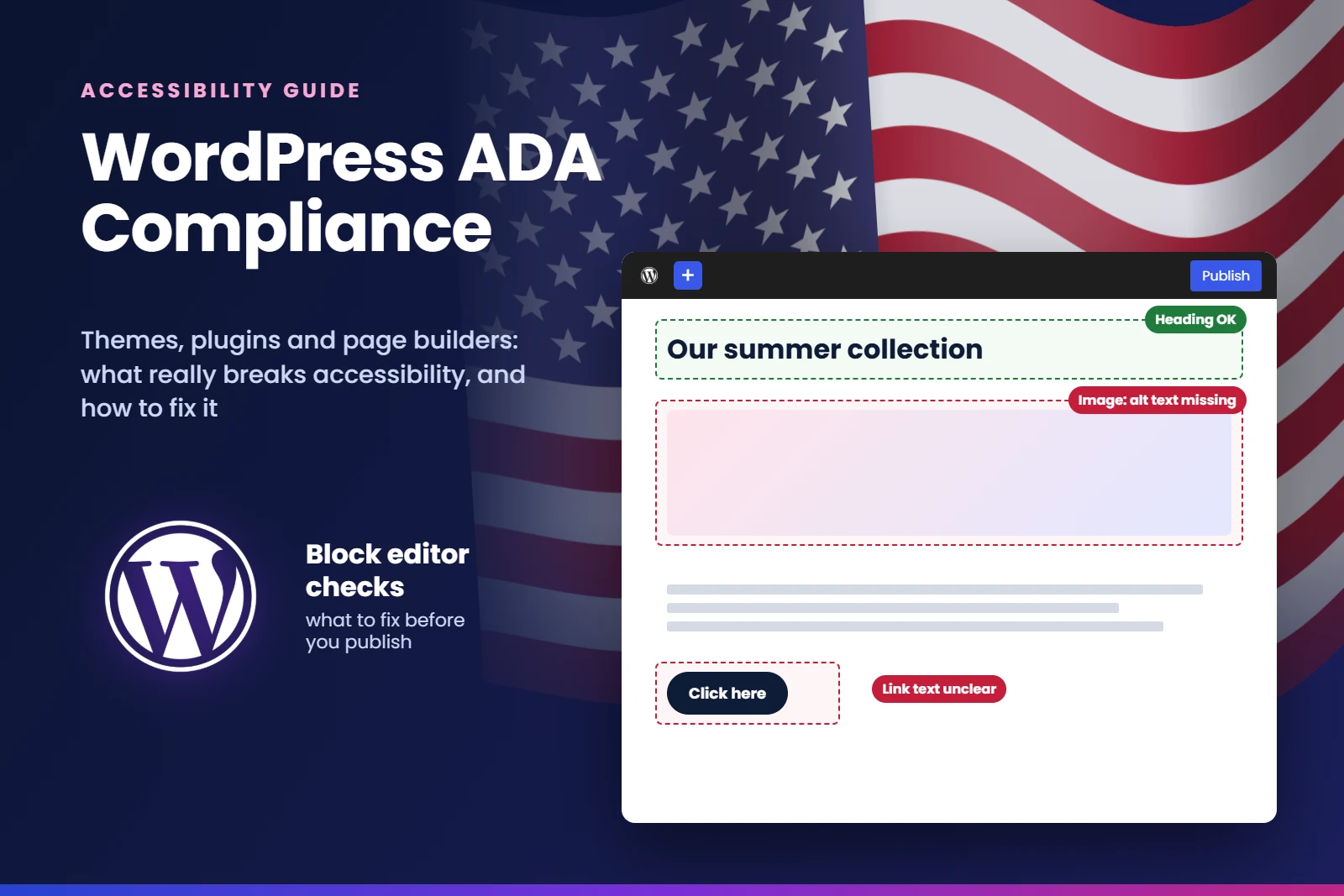
WordPress ADA compliance is one of the most common worries I hear from US site owners. Most of them chose WordPress because it is flexible and easy to manage. Then one day a demand letter arrives, saying a blind visitor could not use their contact form or menu, and they are surprised. After all, WordPress is used by so many big organisations. How can it be inaccessible?
The short answer is that WordPress itself is rarely the problem. The problems come from what is built on top of it. I have been building and fixing WordPress sites since the early days of the platform, and you can see some of our completed projects in our web accessibility case studies.
In this guide I explain why WordPress sites get ADA letters, where the barriers really come from, the nine mistakes we find again and again in audits, and the order we follow to fix them for good.
On this pageJump to any part of this page9 sections
Why WordPress sites receive so many ADA letters
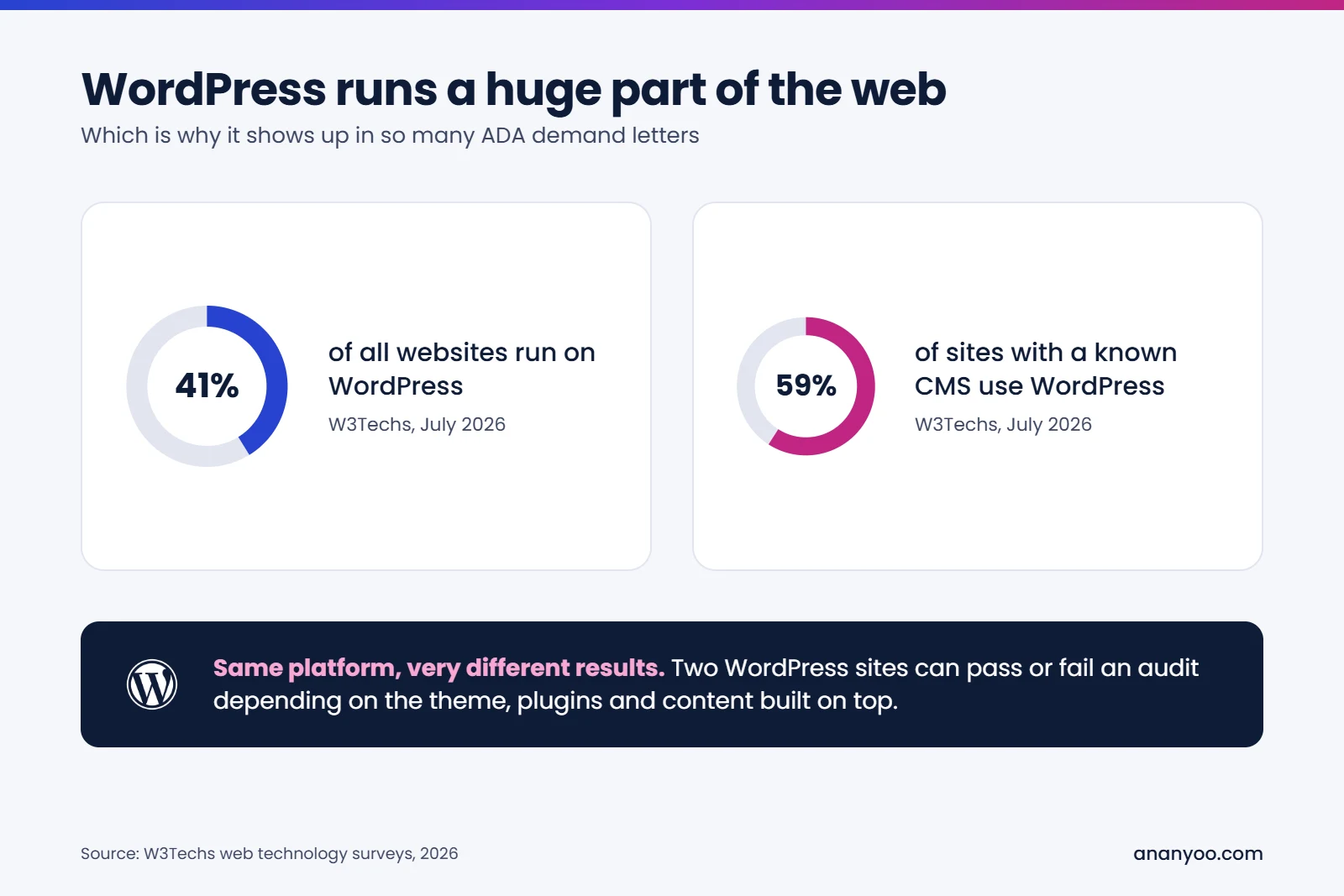
The first reason WordPress ADA compliance comes up so often is simple: numbers. According to W3Techs, WordPress powered about 41.2% of all websites in July 2026, and about 59.1% of all sites that use a known content management system. When almost half of the web runs on one platform, it will naturally appear in a large share of ADA website complaints.
The second reason is how WordPress sites are usually built: an old theme, a page builder added later, ten or fifteen plugins from different people, and content written by whoever had time. Nobody tested the full picture with a screen reader.
The third reason is that plaintiff firms now scan websites in bulk. Lawsuit numbers are at record levels in 2026, and WordPress sites with obvious problems like missing alt text, unlabelled forms and invisible focus are easy to find. If you want to know what to do when a letter arrives, read our guide on what to do after an ADA demand letter.
Is WordPress ADA compliant out of the box?
WordPress core takes accessibility seriously. It has a dedicated accessibility team, and the project's own accessibility handbook sets the expectation that new and updated core code meets WCAG at Level AA. The admin area and the block editor are tested by people who use screen readers every day.
But WordPress ADA compliance is not decided by core. It is decided by the full site that your visitor uses. Think of every WordPress site as five layers stacked on top of each other: WordPress core, the theme, the plugins, the page builder, and finally the content. Core is the safest layer. The risk grows with every layer above it.
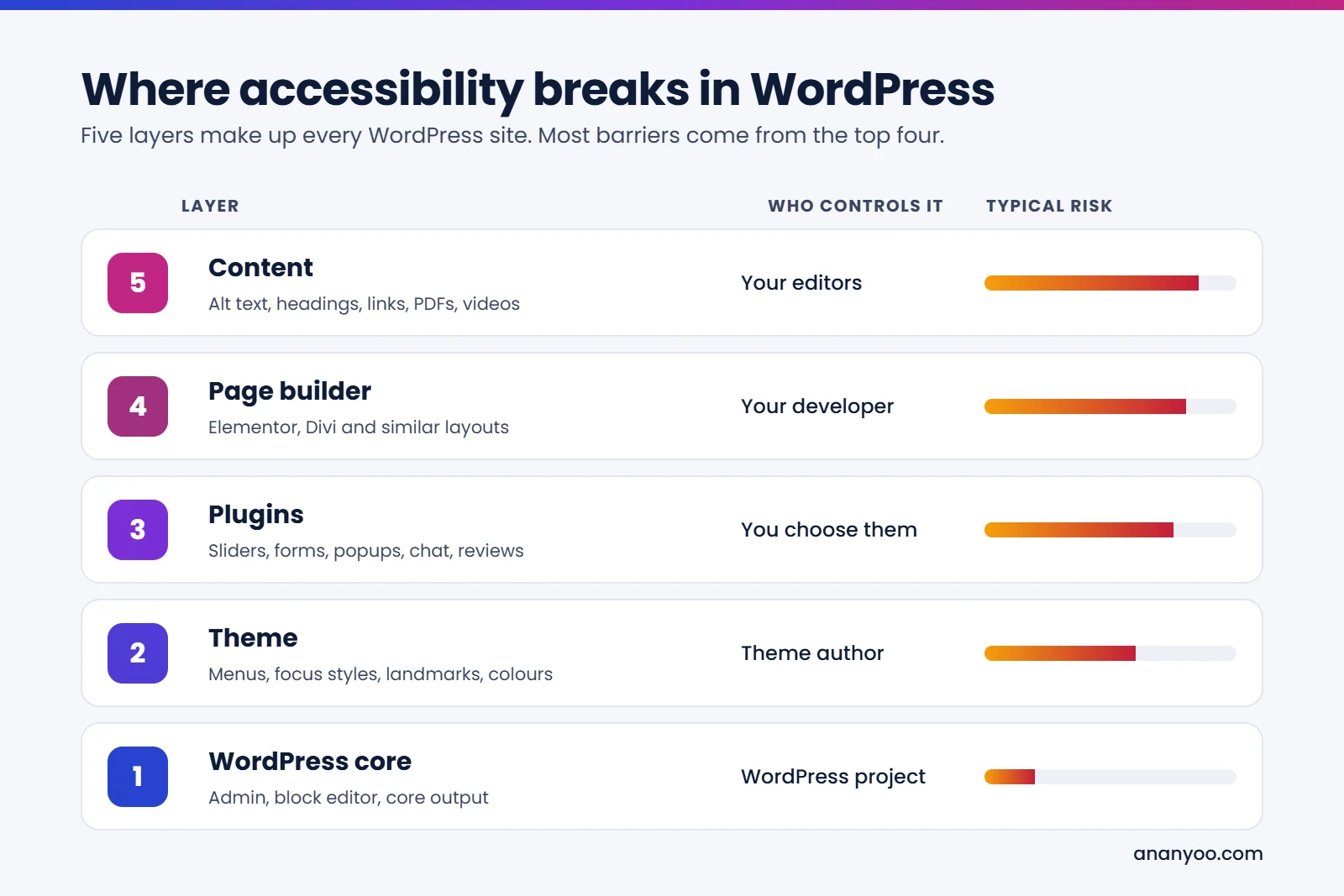
This is why two WordPress sites can get completely different audit results. The platform is the same, but the theme, plugins and content are not. Under the ADA, the site owner is responsible for the finished website, whatever tools were used to build it.
9 common WordPress ADA compliance mistakes
These are the issues we find most often when we audit WordPress sites for US clients. Almost all of them also appear in demand letters, so fixing them is the core of any WordPress ADA compliance work.
1. A theme with no skip link and invisible focus
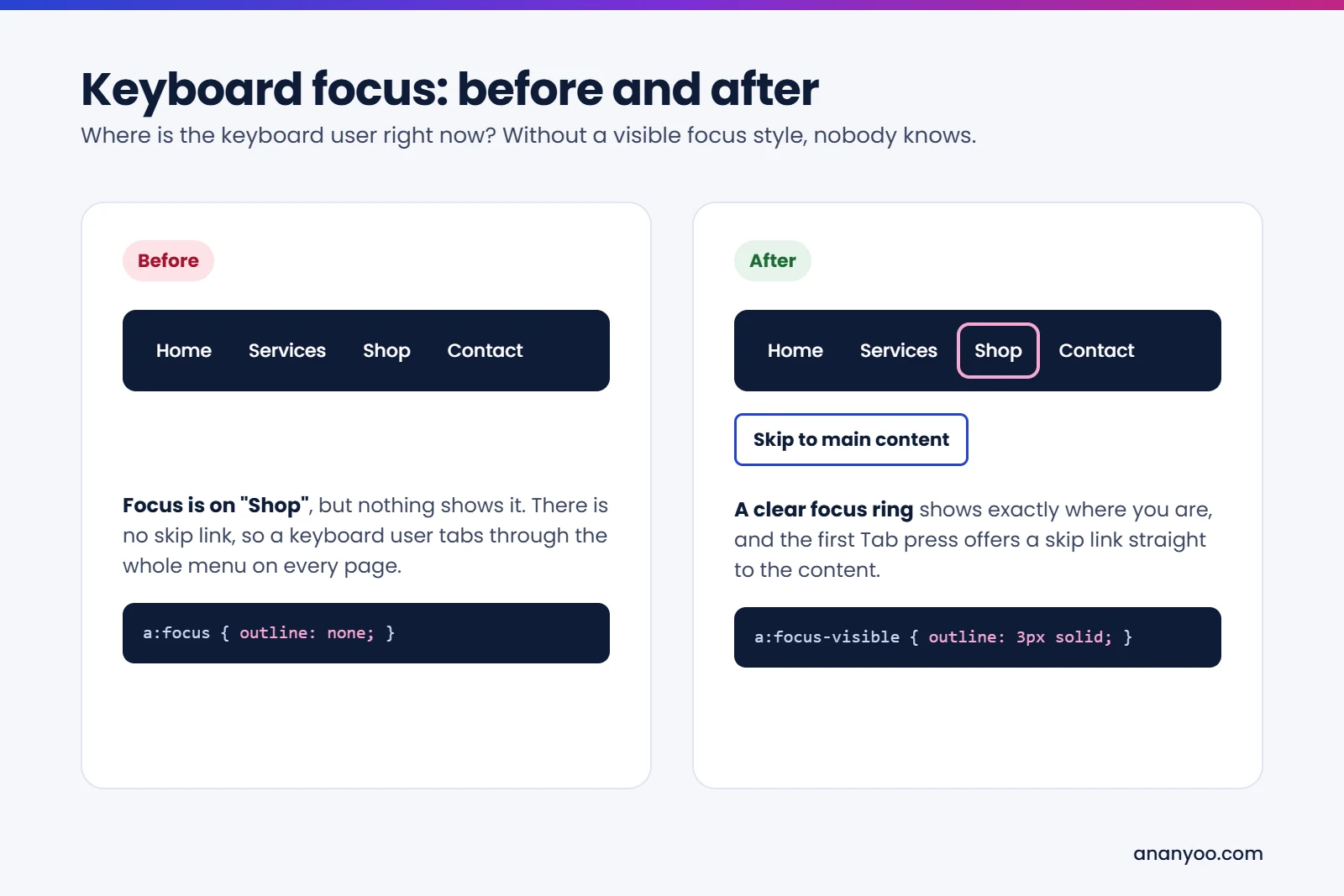
Many popular themes remove the browser focus outline because designers think it looks untidy. A single line of CSS, outline: none, means keyboard users cannot see where they are on the page. Many themes also have no "Skip to main content" link, so a keyboard user must tab through the full menu on every single page. Both are quick to fix in the theme, and both are checked first in any audit. Our own Ariade theme ships with a skip link and a clear focus ring on every link, button and form field, so you can see what good looks like.
2. Menus and mobile toggles that only work with a mouse
Dropdown menus that open only on hover, and hamburger buttons built from a plain div or span, are very common. A keyboard user cannot open them, and a screen reader does not announce whether the menu is open or closed. A proper menu toggle is a real button, with an aria-expanded state that changes when the menu opens, and submenus that open with Enter or Space. Menus are usually the first thing an auditor checks for WordPress ADA compliance. The header and mobile drawer in our Ariade theme are built this way, and you can try them with only a keyboard on our Ariade live demo.
3. Page builders choosing headings for looks
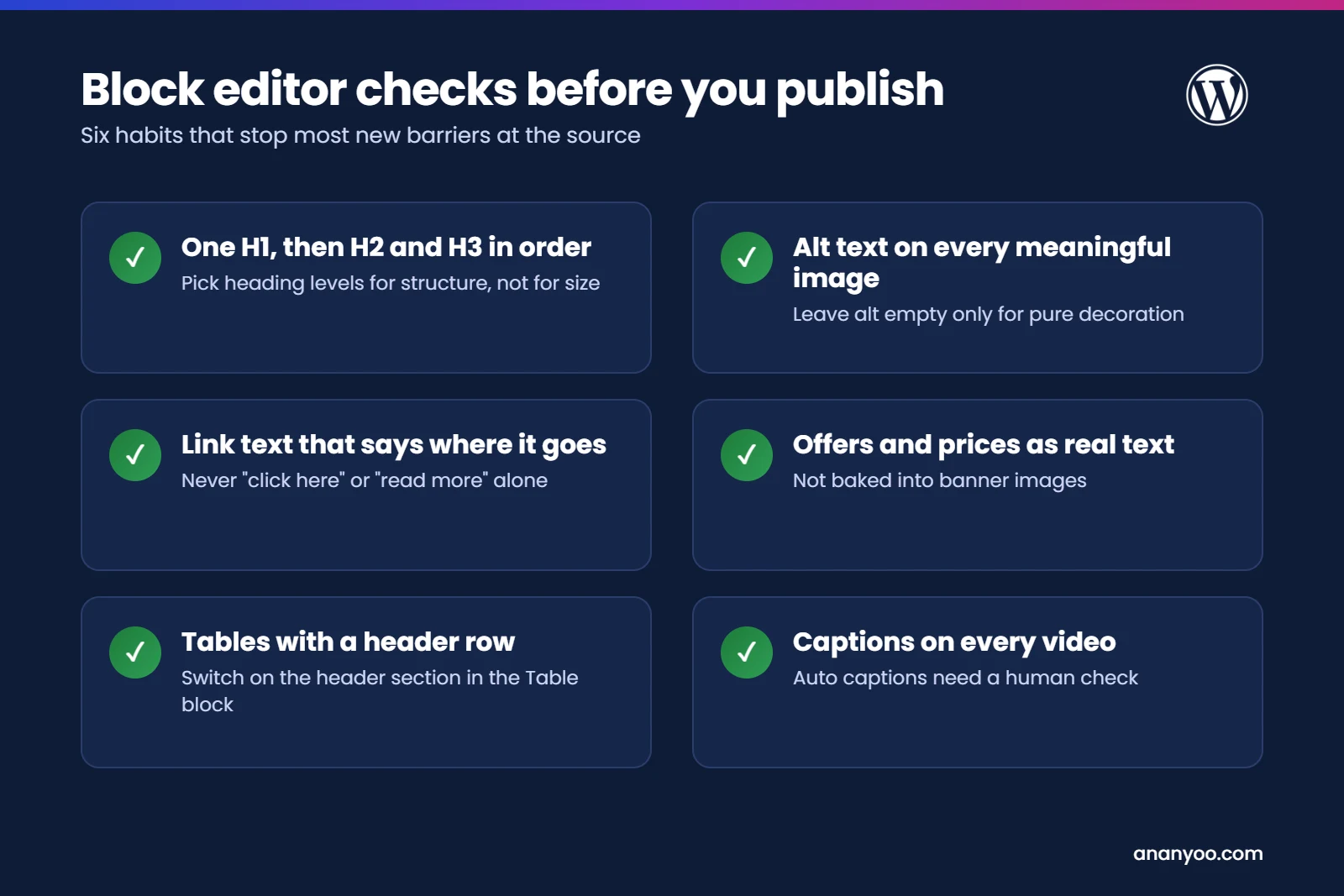
Page builders like Elementor and Divi make it easy to pick a heading level because it has the right font size. The result is a page that jumps from H1 to H4, or uses five H1 headings in one page. Screen reader users navigate by headings, much like sighted users scan a page, so a broken heading structure makes the page very hard to follow. Builders also tend to wrap everything in many layers of extra markup, which can confuse assistive technology.
4. Sliders and carousels that move on their own
Autoplay hero sliders are still everywhere on WordPress homepages. When a slider moves without a pause button, it fails WCAG and confuses screen reader users and people with attention or vision difficulties. Many slider plugins also have unlabelled arrow buttons and dots that a keyboard cannot reach. If you need a slider, use one built for accessibility, such as our free Ananyoo Accessible Carousel plugin.
5. Contact forms with placeholders instead of labels
Forms are where many WordPress ADA compliance claims start, because a form that cannot be sent is a lost customer. Common problems are placeholder text used in place of a visible label, required fields marked only with a red star, error messages that appear on screen but are never announced, and CAPTCHA puzzles that block blind users completely. Every field needs a real label, and errors must be announced and linked to the field. Our Ananyoo Accessible Forms plugin was built for exactly this.
6. Images with missing or useless alt text
In WordPress, alt text can be set in the media library and also in each Image block, and people often forget both. Some themes and plugins fill alt text with the file name, so a screen reader reads out "IMG underscore 4521 dot jpg". Good alt text describes what the image shows in the context of the page. Decorative images, like background shapes, should have empty alt text so they are skipped. Alt text is the easiest WordPress ADA compliance win, because any editor can fix it.
7. Low contrast colours from the theme settings
Light grey body text, pale buttons and white text on busy photos look modern, but they fail WCAG 2.2 Level AA, which asks for a contrast ratio of at least 4.5:1 for normal text. In WordPress this often comes from the colour palette in the theme customiser or the Site Editor, so one bad choice spreads across the whole site. The good news is that one fix in the global styles also repairs the whole site.
8. Videos without captions and PDFs without tags
Embedded YouTube videos without proper captions, and PDF brochures, menus and forms uploaded straight from a design tool, are a big blind spot. Auto-generated captions are a starting point, but they need a human check. PDFs need tags, reading order and alt text, or they are just a picture of text for a screen reader user. Where possible, publish the same information as a normal web page. Many owners forget that WordPress ADA compliance covers the documents and videos on the site, not just the pages.
9. Installing an overlay plugin instead of fixing the site
Many WordPress owners install a free accessibility widget plugin and believe their WordPress ADA compliance work is done. The widget adds a toolbar on top, but it does not repair the theme, the forms or the content underneath, and sites with widgets are still being sued every month. We have explained this in detail in accessibility overlays: pros and cons explained.
What the accessibility-ready tag really means
On WordPress.org, some themes carry an "accessibility-ready" tag. These themes have passed an extra review covering things like keyboard navigation, skip links, focus styles, headings, contrast and form labels. Choosing such a theme is a very good starting point for WordPress ADA compliance, and it removes many of the theme-level problems listed above.
But the tag covers only the theme as delivered. The moment you add a page builder, a slider plugin, a popup, or content with missing alt text, the site can fail again. So treat the tag as a strong foundation, not as a certificate for the whole site.
How to make your WordPress site ADA compliant
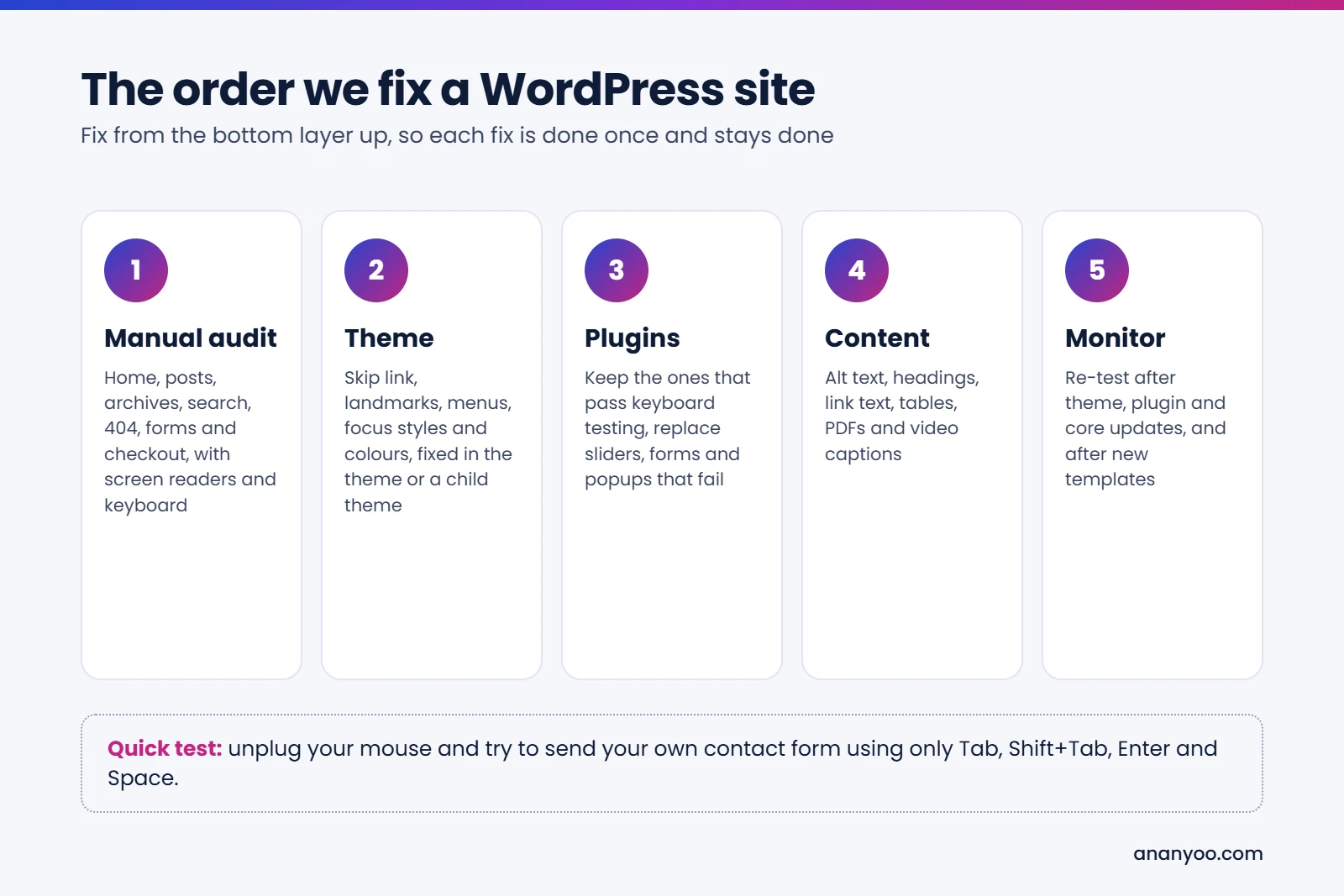
Real WordPress ADA compliance is a short project followed by regular care, not a one-time scan. This is the order we follow with our clients:
- Start with a manual audit: test the key templates, home, posts, archives, search, 404, forms and checkout, with screen readers and a keyboard, against WCAG 2.2 Level AA. Automated tools find only part of the problems.
- Fix the theme first: skip link, landmarks, menus, focus styles and colours. Do it in the theme or a child theme, so updates do not undo the work.
- Review every plugin: keep the ones that pass keyboard testing, and replace sliders, forms and popups that fail.
- Clean up the content: alt text, headings, link text, tables, PDFs and video captions.
- Publish an accessibility statement with a working email address, so users can report a problem to you directly.
- Train your editors: a 30-minute session on the block editor checks prevents most new problems.
- Monitor after updates: re-test after theme, plugin and core updates, and whenever a new template is added.
Test your WordPress site yourself in 20 minutes
These five checks will not replace a full audit, but they show the biggest WordPress ADA compliance gaps quickly, with no technical knowledge needed.
Check 1: the keyboard walk
Open your home page, click once in the address bar, and press Tab again and again. Watch for three things. Can you always see where the focus is? Does the first Tab press show a "Skip to main content" link? Can you open the menu, reach every link and button, and get out of any popup with Escape? If the focus disappears or gets stuck anywhere, note it down.
Check 2: zoom to 200 percent
Press Ctrl and the plus key until the browser shows 200 percent. Text should get bigger without being cut off, and you should not need to scroll sideways to read a sentence. Many WordPress themes break here, with menus overlapping the logo or buttons running off the screen.
Check 3: listen to one page
Turn on a screen reader for five minutes. NVDA is free on Windows, and VoiceOver is built into every Mac and iPhone. Listen to your home page. Do the images make sense? Do the links tell you where they go? Can you jump between headings? Hearing your own site read aloud is often the moment owners understand why WordPress ADA compliance matters.
Check 4: look at the headings
In the block editor, open the List View or the document outline for one page. You should see one H1, then H2 sections, then H3 sub-sections in order. If levels jump around or a heading is used just to make text bigger, fix it in the editor.
Check 5: send your own form
Fill in your contact form with the keyboard only, leave one required field empty on purpose, and submit it. Is the error clearly shown and explained? Does the focus move to the problem? A form that a blind user cannot complete is one of the most common reasons for a demand letter.
If two or more of these checks fail, a manual audit will usually find deeper problems. That is normal, and it is fixable.
Real examples: our Ariade theme and 6 free plugins
It is easy to write about accessibility. It is harder to build it. So instead of only giving advice, we built our own WordPress theme and plugins to replace the inaccessible pieces we kept finding in audits. They are free on WordPress.org, and we use them on real client sites.
The Ariade theme. Ariade is our full site editing block theme. Before release it went through a 77-page WCAG 2.2 AA audit with zero automated errors and a Lighthouse score of 100 on every page. It gives you a skip link, proper landmarks, keyboard-friendly menus, visible focus and accessible colour pairs from the first install. You can explore it on the Ariade live demo or read more on our WordPress accessibility theme page.
Six free plugins, each one fixing a common WordPress ADA compliance problem from the list above:
- Ananyoo Accessible Carousel: sliders that never move without a pause button, with labelled controls and full keyboard support. It replaces the autoplay sliders in mistake 4.
- Ananyoo Accessible Forms: contact forms with real labels, announced error messages and no puzzle CAPTCHA, for the problems in mistake 5.
- Ananyoo Accessible Login: an accessible WordPress login page, so members, staff and customers with disabilities can sign in without help.
- Ananyoo Accessible Events: event listings and calendars that work with a keyboard and screen reader, where most calendar plugins fail badly.
- Ananyoo Accessible Portfolio: project galleries and filters with proper alt text and keyboard-friendly filtering. Our own case study pages run on it.
- Ananyoo Accessible A to Z Index: an alphabetical index of categories, tags or posts with named letter links and a real heading for every letter, in place of a long tag cloud that is hard to use with a keyboard or screen reader.
You can see all of them together on our WordPress accessibility plugins page and the theme family on our accessible themes page. Using an accessible theme and plugins does not remove the need to test your content, but it removes most of the hard problems before you even start.
How Ananyoo can help
I am Shivaji Mitra, a DHS Trusted Tester, working in web development and accessibility since 2003, and our audit team is IAAP certified. For WordPress ADA compliance, we audit your site by hand, fix the theme, plugin and content issues in the code, and give you a clear report you can keep for your records or share with your attorney.
You can read more about our website accessibility audit, our accessibility remediation work and our monitoring and maintenance plans. If you also run an online store on another platform, our guide to Shopify ADA compliance may help. If you want a second opinion on your WordPress ADA compliance, send us your website address through our contact page, and you will get a written reply within one working day.
Frequently asked questions
Is WordPress ADA compliance the site owner's responsibility?
Yes. WordPress core is built with accessibility in mind, but the theme, plugins and content you choose are your responsibility under the ADA.
Does an accessibility-ready theme make my site compliant?
It gives you a strong start, but plugins, page builders and content can still add barriers. The finished site always needs testing before you can claim WordPress ADA compliance.
Is Elementor or another page builder a problem for accessibility?
Not always, but builders make it easy to create poor heading structures and inaccessible widgets. Sites built with them need careful testing and some fixes.
How long does WordPress ADA compliance take?
For most small and mid-sized sites, a proper audit and fix takes a few weeks, depending on the number of templates, plugins and pages.
