

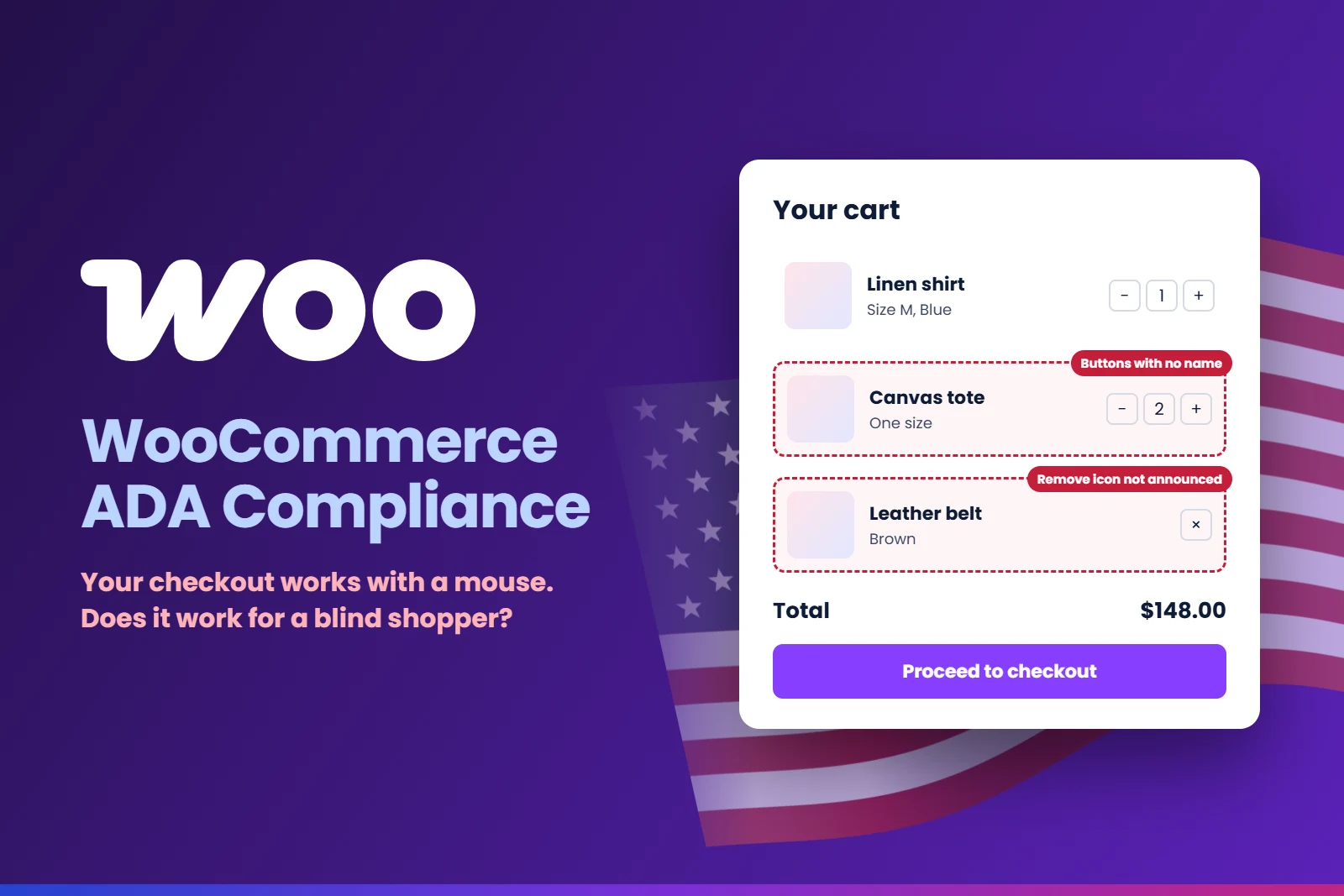
WooCommerce ADA compliance is a topic most store owners only search for after something goes wrong. Usually it is a demand letter saying a blind shopper could not add a product to the cart or finish the checkout. The owner is confused, because the store works perfectly for them. They test it every day with a mouse.
That is exactly the problem. A store that works with a mouse can still be completely closed to someone who uses a keyboard or a screen reader. We fix WooCommerce stores for US clients regularly, and you can see some of our completed projects in our web accessibility case studies.
In this guide I explain why WooCommerce stores are such a common target, the eight barriers that stop shoppers most often, a simple test you can do yourself, and the order we follow to fix a store properly.
On this pageJump to any part of this page8 sections
Why WooCommerce stores are in the firing line
WooCommerce is the most used ecommerce system on the web. According to W3Techs, it runs on about 48% of all ecommerce sites whose platform is known. At the same time, online stores are the most sued type of website in the US. In the first half of 2026, UsableNet reported that around 79% of digital accessibility lawsuits targeted ecommerce companies, and total lawsuits are on track for a record year.
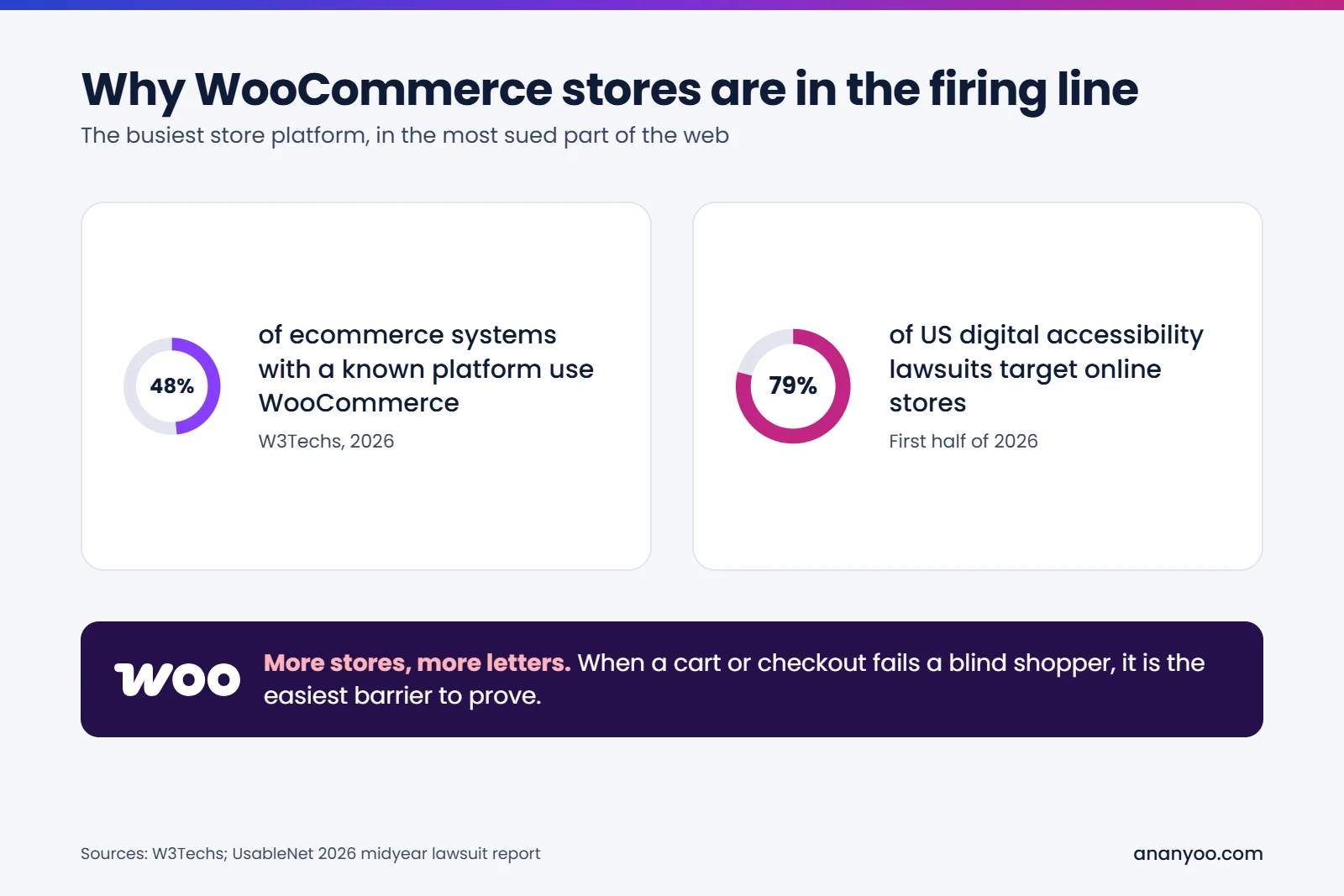
Put those two facts together and the risk is clear. There are millions of WooCommerce stores, and a failed cart or checkout is the easiest barrier for a plaintiff to prove. Nobody needs to argue about design taste when a shopper simply could not pay. That is why WooCommerce ADA compliance should be on every store owner's list, not only for big brands.
If a letter has already arrived, read our guide on what to do after an ADA demand letter first, then come back to the fixes below.
Is WooCommerce accessible out of the box?
WooCommerce itself has improved a lot. Newer stores use the Cart and Checkout blocks, which were built with accessibility in mind, and the core shop templates are reasonably solid. WooCommerce also runs on WordPress, whose core follows the WordPress accessibility standards.
But a real store is never just WooCommerce. It is WooCommerce plus a theme, plus extensions for swatches, filters, wishlists, reviews and upsells, plus a payment gateway, plus hundreds of product pages written by people. Every one of those layers can add barriers. Many older stores also still run the classic shortcode cart and checkout pages, customised years ago by a developer who never tested them with a screen reader.
There is one more layer that is easy to forget: the store does not end at the order confirmation page. Order emails, PDF invoices, account pages and return forms are all part of the shopping experience. A confirmation email with the order details hidden inside an image, or an invoice PDF with no tags, can still leave a blind customer stuck after they have paid.
So the honest answer is: WooCommerce gives you a decent base, but WooCommerce ADA compliance depends on the whole store your customers actually use. Under the ADA, that whole store is the owner's responsibility. We have covered the WordPress side of this in detail in our guide to WordPress ADA compliance.
8 WooCommerce barriers that cost you sales
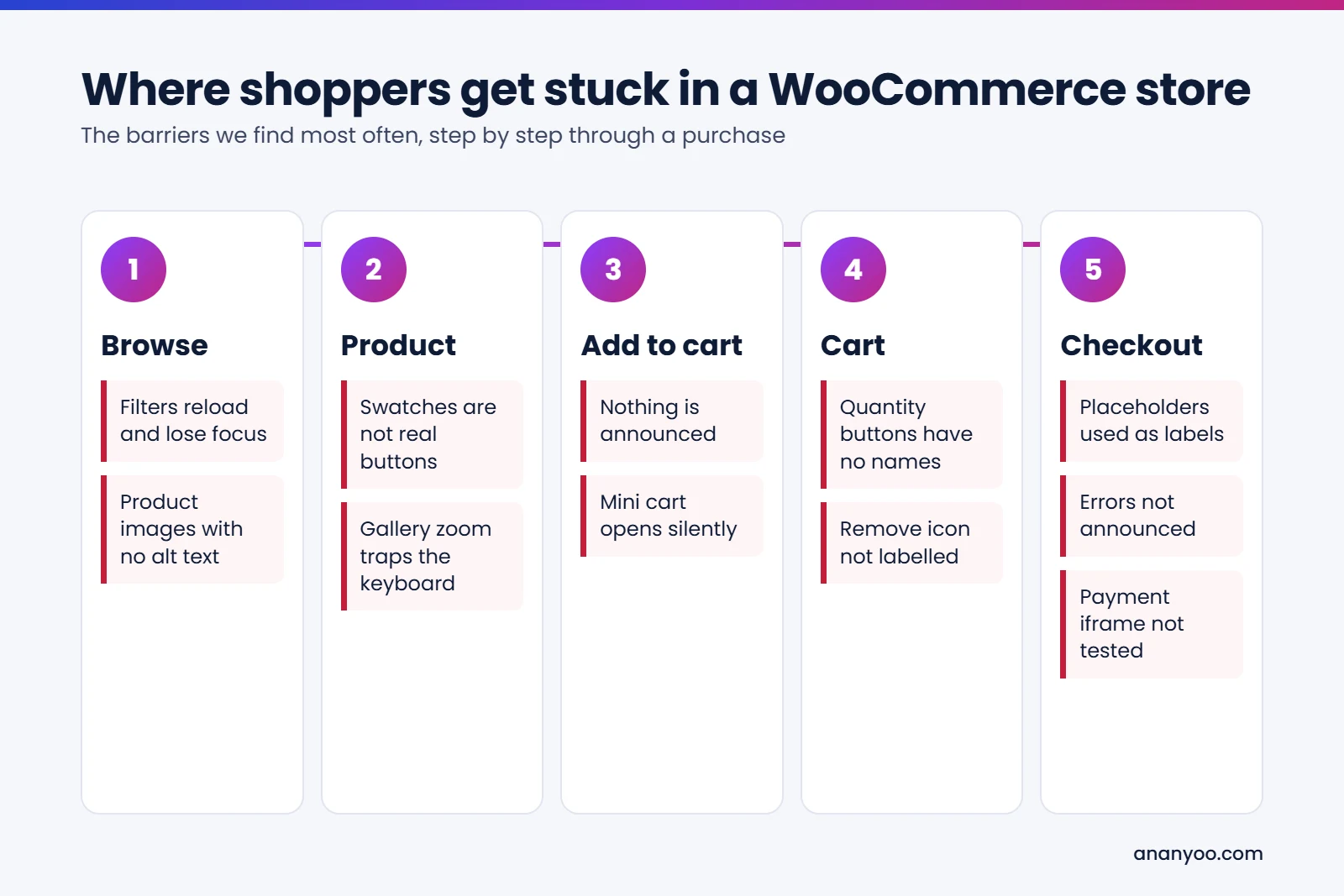
These are the problems we find again and again when we audit WooCommerce stores. Most of them also appear in demand letters, so fixing them is the core of WooCommerce ADA compliance. Each one also loses you real customers, letter or no letter.
1. Product images with no useful alt text
Product photos are often uploaded in bulk with no alt text at all, or with the file name as alt text. A blind shopper then hears nothing about colour, style or what is in the picture. Write alt text that describes what a sighted shopper would notice, and keep it short. Gallery thumbnails that repeat the main image can have empty alt text, so they are not read twice. Quick check: open your best-selling product, right-click the main image and inspect it, or simply ask yourself what a screen reader would say. If the answer is a file name, this is your first WooCommerce ADA compliance fix.
2. Variation swatches that are not real buttons
Colour and size swatch extensions are one of the biggest sources of trouble. Many draw coloured circles with plain markup, so a keyboard user cannot reach them and a screen reader does not say which colour is selected or which size is sold out. A shopper who cannot choose a variation cannot buy, full stop. Good swatches use real radio buttons or buttons, with a visible focus ring and a clear name for every option. Quick check: tab to your swatches. If the focus skips over them, or you cannot tell which one is selected without seeing the colour, the extension needs fixing or replacing.
3. "Add to cart" with no announcement
On many stores, pressing Add to cart updates a small counter in the header and nothing else. A sighted shopper sees the number change. A screen reader user hears nothing and presses the button again, ending up with three items. The fix is a short status message, such as "Linen shirt added to your cart", announced through a live region, and a mini cart that moves focus correctly if it opens. Quick check: add a product with a screen reader running. If you hear nothing, every blind shopper is guessing.
4. Quantity and remove buttons with no names
The plus, minus and cross icons in the cart are usually icon-only buttons. Without proper names, a screen reader announces them only as "button", so the shopper cannot tell which product they belong to or what they do. Each button needs a name like "Increase quantity of Canvas tote", and the new total should be announced after a change. This one fix often clears two or three lines in a demand letter at once, which makes it one of the best value WooCommerce ADA compliance tasks.
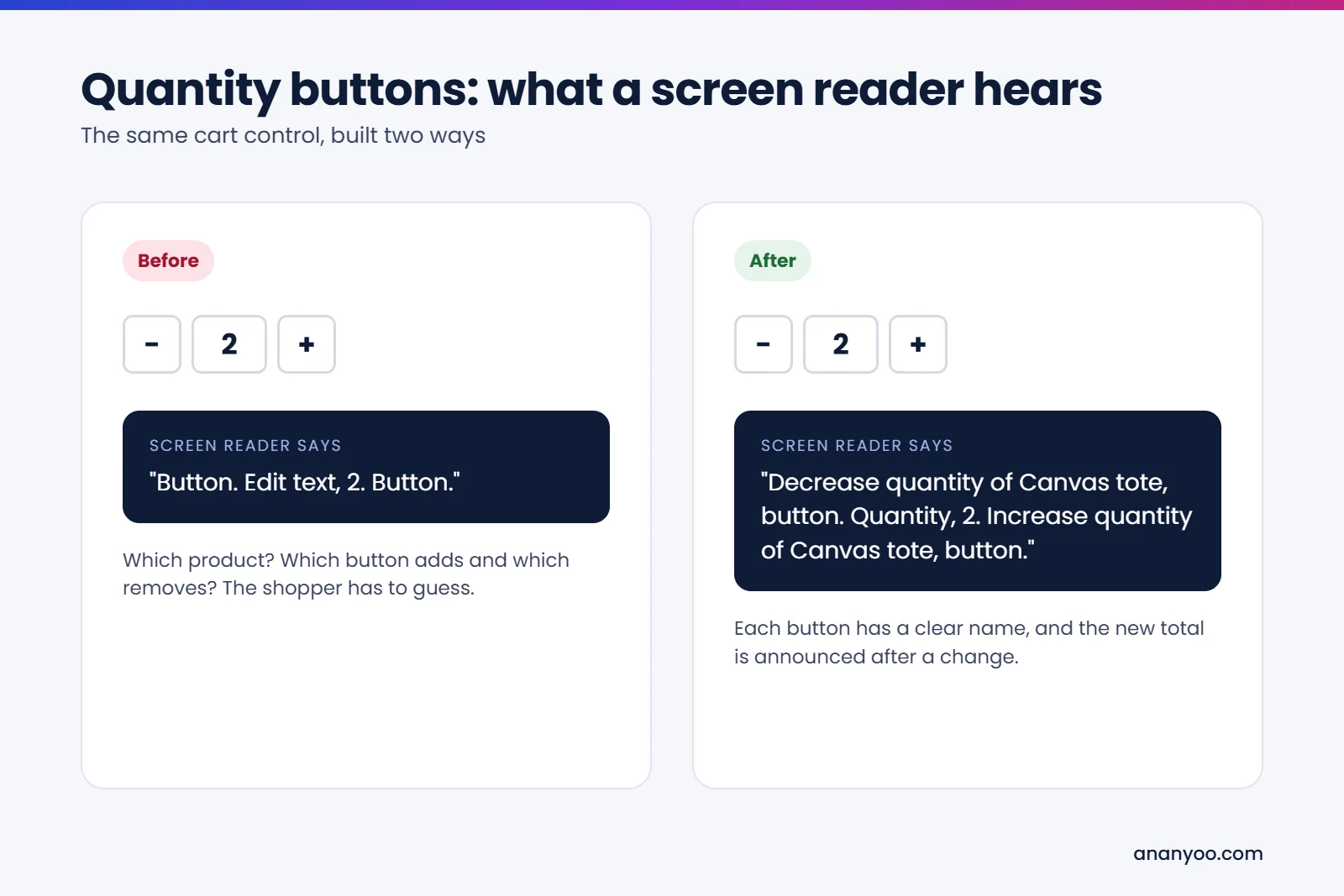
Image description
Quantity buttons before and after: before, a screen reader says Button, Edit text 2, Button; after, it says Decrease quantity of Canvas tote, button, Quantity 2, Increase quantity of Canvas tote, button.
5. Checkout fields with placeholders instead of labels
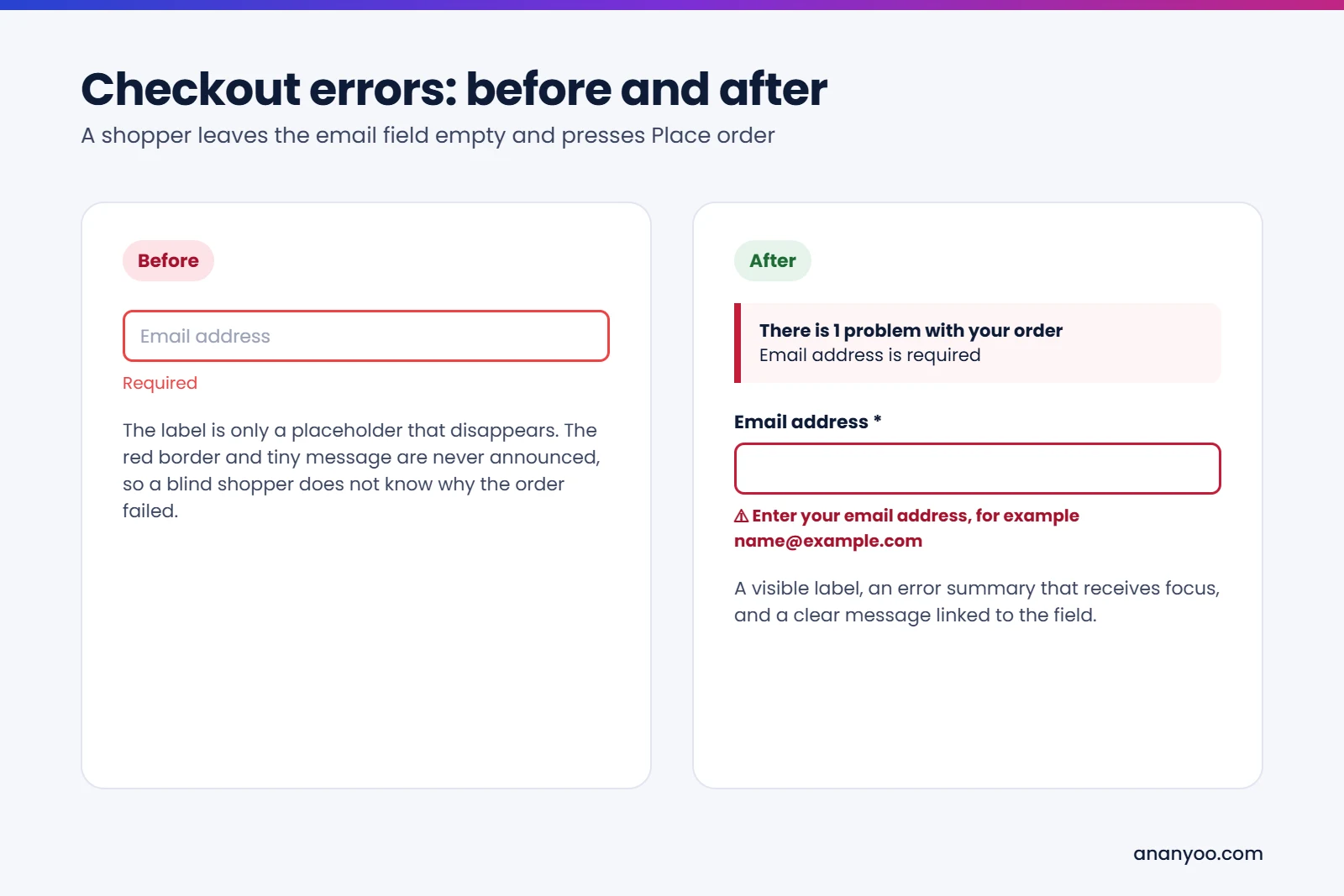
Customised checkouts often remove visible labels to look clean, leaving only grey placeholder text that disappears as soon as the shopper starts typing. Required fields are marked only with a red star, and errors appear as a red border with no text. A screen reader user does not know what went wrong or where. For WooCommerce ADA compliance, every field needs a visible label, errors need clear text linked to the field, and an error summary at the top should receive focus after a failed submit.
6. Payment gateways nobody tested
The card fields on most checkouts sit inside an iframe provided by the payment company. You cannot change that code yourself, which is exactly why you must test it. Some gateways handle keyboard and screen readers well, others do not, and 3D Secure popups can trap focus. Test your gateway with a keyboard and a screen reader, and if it fails, ask the provider or switch to one that works. Offering a second payment option is a sensible safety net. Keep a note of which gateway and version you tested and when. If a complaint ever arrives, that record shows you took WooCommerce ADA compliance seriously.
7. Filters and sorting that lose the shopper
Shop filters for price, size and colour often reload the product list with AJAX. Keyboard focus jumps back to the top of the page, and nothing tells a screen reader user that the results changed. Filters should be real form controls, the number of results should be announced, and focus should stay where the shopper was. The same applies to "Load more" buttons and infinite scroll. For stores with large catalogues, a plain "Apply filters" button is often the most accessible and the most reliable choice.
8. Popups and overlay widgets
Popups are a quiet threat to WooCommerce ADA compliance. Discount popups, spin-the-wheel offers and cookie banners that appear on top of the store are common keyboard traps, especially on mobile. Many stores also add an accessibility widget and believe their WooCommerce ADA compliance is done. A widget does not fix the swatches, cart or checkout underneath, and sites with widgets are still sued every month. We explain this in accessibility overlays: pros and cons explained.
Test your WooCommerce store in 15 minutes
You do not need any special skills to find the biggest WooCommerce ADA compliance gaps. Try these five checks today.
Check 1: buy something with the keyboard only
Put your mouse away. Using only Tab, Shift+Tab, Enter, Space and the arrow keys, choose a product, pick a variation, add it to the cart, change the quantity and go through checkout up to the payment step. If you get stuck anywhere, so does every keyboard user.
Check 2: watch the focus
During that test, can you always see where you are? If the focus ring disappears inside the mini cart, a popup or the checkout, note it down.
Check 3: make a mistake on purpose
Leave the email field empty and press Place order. Is the problem explained in words, and does the page take you to it? Or do you just see a red border?
Check 4: listen to your cart
Turn on a screen reader, NVDA on Windows is free and VoiceOver is built into every Mac and iPhone, and listen to your cart page. Do the buttons have names? Is the total clear?
Check 5: zoom and phone
Zoom the browser to 200 percent, then open the store on your phone. Nothing should be cut off, and you should never need to scroll sideways to read a price or press a button.
If two or more checks fail, a full manual audit will almost certainly find more. That is normal, and every one of these WooCommerce ADA compliance problems is fixable.
How to make your WooCommerce store ADA compliant
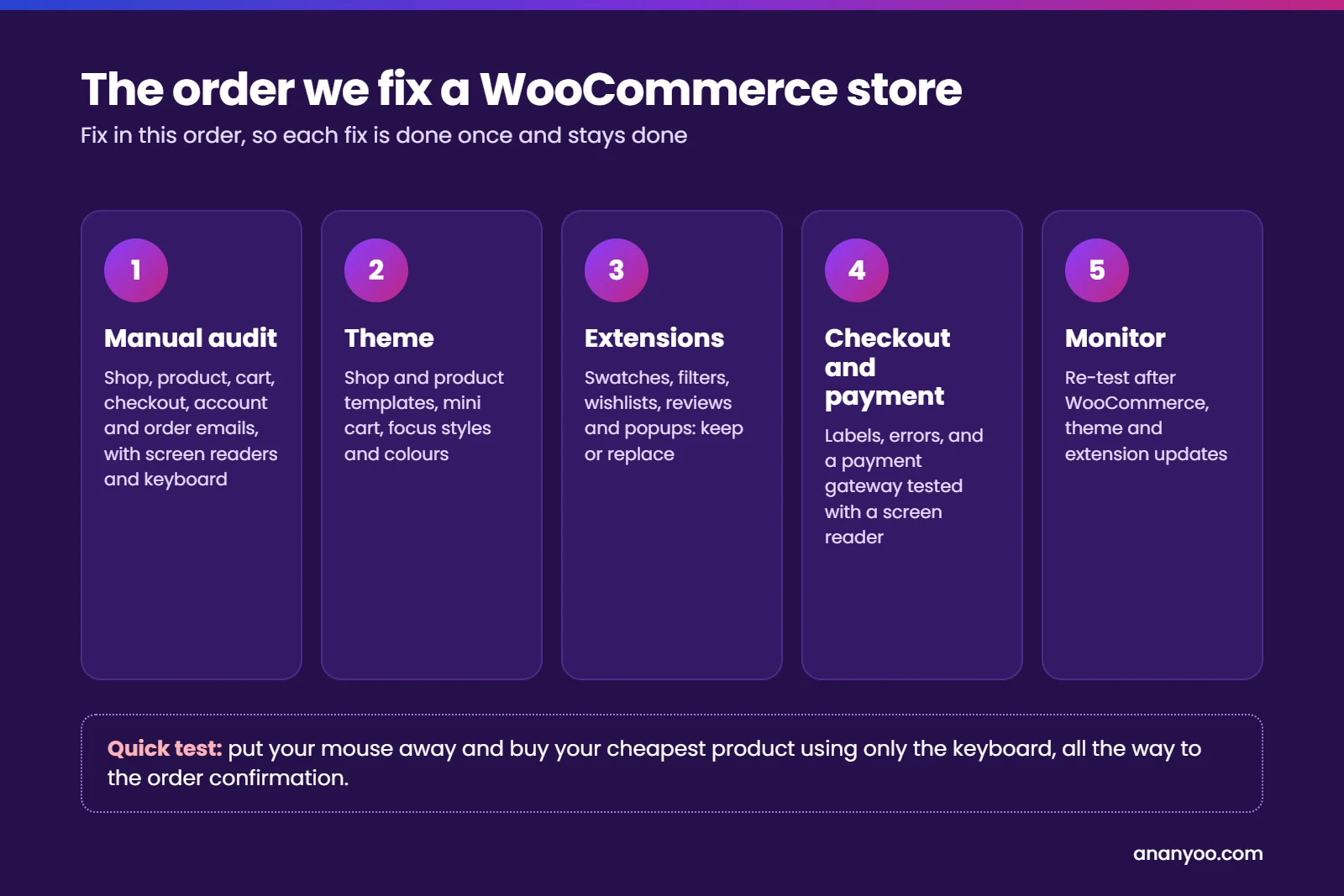
Real WooCommerce ADA compliance is a short project followed by regular care. This is the order we follow with our clients:
- Manual audit first: test the shop, product, cart, checkout, account pages and order emails with screen readers and a keyboard, against WCAG 2.2 Level AA. Automated scans find only part of the problems.
- Fix the theme: shop and product templates, mini cart, focus styles and colours, in the theme or a child theme so updates do not undo the work.
- Review every extension: keep swatches, filters, wishlists and review plugins that pass keyboard testing, and replace the rest.
- Fix checkout and payment: visible labels, clear errors, an error summary, and a payment gateway that works with a screen reader.
- Clean up product content: alt text, descriptions with real headings, size charts as text instead of images, and captioned videos.
- Publish an accessibility statement with a working email, so shoppers can tell you about a problem before they tell a lawyer.
- Check emails and documents: order and shipping emails as real text, and invoices or size guides as tagged PDFs or normal pages.
- Monitor after updates: re-test after WooCommerce, theme and extension updates, and before every big sale.
Real examples: our Ariade theme and 6 free plugins
WooCommerce runs on WordPress, so the same WooCommerce ADA compliance building blocks we use on our WordPress projects apply to stores too. We built our own theme and plugins to replace the inaccessible pieces we kept finding in audits, and we use them on client sites.
The Ariade theme. Ariade is our full site editing block theme, built to WCAG 2.2 AA with a skip link, keyboard-friendly menus, visible focus and accessible colour pairs from the first install. Its WooCommerce shop, product, cart and checkout pages are tested with screen readers in the same way. You can try it on the Ariade live demo or read more on our Ariade accessible WordPress theme page.
Six free plugins on WordPress.org, each solving a real store problem:
- Ananyoo Accessible Carousel: product and banner sliders that never move without a pause button, with labelled controls and full keyboard support.
- Ananyoo Accessible Forms: enquiry, quote and contact forms with real labels and announced errors, the same principles as mistake 5.
- Ananyoo Accessible Login: an accessible login page, so customers can reach their account and orders without help.
- Ananyoo Accessible Events: accessible event listings for stores that run workshops, launches or in-store events.
- Ananyoo Accessible Portfolio: galleries with proper alt text and keyboard-friendly filters, useful for lookbooks and project showcases.
- Ananyoo Accessible A to Z Index: an A to Z of brands or product categories, with named letters, a heading for every letter and a live filter, so shoppers find a brand without scrolling a long list.
All of them are on our WordPress accessibility plugins page. If you sell on another platform as well, our guide to Shopify ADA compliance covers the same journey for Shopify stores.
How Ananyoo can help
I am Shivaji Mitra, a DHS Trusted Tester, working in web development and accessibility since 2003, and our audit team is IAAP certified. For WooCommerce ADA compliance, we audit your store by hand, fix the theme, extension, checkout and content issues in the code, and give you a clear report you can keep for your records or share with your attorney.
Read more about our website accessibility audit, our accessibility remediation work and our monitoring and maintenance plans. Send us your store address through our contact page, and you will get a written reply within one working day.
Frequently asked questions
Is WooCommerce ADA compliance the store owner's responsibility?
Yes. WooCommerce and WordPress give you the base, but the theme, extensions, payment setup and content are your responsibility under the ADA.
Are the WooCommerce Cart and Checkout blocks accessible?
They are a much better starting point for WooCommerce ADA compliance than heavily customised old templates, but extensions and theme styles can still break them, so the finished checkout needs testing.
Can I fix the payment form myself?
Usually not, because it is provided by the payment company, which is why gateway testing is part of WooCommerce ADA compliance. You can test it, report problems and choose a gateway that works with keyboards and screen readers.
How long does WooCommerce ADA compliance take?
For most small and mid-sized stores, a proper audit and fix takes a few weeks, depending on the number of templates, extensions and products.
