

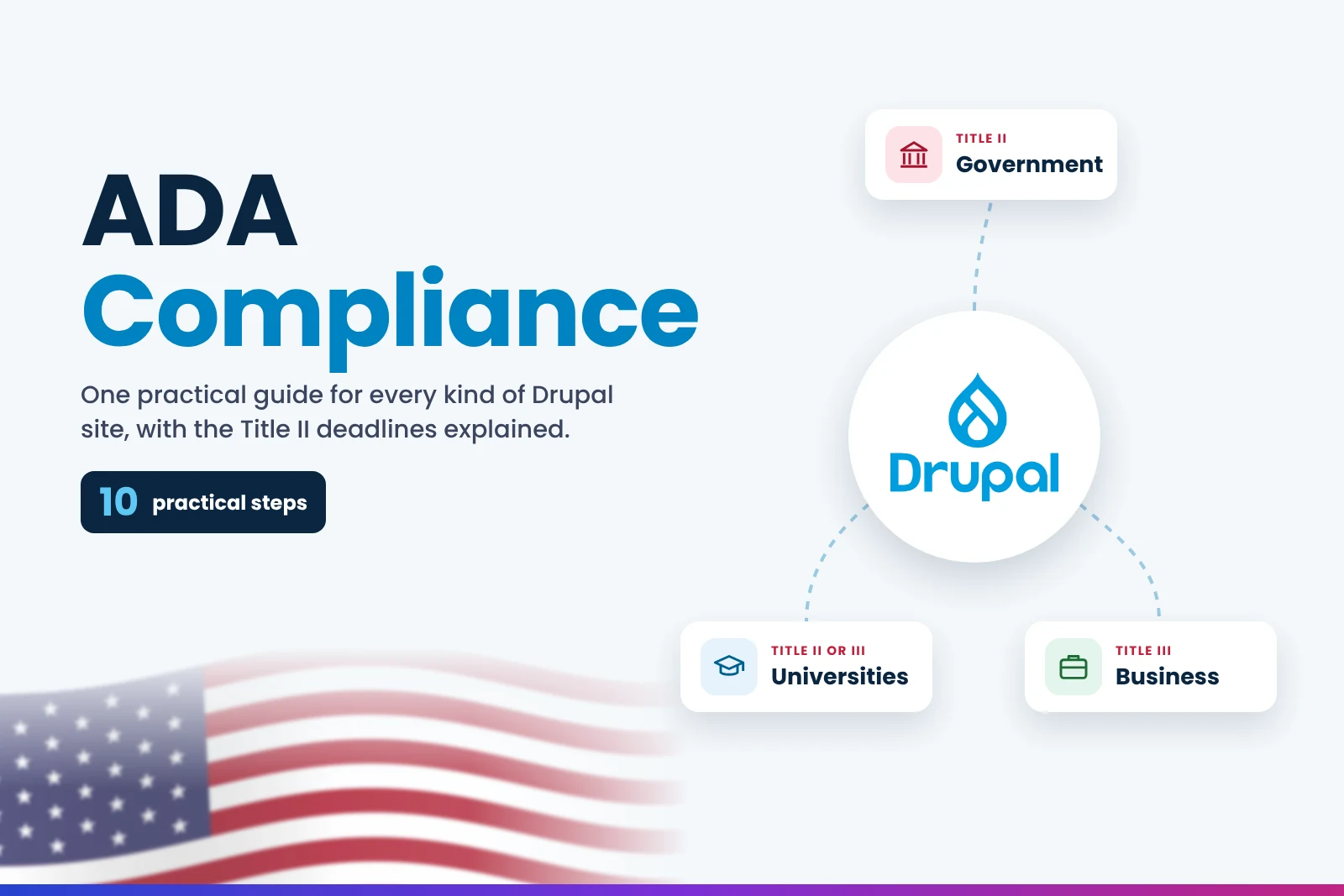
Drupal ADA compliance is a question I hear from three very different kinds of site owners: a county IT manager with a federal deadline, a university web team with thousands of pages and PDFs, and a hospital or nonprofit worried about a demand letter. They all chose Drupal for good reasons. It is secure, flexible and has one of the strongest accessibility records of any open source CMS. But none of that makes a finished Drupal site accessible on its own.
I have been building and testing accessible websites since 2003, and our team audits and fixes sites on every major platform. You can see some of that work in our web accessibility case studies.
This guide explains which part of the ADA applies to your Drupal site, what Drupal core already does for you, and the 10 practical steps, with real code, that take a Drupal site from "mostly fine" to genuinely usable for people with disabilities.
On this pageJump to any part of this page8 sections
Why Drupal ADA compliance matters now
Two things have changed. First, the US Department of Justice now has a clear, written web accessibility rule for public bodies under ADA Title II, with fixed deadlines. Drupal is one of the most popular platforms for city, county, state and public university websites, so a large share of the sites covered by that rule run on Drupal.
Second, lawsuits and demand letters against private websites under ADA Title III have not slowed down. Hospitals, private colleges, nonprofits and media companies on Drupal receive them too, and there is no grace period. The good news is that the work is the same for both groups, so one plan covers Drupal ADA compliance whichever title applies to you.
There is also a practical reason. Accessibility problems on a Drupal site are usually repeated by templates. One missing label in a View filter, or one weak colour in the theme, shows up on hundreds or thousands of pages. Fix it once in the right place and it is fixed everywhere. That makes a structured Drupal ADA compliance plan far cheaper than fixing pages one by one after a complaint arrives.
Title II or Title III: which rule covers your Drupal site?
The ADA has different parts for different organisations. Which part applies depends on who runs the site, not on the technology behind it.
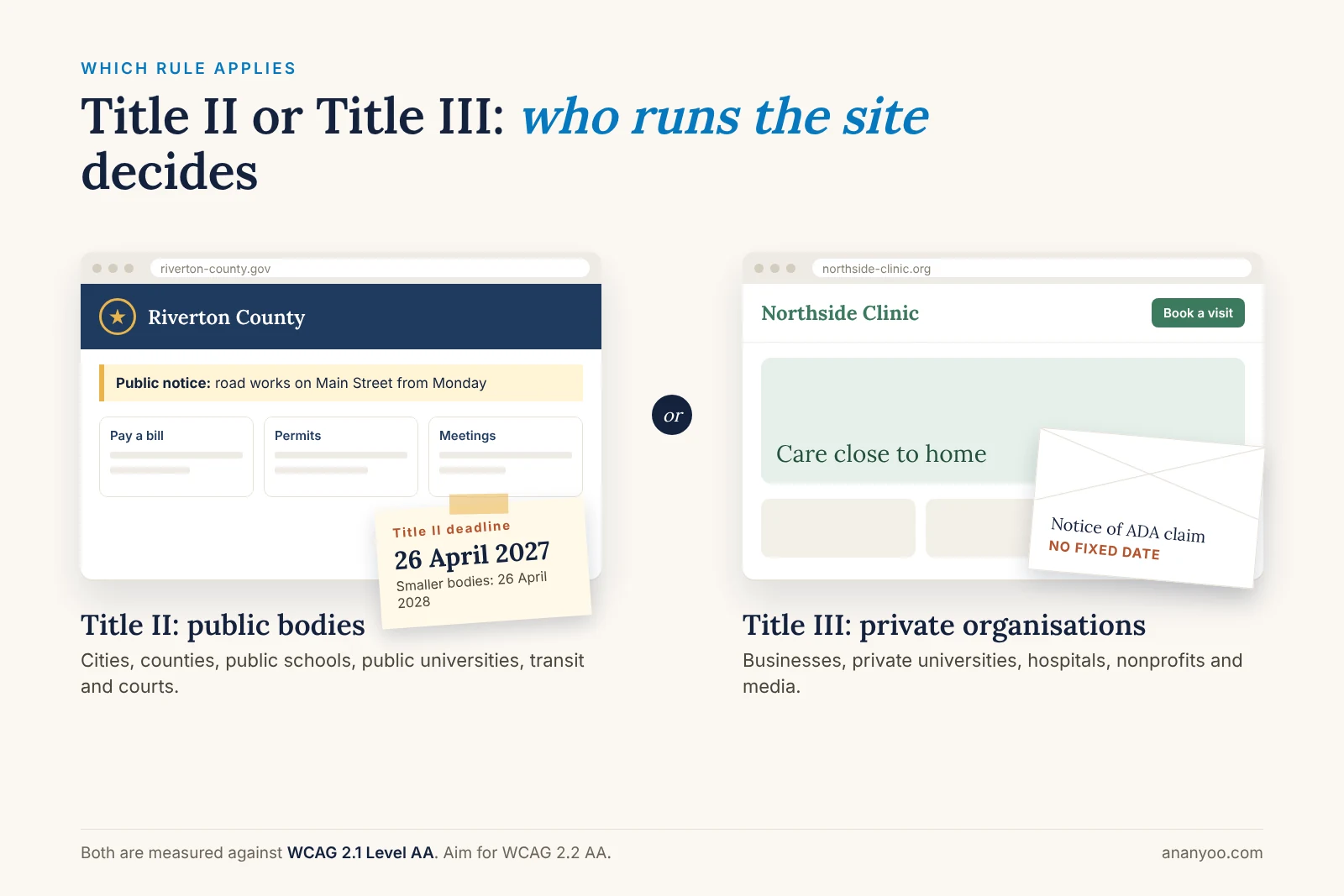
- ADA Title II, public bodies: state and local governments, public schools, public colleges and universities, transit authorities, courts and libraries. The Department of Justice rule names WCAG 2.1 Level AA as the technical standard.
- ADA Title III, private organisations: businesses, online stores, private universities, hospitals, nonprofits and media sites. There is no written web rule with dates, but courts and settlements consistently point to WCAG 2.1 or 2.2 Level AA.
In April 2026 the Department of Justice extended the Title II deadlines by one year. Public bodies serving 50,000 people or more now have until 26 April 2027, and smaller public bodies and special district governments have until 26 April 2028. The standard itself did not change. If you run a public site, our ADA Title II website compliance page explains our fixed-scope service for public bodies.
Is Drupal accessible out of the box?
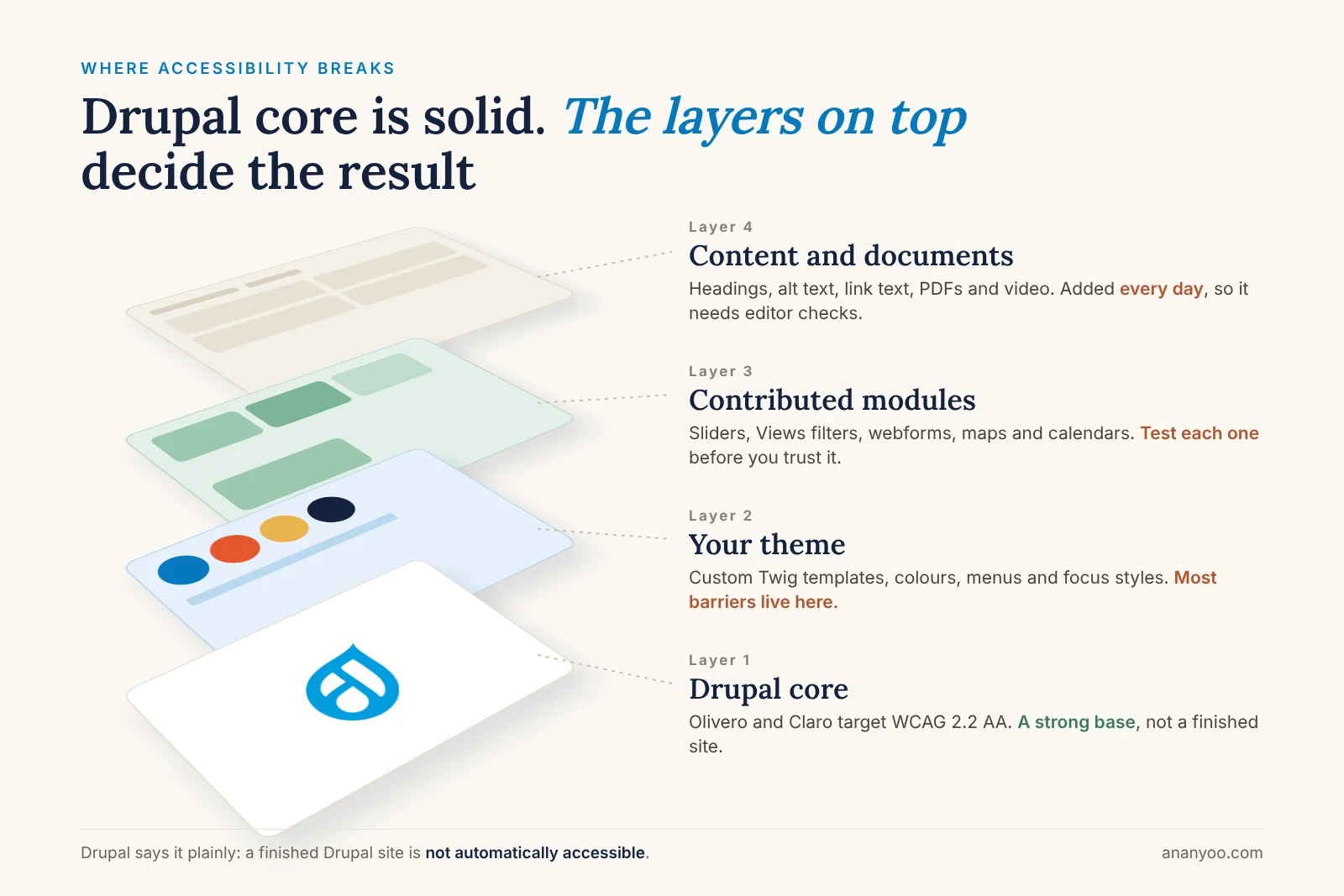
Drupal has a better accessibility record than most platforms. According to the Drupal accessibility statement, Drupal core targets WCAG 2.2 Level AA for both the public site and the admin screens, and the default Olivero front-end theme and Claro admin theme were built with accessibility as a priority.
The same page is honest about the limits: a finished Drupal site is not automatically accessible. Your custom theme, the contributed modules you install, and the content your editors publish every day all affect the result. In our audits, Drupal core is rarely the problem. The barriers sit in the layers on top of it.
One more point: Drupal 7 reached its end of life in January 2025. If your site still runs on Drupal 7, it no longer gets security fixes, and accessibility work on it is money spent on a platform you will soon have to replace. Plan the upgrade and the accessibility work together.
10 practical steps for Drupal ADA compliance
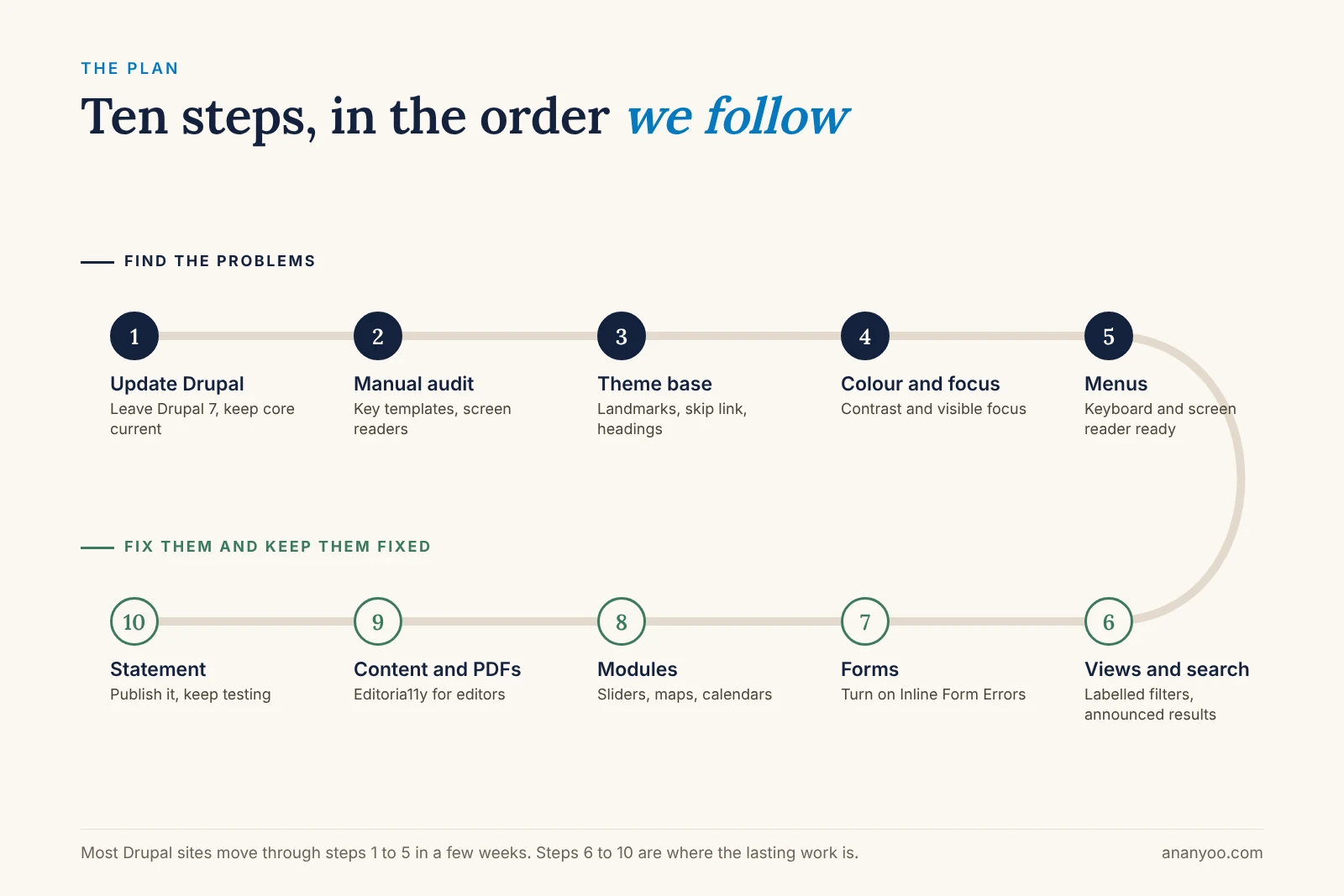
These are the steps we follow on real projects, in this order. The first five find and fix the problems that affect every page. The last five fix the features and content that sit on top, and keep the site compliant over time.
Step 1: Update Drupal core and modules
Move off Drupal 7, and keep Drupal 10 or 11 core and your contributed modules up to date. Accessibility fixes land in core and in popular modules regularly, so an outdated site misses improvements it could have for free. This is also the moment to remove modules you no longer use, because every module you keep is one more thing to test.
Step 2: Audit the site by hand
Pick one example of every template: home page, a basic page, each content type (news, events, services, staff profiles), each View (listings, search results, directories), each Webform, and the login and account pages. Test each one with a keyboard only, with NVDA or JAWS on Windows, with VoiceOver on Mac and iPhone, and at 400% zoom.
Automated scanners help, but they cannot tell you whether a resident can actually pay a bill or a student can find a course. List every finding against the template or module it comes from, not just the URL. That list becomes your Drupal ADA compliance plan.
Use automated tools such as axe DevTools, WAVE and Lighthouse alongside the manual checks. They are quick at finding missing alt text, empty links and contrast failures, and they help you see how widespread a problem is. Keep a simple spreadsheet with the WCAG success criterion, the template, the module and the priority for each issue, so your developers and content editors know exactly who fixes what.
Step 3: Fix the theme base
Start with the parts every page shares. Check that the site language is set correctly under Configuration > Regional and language, that each page has one h1, and that the header, navigation, main content and footer use proper landmarks. Drupal core includes a "Skip to main content" link in its html.html.twig template. Many custom themes override that template and lose it, so check it is still there:
{# templates/layout/html.html.twig #}
<a href="#main-content" class="visually-hidden focusable skip-link">
  {{ 'Skip to main content'|t }}
</a>
The link only works if the target exists, so make sure your page template still has <a id="main-content" tabindex="-1"></a> at the start of the main content area.
Step 4: Fix colour contrast and visible focus
Brand colours are the most common failure on public and university sites. Normal text needs a contrast ratio of at least 4.5:1, and large text, icons and form borders need 3:1. Keyboard users also need to see where they are, and many custom themes remove the focus outline. Add a clear, consistent focus style in your theme:
/* css/components/focus.css in your theme */
a:focus-visible,
button:focus-visible,
input:focus-visible,
select:focus-visible,
textarea:focus-visible,
summary:focus-visible {
  outline: 3px solid #0b5cad;
  outline-offset: 2px;
}
Step 5: Make menus work with a keyboard and screen reader
Olivero handles its own menus well, but many Drupal sites use a custom mega menu or a contributed menu module. Check that every sub-menu can be opened with Enter or Space, that the button tells a screen reader whether the menu is expanded, and that Escape closes it and returns focus. If a menu only opens on mouse hover, keyboard users can never reach the pages inside it.
Step 6: Fix Views, exposed filters and search
Views power most Drupal listings: news, events, staff directories and search results. Every exposed filter needs a visible label, which you set in the Views UI under the filter's "Label" field. Do not leave it empty just because the design looks cleaner without it.
When filters update the results with AJAX, a screen reader user gets no signal that anything changed. Drupal core has a small JavaScript API, Drupal.announce(), built for exactly this. Add it to your theme library and announce the result summary after each update:
# mytheme.libraries.yml
result-count:
  js:
    js/result-count.js: {}
  dependencies:
    - core/drupal
    - core/drupal.announce
// js/result-count.js
(function (Drupal, once) {
Drupal.behaviors.resultCount = {
attach(context) {
once('result-count', '.view-header', context).forEach((el) => {
Drupal.announce(el.textContent.trim());
});
}
};
})(Drupal, once);Add core/once to the dependencies if your theme does not load it already. The text in the View header, such as "24 events found", is then read aloud each time the results change.
Step 7: Fix forms and error messages
Contact forms, permit applications and event bookings are where people with disabilities most often get stuck. Every field needs a visible label, required fields must be marked in text, and errors must be clear and connected to their fields. Drupal core includes the Inline Form Errors module, which shows each error next to its field instead of only at the top of the page. It is not enabled by default, so switch it on:
drush pm:install inline_form_errorsIf you use the Webform module, also check that grouped fields like radio buttons sit inside a fieldset with a legend, and add autocomplete values to name, email, phone and address fields so browsers can fill them in.
Step 8: Test every contributed module you rely on
Contributed modules are the biggest unknown on most Drupal sites. Image sliders, accordions, calendars, maps, social feeds and cookie banners each add their own HTML and JavaScript. Test each one with a keyboard and a screen reader. Keep the ones that pass, check the module's issue queue for known accessibility fixes, and replace the ones that cannot be fixed. Sliders that move on their own need a visible pause button, or are better replaced with a single static banner.
Step 9: Fix content, links and PDFs
Most new barriers are added by editors, not developers: images without alt text, headings chosen for their size, vague link text and scanned PDFs. In Drupal 10 and 11, the CKEditor 5 image dialog asks for alt text, so make sure editors fill it in properly instead of marking every image as decorative.
A common template problem is a list of teasers that all end in "Read more". A screen reader user listing the links on the page hears "Read more, Read more, Read more" and has no idea where each one goes. The fix is one small change in the teaser template:
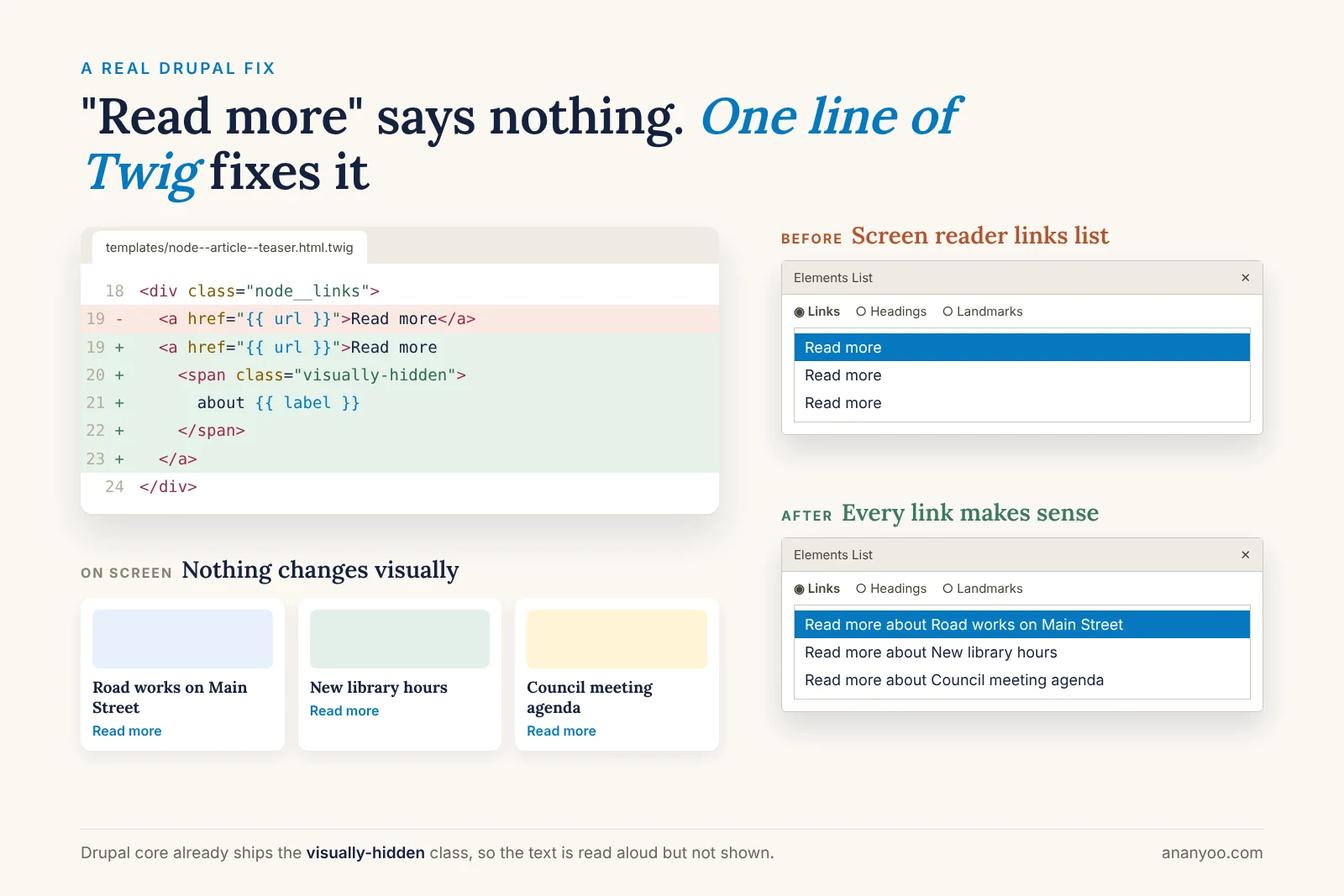
{# templates/content/node--article--teaser.html.twig #}
<a href="{{ url }}">
  Read more
  <span class="visually-hidden">about {{ label }}</span>
</a>
For ongoing checks, the Editoria11y module gives editors live accessibility feedback while they write, and it is included in Drupal CMS through its accessibility tools. For PDFs, publish the important information as a normal web page where you can, and make sure any PDF you keep is properly tagged. Our guide to document accessibility covers PDFs in more detail.
Step 10: Publish an accessibility statement and keep monitoring
Publish an accessibility statement that names your target standard, lists any known limits, and gives a working way to report a problem. For public bodies it shows good faith, and for private organisations it gives visitors a route to you before they go to a lawyer. We can help you write an accessibility statement that matches your real test results.
Drupal ADA compliance is not a one-time project. Re-test after core updates, new modules and theme changes, and train new editors when they join. Our monitoring and maintenance plans take care of this for you.
Common Drupal ADA compliance mistakes
- Assuming core covers everything: Drupal core is a strong base, but your theme, modules and content decide the result.
- Hiding filter labels: a placeholder inside the box is not a label, and it disappears as soon as someone types.
- Installing an overlay widget: a toolbar on top of the site does not fix the code underneath. We explain why in accessibility overlays: pros and cons explained.
- Trusting an automated score: a clean scan does not mean a person can complete a task.
- Forgetting PDFs and documents: on public sites, agendas, forms and reports are often the most important content.
Test your Drupal site in 15 minutes
You can find the biggest gaps yourself today. Put the mouse away and try this:
- Press Tab once on the home page. Does a "Skip to main content" link appear, and does it work?
- Open the main menu and reach a page inside a sub-menu using only the keyboard.
- On a listing page, use a filter and check whether you can tell the results changed.
- Submit a contact form with a required field empty. Is the error shown next to the field and read out?
- Turn on NVDA or VoiceOver and list the links on a news page. Do they make sense on their own?
If two or more of these fail, a full audit will find more. That is normal, and every one of these problems can be fixed in the theme, the configuration or the content.
How Ananyoo can help with Drupal ADA compliance
I am Shivaji Mitra, a DHS Trusted Tester, working in web development and accessibility since 2003, and our audit team is IAAP certified. For Drupal ADA compliance, we audit your site by hand against WCAG 2.1 and 2.2 AA, fix the theme, Views, forms and modules, and give you a clear report you can keep for your records or share with your legal team.
Read more about our website accessibility audit, accessibility remediation and VPAT and conformance reports, which many public buyers ask vendors for. Public bodies can start with our ADA Title II website compliance service. If you also run sites on other platforms, see our guides to WordPress and Magento ADA compliance. Send your site address through our contact page, and you will get a written reply within one working day.
Frequently asked questions
Is Drupal ADA compliant?
Drupal core targets WCAG 2.2 AA, which makes it a strong starting point. Drupal ADA compliance for a real site still depends on your theme, modules and content, so every site needs its own testing.
Does ADA Title II apply to my Drupal site?
Yes, if your organisation is a state or local government body, such as a city, county, public school or public university. Private organisations fall under Title III instead.
What are the ADA Title II deadlines?
After the April 2026 extension, public bodies serving 50,000 people or more must comply by 26 April 2027, and smaller bodies and special districts by 26 April 2028.
How long does Drupal ADA compliance take?
For a typical council, college or business site, a manual audit takes one to three weeks depending on the number of templates. Fixes in the theme and configuration usually follow over four to eight weeks, and content and PDF clean-up continues after that.
Can a Drupal 7 site be made ADA compliant?
It can be improved, but Drupal 7 reached end of life in January 2025 and gets no security fixes. It is better to combine the upgrade to Drupal 10 or 11 with the accessibility work.
