

Magento ADA compliance is not something a store gets by default, whether you call the platform Magento or by its newer name, Adobe Commerce. It is a powerful platform, and many large brands trust it with thousands of products and complex B2B pricing. But the platform does not make your store accessible. The theme, the extensions and the content decide that, and in most stores we audit, those three layers have never been tested with a screen reader.
I have been building and auditing websites since 2003, and Magento and Adobe Commerce stores are a regular part of our accessibility audit and remediation work. One example is our Asian Paints accessibility audit, and you can see more projects in our web accessibility case studies.
This guide is written for store owners and the developers who look after their stores. It explains what WCAG and the ADA expect, and then walks through 12 practical steps, with real code, to make a Magento or Adobe Commerce store usable for everyone.
On this pageJump to any part of this page9 sections
Magento and Adobe Commerce: what changed
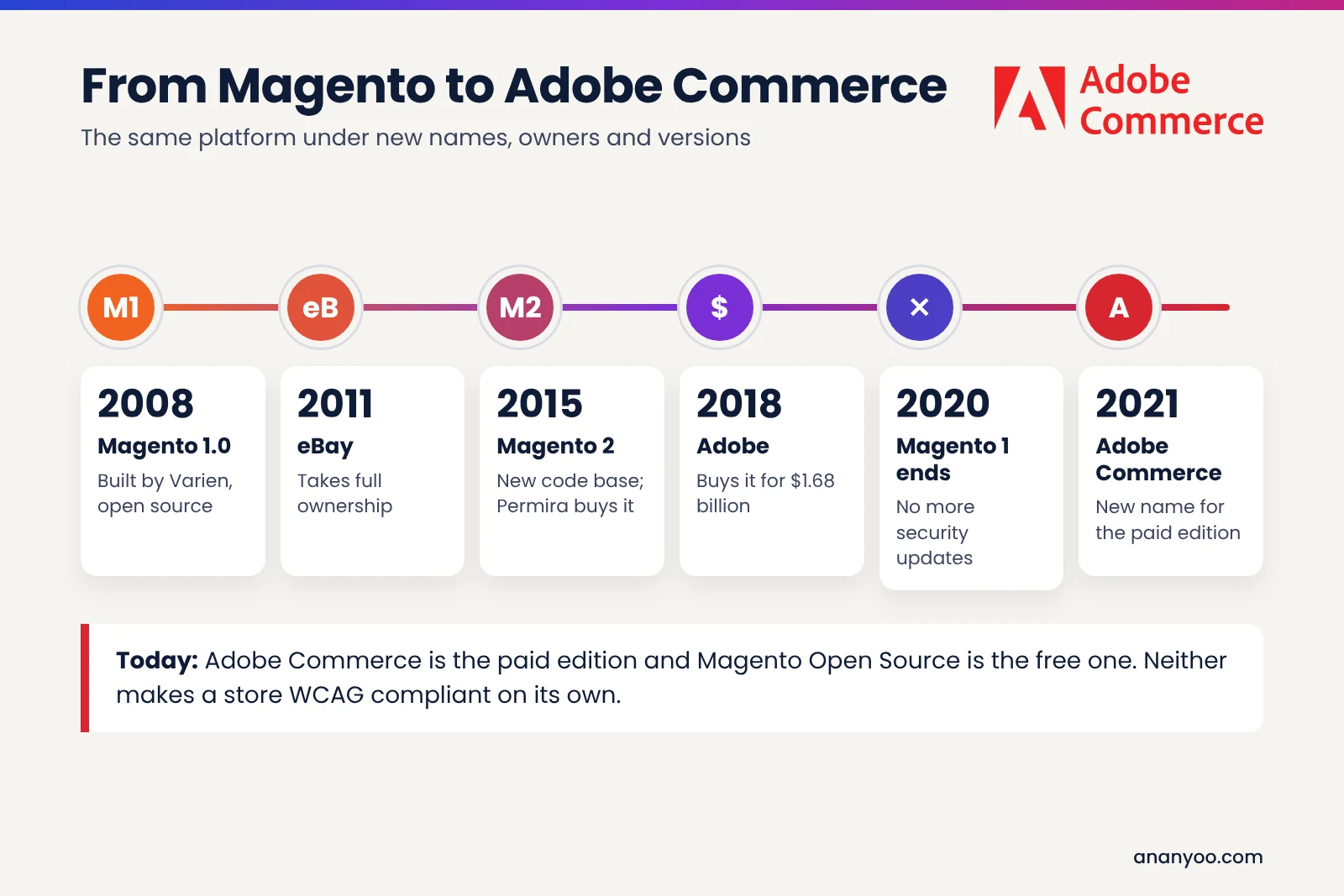
Most people still call the platform Magento, and many search for Magento ADA compliance rather than the new name, so a short history helps. Magento was built by Varien and released as open source in 2008. eBay took full ownership in 2011, and in 2015 it was sold to the private equity firm Permira, the same year Magento 2 arrived with a new code base. In June 2018 Adobe completed its purchase of Magento for $1.68 billion.
In April 2021 Adobe renamed the paid edition Magento Commerce to Adobe Commerce. The free edition continues as Magento Open Source. Magento 1 reached its end of life in June 2020, so any store still running it gets no security fixes at all. Everything in this guide applies to both Adobe Commerce and Magento Open Source on version 2.4.
You will notice that the code examples below still contain the word Magento in folder and module names, such as Magento_Catalog. Adobe kept those internal names, so we show them exactly as they appear in your code.
Why Magento ADA compliance matters
Online stores are the main target of ADA website claims in the United States. In the first half of 2026, UsableNet reported that around 79% of digital accessibility lawsuits were filed against ecommerce companies. A product that a blind shopper cannot add to the cart is the easiest barrier a plaintiff can prove.
Magento stores carry extra risk for three reasons. They usually have large catalogues, so one broken template repeats on thousands of pages. They often serve B2B buyers, including government and education buyers who must buy accessible products. And they are heavily customised, with many extensions from different vendors, so nobody owns the full shopper journey. If a demand letter has already arrived, read our guide on what to do after an ADA demand letter first.
WCAG and ADA in simple words
The ADA is the law. It says businesses that serve the public must not exclude people with disabilities, and US courts treat online stores as part of that. The law itself has no technical checklist, so courts and settlements point to the Web Content Accessibility Guidelines, WCAG, published by the W3C.
In practice, Magento ADA compliance means meeting WCAG 2.2 Level AA. That covers things like text alternatives for images, keyboard access to every control, enough colour contrast, clear form labels and error messages, and content that still works when zoomed to 400%. Our WCAG checklist lists every point in plain English.
12 practical steps to make your Magento store compliant
The steps follow the order we use on real Magento ADA compliance projects. Do them in this order, because the early steps make every later step faster.
Step 1: Audit the store by hand
Start with a manual audit of your key templates: home page, category page, search results, product page (simple and configurable), cart, mini cart, checkout, customer account and the main CMS pages. Test each one with a keyboard only, then with NVDA or JAWS on Windows and VoiceOver on Mac and iPhone. Automated scanners are useful, but they find only part of the problems, and they cannot tell you whether a shopper can actually finish a purchase.
Because Adobe Commerce builds pages from templates, list every finding against the template it comes from, not against a single URL. That list becomes your Magento ADA compliance plan.
Step 2: Fix the theme base in a child theme
Never change core files or the Luma theme directly, because every upgrade will overwrite your fixes. Create a child theme that inherits from Luma (or from your current theme) and put every accessibility fix there.
<!-- app/design/frontend/Ananyoo/accessible/theme.xml -->
<theme xmlns:xsi="http://www.w3.org/2001/XMLSchema-instance"
       xsi:noNamespaceSchemaLocation="urn:magento:framework:Config/etc/theme.xsd">
    <title>Accessible Store</title>
    <parent>Magento/luma</parent>
</theme>
While you are here, check two basics. The page language comes from Stores > Configuration > General > Locale Options, so make sure it matches your content, because screen readers use it to choose the right voice. And give every product, category and CMS page a clear, unique meta title, because the page title is the first thing a screen reader announces. If your store runs on the Hyvä theme, the same rules apply, but the files are different: Hyvä uses Tailwind and Alpine.js in place of LESS, RequireJS and Knockout.
Step 3: Fix headings and page structure
Screen reader users jump through a page by headings, so the heading order must make sense. Each page needs one h1, normally the product or category name, and sections below it should use h2 and h3 in order. On Adobe Commerce stores we often find block titles written as styled div or strong elements, and CMS content pasted with several h1 headings.
<!-- Before: looks like a heading, but is not one -->
<div class="block-title"><strong>New Arrivals</strong></div>

<!-- After: a real heading, same look through CSS -->
<h2 class="block-title">New Arrivals</h2>
Also check the landmarks: one header, one nav for the main menu, one main, and a footer. Luma includes a "Skip to Content" link at the top of the page, so test that it is still there in your theme and that it moves focus to the main content.
Step 4: Fix colour contrast and visible focus
Brand colours are the most common contrast failure. Normal text needs a contrast ratio of at least 4.5:1, and large text, icons and input borders need 3:1. Light grey prices, pale placeholder text and white text on sale badges fail on many stores.
Keyboard users also need to see where they are. Many themes remove the focus outline because a designer did not like it. Add a strong, consistent focus style in your child theme:
// app/design/frontend/Ananyoo/accessible/web/css/source/_extend.less
a:focus-visible,
button:focus-visible,
input:focus-visible,
select:focus-visible,
textarea:focus-visible,
[tabindex]:focus-visible {
    outline: 3px solid #1a5fb4;
    outline-offset: 2px;
    box-shadow: none;
}
Step 5: Make the mega menu work with a keyboard
Large catalogues need large menus, and on many stores the sub-menus open only on mouse hover. A keyboard user can tab through the top items but never reach the categories inside. Each top item with a sub-menu needs a real button that opens it, tells the screen reader whether it is open, and closes with the Escape key.
<li class="level0 parent">
  <a href="/women.html">Women</a>
  <button type="button" class="submenu-toggle"
          aria-expanded="false" aria-controls="submenu-women">
    <span class="visually-hidden">Show Women sub-menu</span>
  </button>
  <ul id="submenu-women" class="submenu" hidden>
    <li><a href="/women/tops.html">Tops</a></li>
  </ul>
</li>
document.querySelectorAll('.submenu-toggle').forEach(function (btn) {
var menu = document.getElementById(btn.getAttribute('aria-controls'));
function setOpen(open) {
btn.setAttribute('aria-expanded', String(open));
menu.hidden = !open;
}
btn.addEventListener('click', function () {
setOpen(btn.getAttribute('aria-expanded') !== 'true');
});
menu.parentElement.addEventListener('keydown', function (e) {
if (e.key === 'Escape') { setOpen(false); btn.focus(); }
});
});The visually-hidden class can be built with the .lib-visually-hidden() mixin from the Adobe Commerce UI library, so the text is read by screen readers but not shown on screen.
Step 6: Fix layered navigation and search
Layered navigation is where large stores lose blind shoppers. When a shopper ticks a filter, the product list changes, but nothing tells a screen reader user that anything happened. If your filters update the list without a page reload, which most filter extensions do, put the result count in a status region so it is announced:
<?php // Magento_Catalog/templates/product/list/toolbar/amount.phtml (simplified) ?>
<p class="toolbar-amount" id="toolbar-amount"
   role="status" aria-live="polite">
    <?= $escaper->escapeHtml(__('%1 products found', $block->getTotalNum())) ?>
</p>
If your filters reload the whole page, make the active filters part of the page title, for example "Shirts, Size M", and list them in a "Now shopping by" section near the top with clear "Remove" buttons. Check the search box too: it needs a visible label, and the autocomplete suggestions must be reachable with the arrow keys and announced.
Step 7: Fix product images, galleries and video
Every product image needs alt text that describes what matters to a buyer, such as colour, pattern or the view shown. In the admin you can add it per image under Catalog > Products > Images And Videos, in the "Alt Text" field, and the templates output it automatically. For large catalogues, add alt text through your product import file rather than one by one.
The default product gallery needs testing too. Check that the thumbnails and the full-screen view work with a keyboard, that focus does not get lost when the full-screen view closes, and that product videos have captions and do not autoplay with sound.
Step 8: Fix configurable options and swatches
Swatches are one of the biggest Magento ADA compliance gaps we find. Colour and size swatches are often just coloured boxes in the code. A screen reader user cannot tell which colour is which, which one is selected, or which sizes are sold out. Each swatch needs a name, a selected state and an unavailable state that is spoken, not only shown by colour or a crossed line.
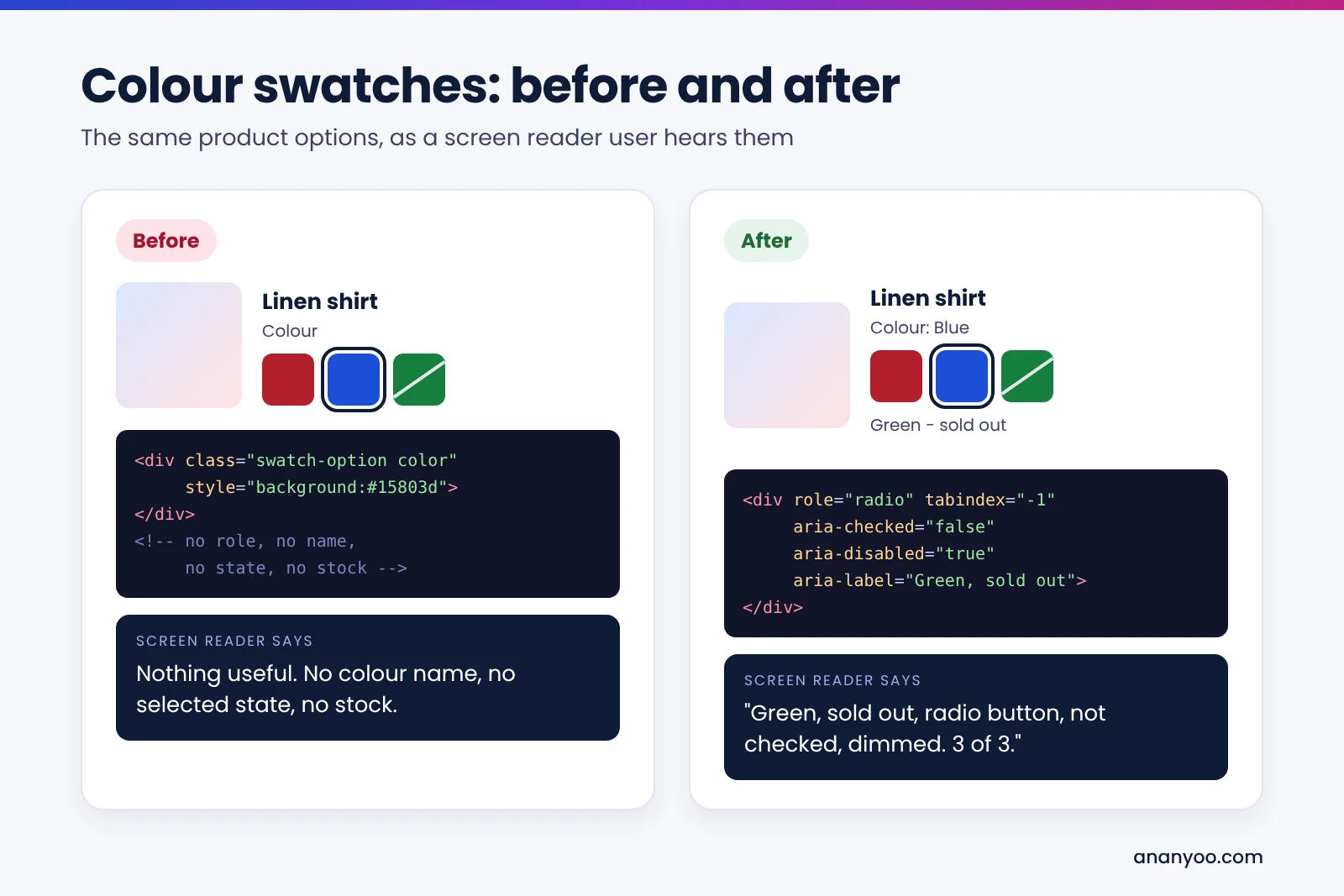
Image description
Colour swatches before and after: before, the swatch is a plain div with no role, name, state or stock, so a screen reader says nothing useful; after, it has role radio, aria-checked, aria-disabled and aria-label Green, sold out, so the screen reader says Green, sold out, radio button, not checked, dimmed.
The cleanest way to add the missing parts without touching core files is a JavaScript mixin for the swatch renderer:
// app/design/frontend/Ananyoo/accessible/requirejs-config.js
var config = {
    config: {
        mixins: {
            'Magento_Swatches/js/swatch-renderer': {
                'js/swatch-renderer-a11y-mixin': true
            }
        }
    }
};
// app/design/frontend/Ananyoo/accessible/web/js/swatch-renderer-a11y-mixin.js
define(['jquery'], function ($) {
'use strict';
return function (widget) {
$.widget('mage.SwatchRenderer', widget, {
_Rebuild: function () {
this._super();
this.element.find('.swatch-option').each(function () {
var opt = $(this),
name = opt.attr('data-option-label') || '';
if (opt.hasClass('disabled')) {
opt.attr({'aria-disabled': 'true',
'aria-label': name + ', sold out'});
} else {
opt.removeAttr('aria-disabled')
.attr('aria-label', name);
}
});
}
});
return $.mage.SwatchRenderer;
};
});Recent 2.4 releases already add some roles to swatches, so first check what your version outputs, then add only what is missing. Also show the selected value as text next to the label, for example "Colour: Blue", which helps everyone, not only screen reader users.
Step 9: Fix the mini cart and "Add to cart" messages
When a shopper presses "Add to Cart", the mini cart number changes and a message appears at the top of the page. A sighted shopper sees it at once. A screen reader user often hears nothing and presses the button again. Adobe Commerce fires an ajax:addToCart event after a successful add, so you can announce it in a status region:
require(['jquery'], function ($) {
    var live = $('<div class="visually-hidden" role="status" aria-live="polite"></div>')
        .appendTo('body');

    $(document).on('ajax:addToCart', function () {
        live.text('');
        setTimeout(function () {
            live.text('Product added to your cart.');
        }, 100);
    });
});
Then test the mini cart itself. It should open with a keyboard, move focus into the panel, close with Escape, and return focus to the cart button. The quantity fields and "Remove" buttons inside it need clear names that include the product, such as "Remove Linen shirt".
Step 10: Fix the checkout, forms and error messages
The checkout is built with Knockout templates, and it is where a lost sale hurts the most. Every field needs a visible label tied to it, required fields must be marked in text, and each error message must be linked to its field so a screen reader reads it when the shopper lands there. Add autocomplete values so browsers can fill in names and addresses, which WCAG also asks for.
<label for="shipping-postcode">
  Zip/Postal Code <span aria-hidden="true">*</span>
</label>
<input id="shipping-postcode" name="postcode" type="text"
       autocomplete="postal-code"
       aria-required="true" aria-invalid="true"
       aria-describedby="shipping-postcode-error">
<div id="shipping-postcode-error" class="field-error">
  Enter a valid zip code, for example 10001.
</div>
Test the full flow with a keyboard: shipping address, address suggestions, shipping methods, payment method, coupon code, "Place Order" and the success page. Watch carefully for loading spinners that leave focus nowhere, and for payment forms inside iframes from third-party providers.
Step 11: Review extensions, Page Builder content and popups
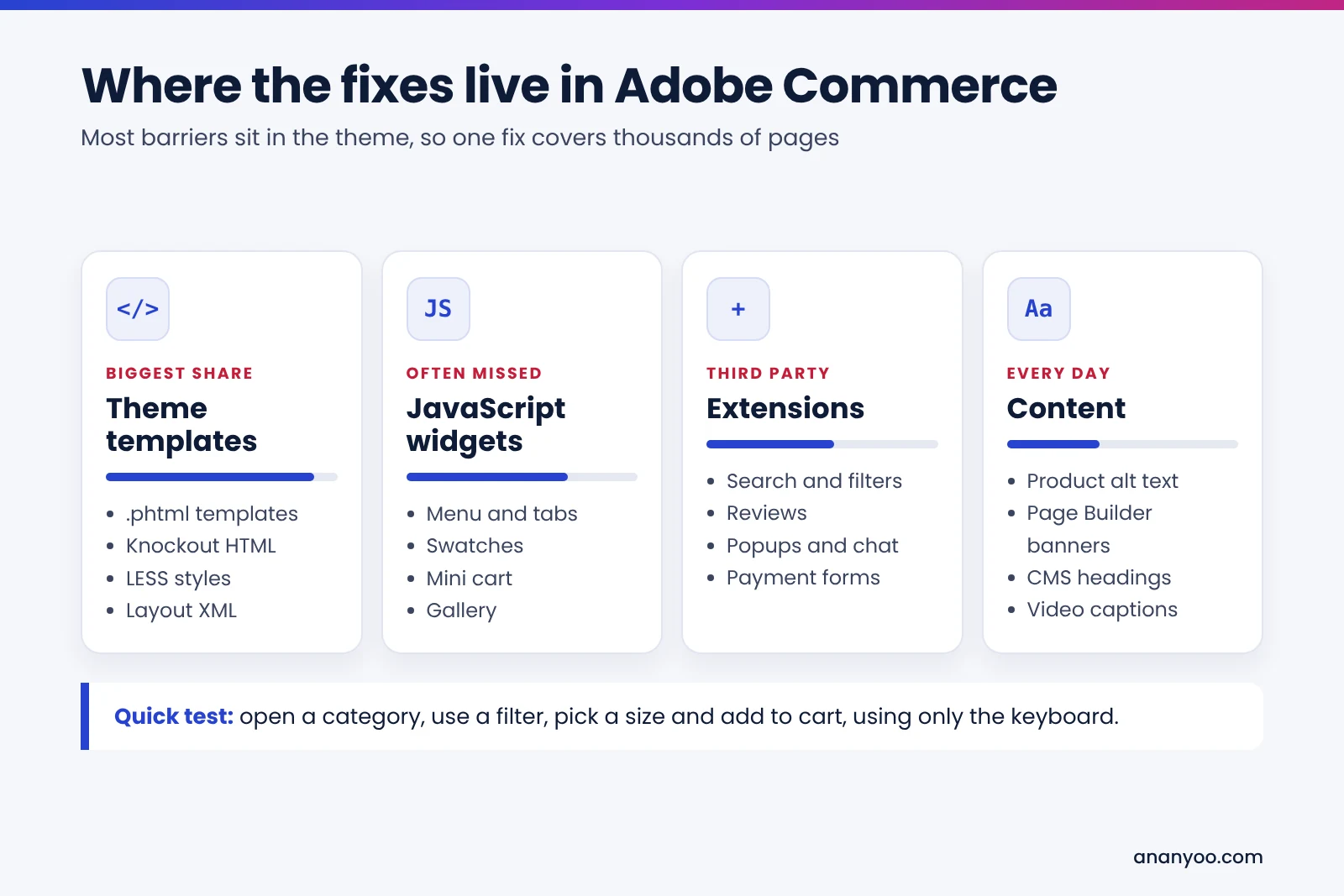
Most Adobe Commerce stores run dozens of extensions, and each one adds its own HTML and JavaScript. Review sliders, review widgets, live chat, newsletter popups, cookie banners, store locators and "quick view" windows one by one. Keep the ones that pass keyboard and screen reader testing, ask the vendor to fix the rest, or replace them.
Page Builder makes it easy for marketing teams to add banners and sliders. Sliders that move on their own need a visible pause button, and banners with the offer written inside the image hide the message from screen readers. Use real text over images, and give every Page Builder image a meaningful alt text. Extensions are the most common reason Magento ADA compliance work stalls, so start this review early.
Step 12: Publish an accessibility statement and keep monitoring
Publish an accessibility statement that explains your target standard, the known limits, and a working email or phone number for help. It shows good faith and gives shoppers a way to reach you before they reach a lawyer. We can help you write an accessibility statement that matches your real test results.
Magento ADA compliance is not a one-time project. Re-test after every theme update, every new extension and every big sale campaign, and train the team that adds products and banners every day. Our monitoring and maintenance plans cover this for you.
What we learned from auditing Magento stores
Our Asian Paints accessibility audit is a good example of how wide a large store can be. Asian Paints is India's largest paints and home décor company, and its Adobe Commerce site covers colour catalogues, a room visualiser, product ranges, a store locator and painting service booking. We tested it against WCAG 2.1 AA with JAWS, NVDA, VoiceOver and TalkBack, using only a keyboard, and at 400% zoom.
A few lessons come up again and again on Magento and Adobe Commerce ADA compliance projects:
- Colour shown only in pictures: shade and colour names must be in text, not only inside an image or swatch.
- Interactive tools built for a mouse: visualisers, quick views and configurators need keyboard support and text alternatives.
- Forms without labels: booking, enquiry and checkout forms need real labels and errors that are announced.
- Fixes belong in the theme: one template fix covers thousands of product pages, which keeps the cost under control.
- Verify with real assistive technology: every fix should be confirmed with a screen reader, not assumed from an automated pass.
Common Magento ADA compliance mistakes
- Installing an overlay widget: a toolbar on top of the store does not fix the code underneath. We explain why in accessibility overlays: pros and cons explained.
- Trusting an automated score: a clean scan does not mean a shopper can finish a purchase.
- Editing core files: fixes made in vendor folders disappear at the next upgrade.
- Fixing one URL at a time: always fix the template, not the single page.
- Forgetting extensions: the checkout payment form or review widget is often the part that fails.
Test your store in 15 minutes
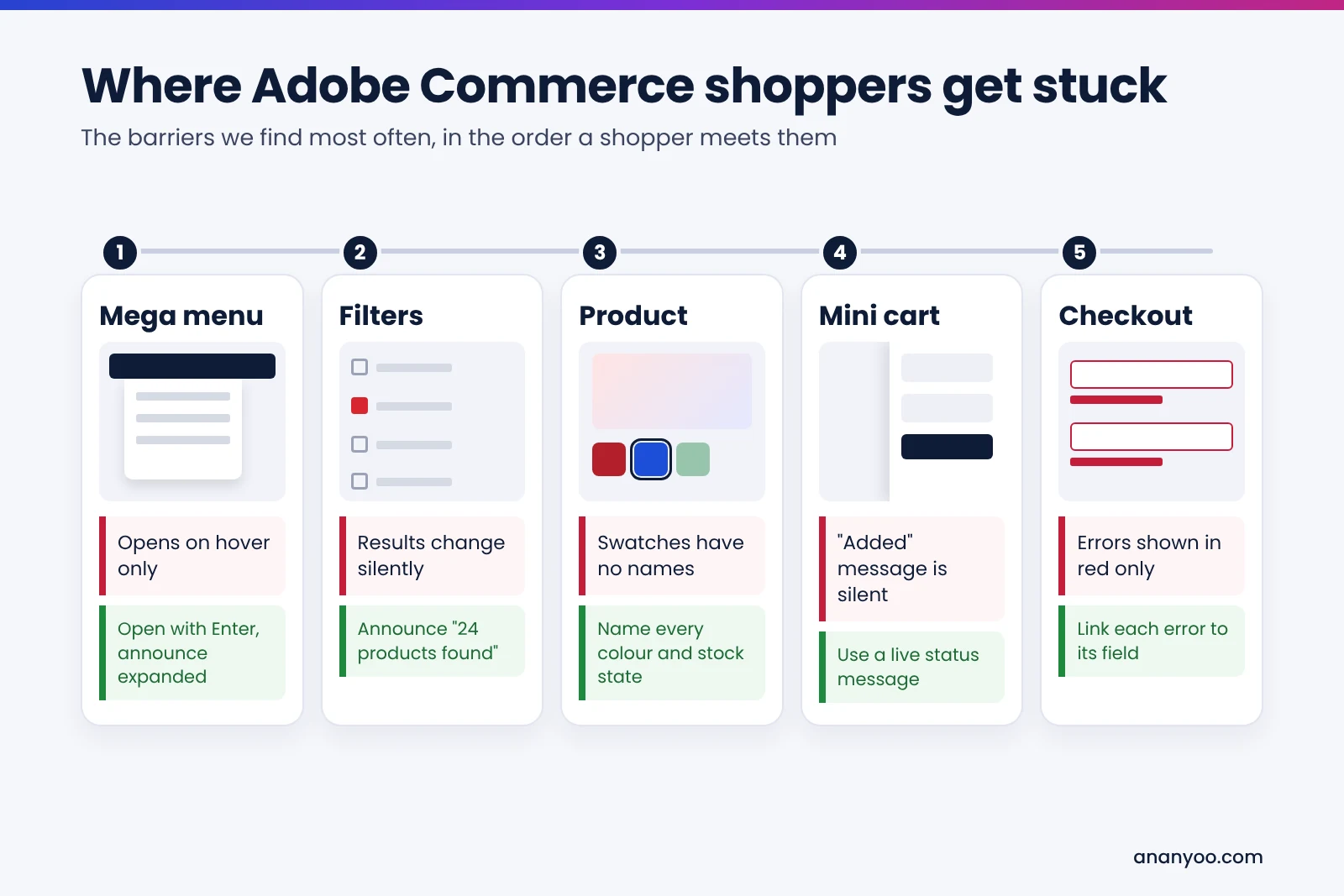
You can find the biggest Magento ADA compliance gaps yourself today. Put the mouse away and try this:
- Open the main menu and reach a sub-category using only Tab, Enter, Space, Escape and the arrow keys.
- On a category page, apply one filter and check that you can tell the product list changed.
- On a configurable product, choose a colour and size, and add it to the cart without a mouse.
- Turn on NVDA or VoiceOver and listen to your best-selling product page from the top.
- In the checkout, leave a required field empty, submit, and check whether the error is read out.
If two or more of these fail, a full audit will find more. That is normal for Magento stores, and every one of these problems can be fixed in the theme.
How Ananyoo can help with Magento ADA compliance
I am Shivaji Mitra, a DHS Trusted Tester, working in web development and accessibility since 2003, and our audit team is IAAP certified. For Magento and Adobe Commerce ADA compliance, we audit your store by hand, fix the theme, extensions and content in a child theme so upgrades stay safe, and give you a clear report and accessibility statement you can keep for your records.
Read more about our website accessibility audit, accessibility remediation and VPAT and conformance reports, which many B2B buyers ask for. If you also run stores on other platforms, see our guides to Shopify, WooCommerce and BigCommerce ADA compliance. Send your store address through our contact page, and you will get a written reply within one working day.
Frequently asked questions
Is Magento ADA compliant out of the box?
No. Magento ADA compliance does not come out of the box, on Magento Open Source or Adobe Commerce. The platform gives you a reasonable base, but your theme, extensions and content decide whether shoppers with disabilities can use the store.
Is Magento Open Source different from Adobe Commerce for accessibility?
Not really. Both share the same storefront code, so the same 12 steps apply. Adobe Commerce adds features such as B2B tools, which also need testing.
Does the Hyvä theme solve accessibility?
A modern theme can be a better starting point, but no theme removes the need to test your own templates, extensions and content.
How long does Magento ADA compliance take?
For most stores, a proper audit and fix takes a few weeks, depending on the number of templates, extensions and custom features.
